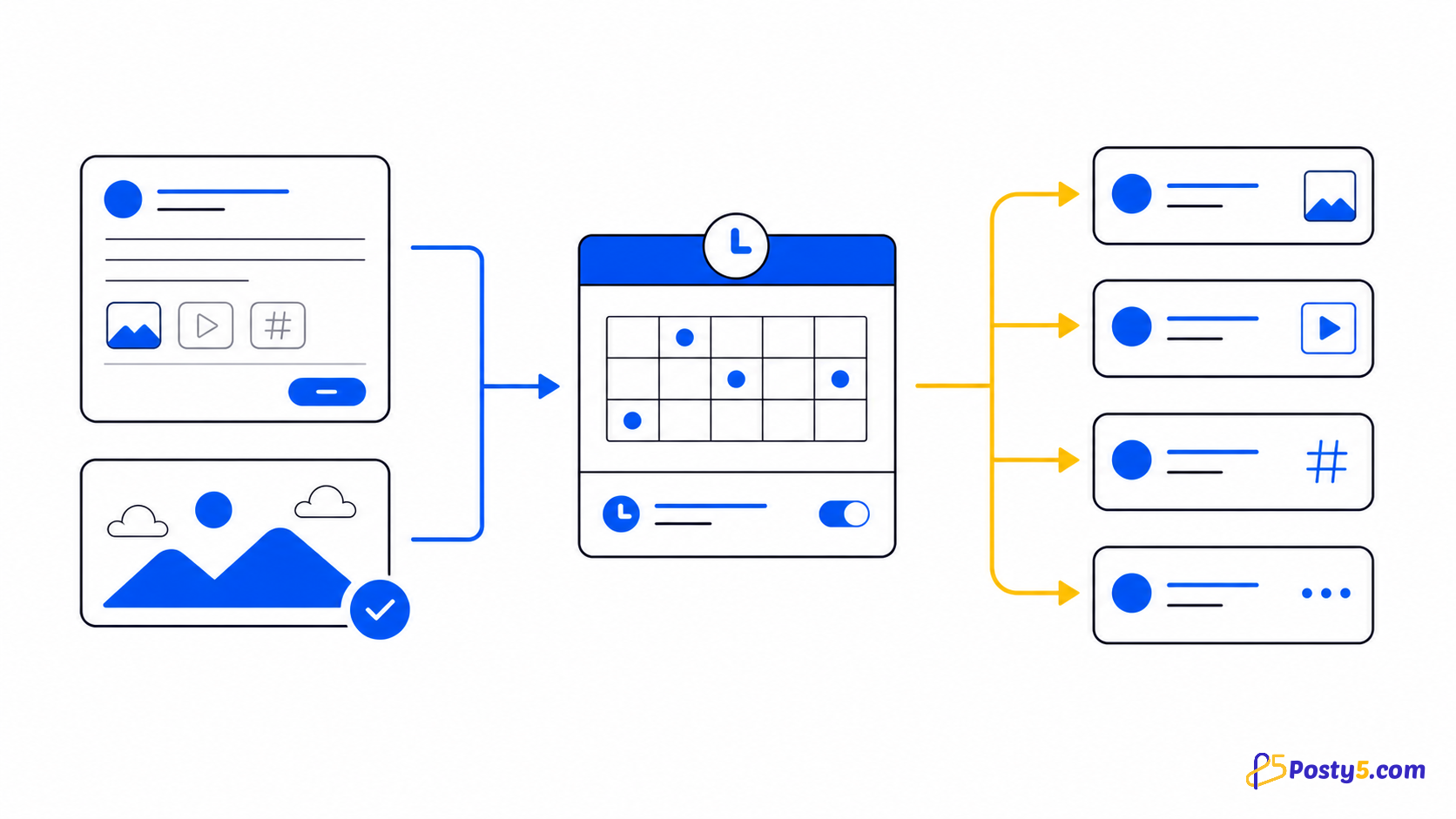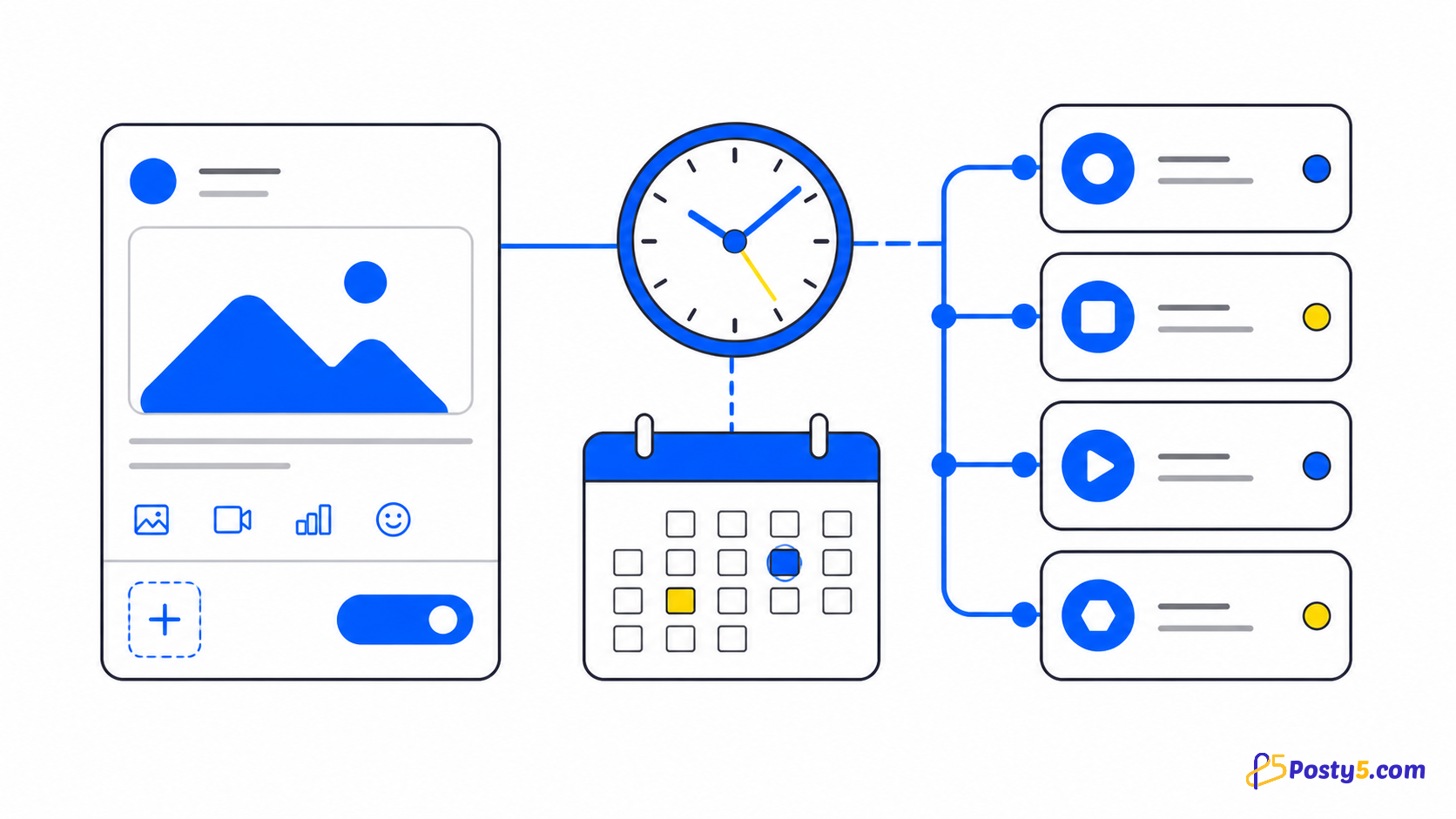
Threads rewards a steady rhythm, and a steady rhythm is hard to keep when every post has to be written and sent from the app at the moment it should appear. With Posty5's Social Media Publisher you write the post when you have time and schedule it for later; scheduling is available on the Pro plan or higher, while publishing to Threads straight away works on every plan. The Social Media Publisher guide covers the whole tool.
Threads itself is not tied to a plan. Image posts, carousels and automatic follow-up replies are available on the Pro plan or higher, and the pricing page shows what each plan includes. This guide covers connecting Threads, what a Threads post can carry, its reply and topic settings, the steps to schedule one, and what the status page tells you afterwards.
Connect Threads with its own login
Posty5 connects Threads through Threads' own sign-in. In Social Media Publisher, open the accounts page, choose Threads, sign in on the Threads screen and approve the access; the account then appears in your list. The Threads integration page explains what Posty5 accesses on your account and why.
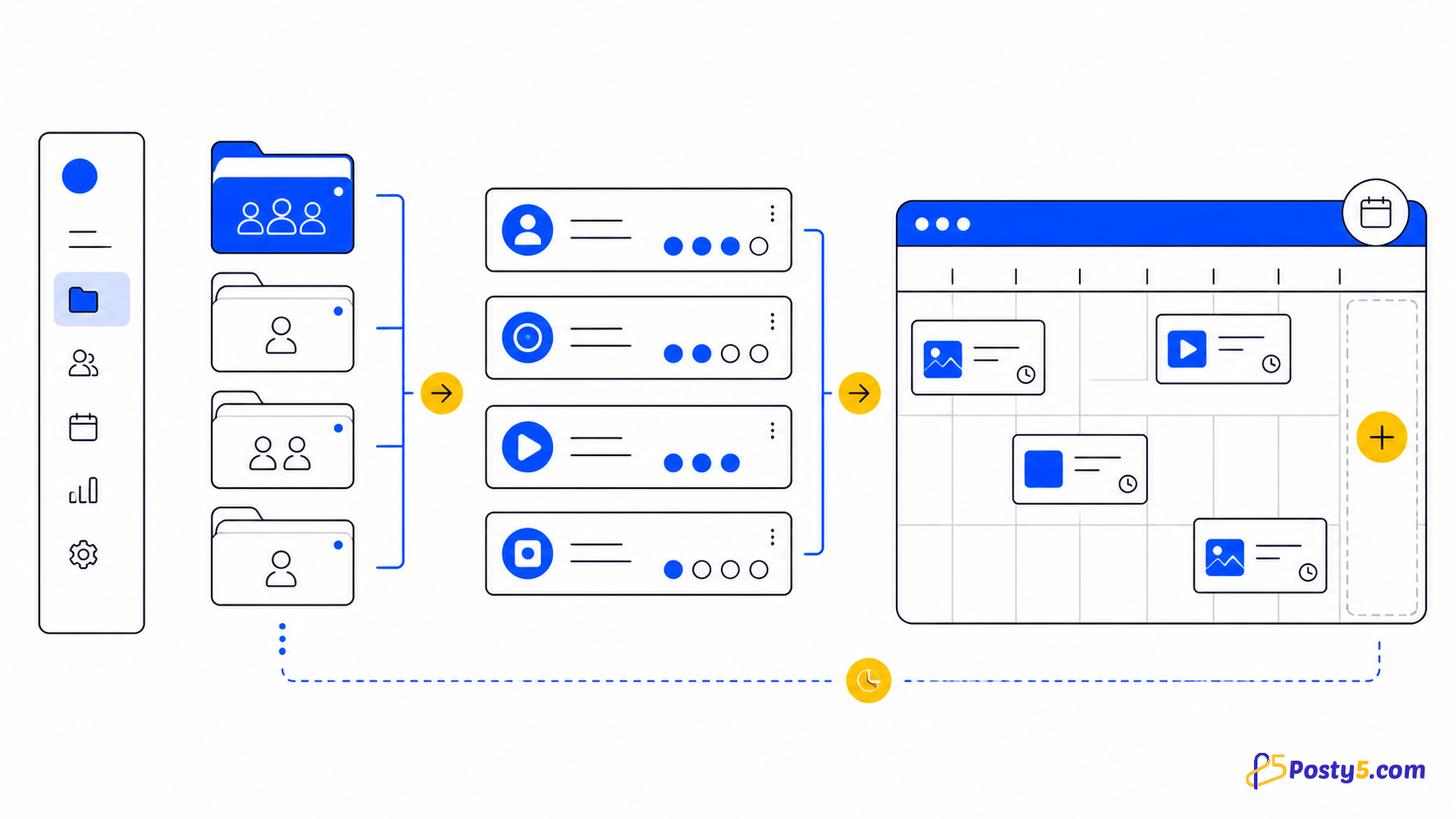
Once it is connected, add the Threads account to a workspace. A workspace groups accounts so one post can go to Threads and your other platforms together, each with its own settings.
What a Threads post can carry
Threads takes four kinds of post from Posty5. The limits below are Threads' own:
| Post type | What Threads accepts | Plan |
|---|---|---|
| Text | Up to 500 characters | Every plan |
| Image | One image with a caption | Pro plan or higher |
| Carousel | 2 to 10 images in one post | Pro plan or higher |
| Video | One video of up to 5 minutes | Short video on every plan; long video on the Pro plan or higher |
When one caption is written for several platforms, the composer fills an empty Threads text block from it, cuts it at a word so it fits within 500 characters, and tells you what it shortened. Write a separate Threads version when the cut would lose the point. Text-only posts can go to Facebook Pages and X in the same post; the guide to text posts covers that.
Who can reply, the topic tag and follow-up replies
Every Threads post has a reply setting, and Posty5 offers the five choices Threads has: Everyone, Accounts you follow, Your followers, Only accounts you mention, and Only you. A narrow setting suits an announcement you do not want turned into a discussion, or a post meant only for people you already talk to.
A post can also carry one topic tag of up to 50 characters, which files it under that topic on Threads. If you add hashtags from a saved hashtag group, the first one becomes the Threads topic tag.
Replies can be planned too. A follow-up comment is published as a reply under your own post once the post is live, which is a natural place for a link, a source or the second half of a thought. Automatic follow-up comments are available on the Pro plan or higher.
Schedule a Threads post step by step
- Sign in to Posty5, open Social Media Publisher and connect your Threads account if it is not listed yet.
- Start a new post from the workspace or account that holds Threads, and choose the type: text, image (one or several for a carousel) or video.
- Write the caption, or check the Threads text block if the caption is shared with other platforms, and keep it within 500 characters.
- In the Threads settings, choose who can reply and, if you want one, a topic tag. Add a follow-up comment if the post needs it.
- Choose to publish now, or pick a date and time. The picker accepts a time from 5 minutes ahead, in the time zone on your Posty5 profile; on the Free and Starter plans it shows a Pro badge and stays locked.
- Create the post, then open its status page to follow the Threads result.
A post scheduled before a plan change keeps its date. For changing a time and the rest of the scheduling workflow, see the guide to scheduling social media posts.
Plan your next Threads post
Open Social Media Publisher, connect Threads and write the post; publish it now or pick a time for it to go out.
After it publishes: statuses, limits and engagement
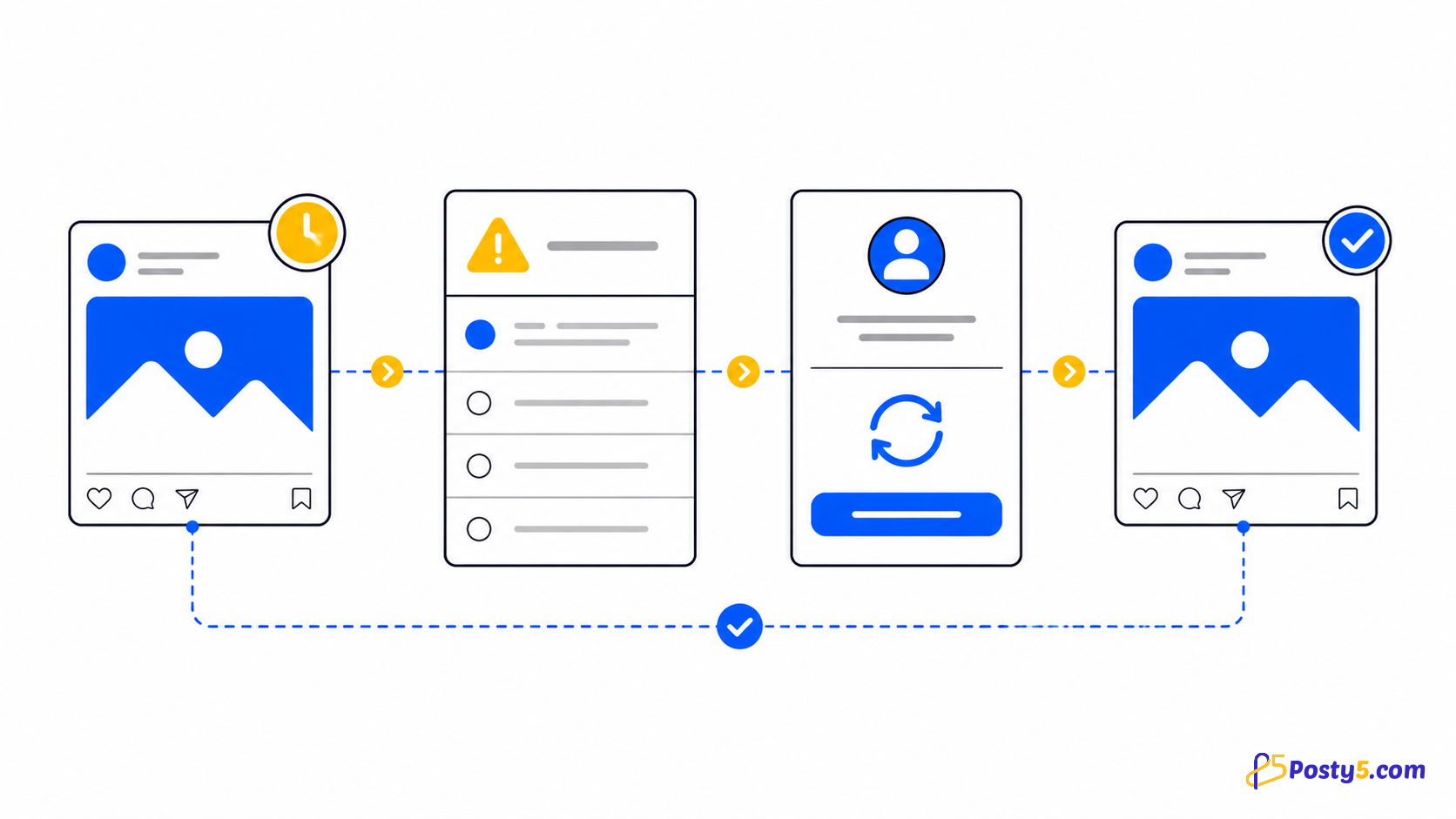
Every platform in a post has its own status, so Threads can be done while another platform is still processing. Threads prepares an image or video in what it calls a media container before publishing it. If that container ends in an error or expires, Posty5 shows the Threads target as a platform error rather than a success, and a failed target can be retried once the file is fixed.
Threads also caps publishing at 250 posts in 24 hours for an account. That limit is Threads', not Posty5's, so plan a very busy day around it.
Once a Threads post is published, its status page shows the engagement Threads reports for it: views, likes, replies, reposts, quotes and shares. Engagement numbers exist for Threads and X posts only, and Posty5 has no cross-platform analytics report; nor does it suggest a best time to post or repeat posts on a schedule. The guide to posts that do not publish explains every status.
Posting to Threads and X together
Threads and X both suit short text, so one announcement often goes to both. Select both accounts in one post and each gets its own text block and reply setting: 500 characters for Threads, 280 weighted characters for X. Publishing to X is available on the Pro plan or higher; the guide to scheduling posts on X covers its polls, quoted posts and limits.
Frequently asked questions
Can you schedule Threads posts?
Yes. In Posty5's Social Media Publisher you write the post, pick a date and time at least 5 minutes ahead, and it publishes to Threads then. Scheduling is available on the Pro plan or higher; publishing to Threads now works on every plan.
How do I connect Threads to Posty5?
Open the accounts page in Social Media Publisher, choose Threads and sign in with Threads' own login. The account then appears in your list and can be added to a workspace.
How long can a Threads post be?
Text can be up to 500 characters. A post can also carry one image, a carousel of 2 to 10 images, or a video of up to 5 minutes.
Can I choose who replies to a scheduled Threads post?
Yes. Choose Everyone, Accounts you follow, Your followers, Only accounts you mention, or Only you. The setting is saved with the post and applied when it publishes.
Is there a limit on how many Threads posts I can publish?
Threads allows 250 posts in 24 hours for an account. That is Threads' limit, so a very busy day of scheduled posts should stay under it.
Can I see how a Threads post performed?
Yes. A published Threads post's status page shows the views, likes, replies, reposts, quotes and shares that Threads reports for it.