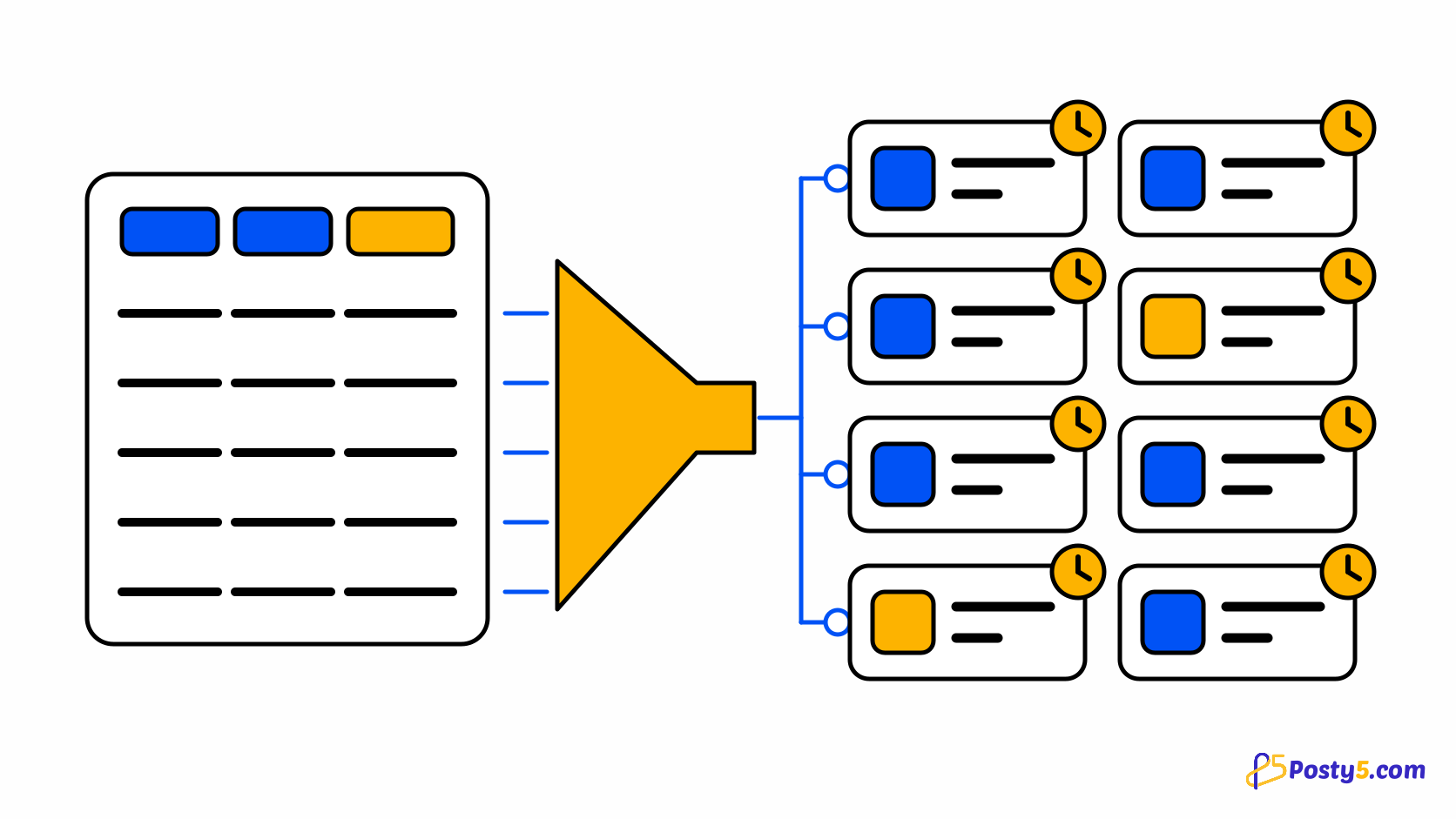
Scheduling a month of posts one at a time means opening the same form thirty times, picking thirty dates and hoping none was skipped. Batch scheduling moves that work into a spreadsheet: you write every post as a row, check the whole plan in one place and hand it over in a single upload.
Posty5's Social Media Publisher does this with bulk scheduling from a CSV file, which is available on the Pro plan or higher (see what the plans include). One file creates up to 50 scheduled posts for a workspace or a single account. For how the publisher works as a whole, start with the Social Media Publisher guide.
Why schedule in batches
Writing posts in a batch keeps them consistent: the same campaign, the same tone and the same links, reviewed side by side before any of them goes out. It also separates writing from timing. You can give each row its own date and time, or leave the time empty and let Posty5 spread the posts out from a start time you choose.
Bulk scheduling suits recurring content you already plan in a spreadsheet: a week of product announcements, a daily tip, reminders before an event. For a single post, or for a video, the normal composer described in the scheduling guide is still the right tool.
What goes in the CSV file
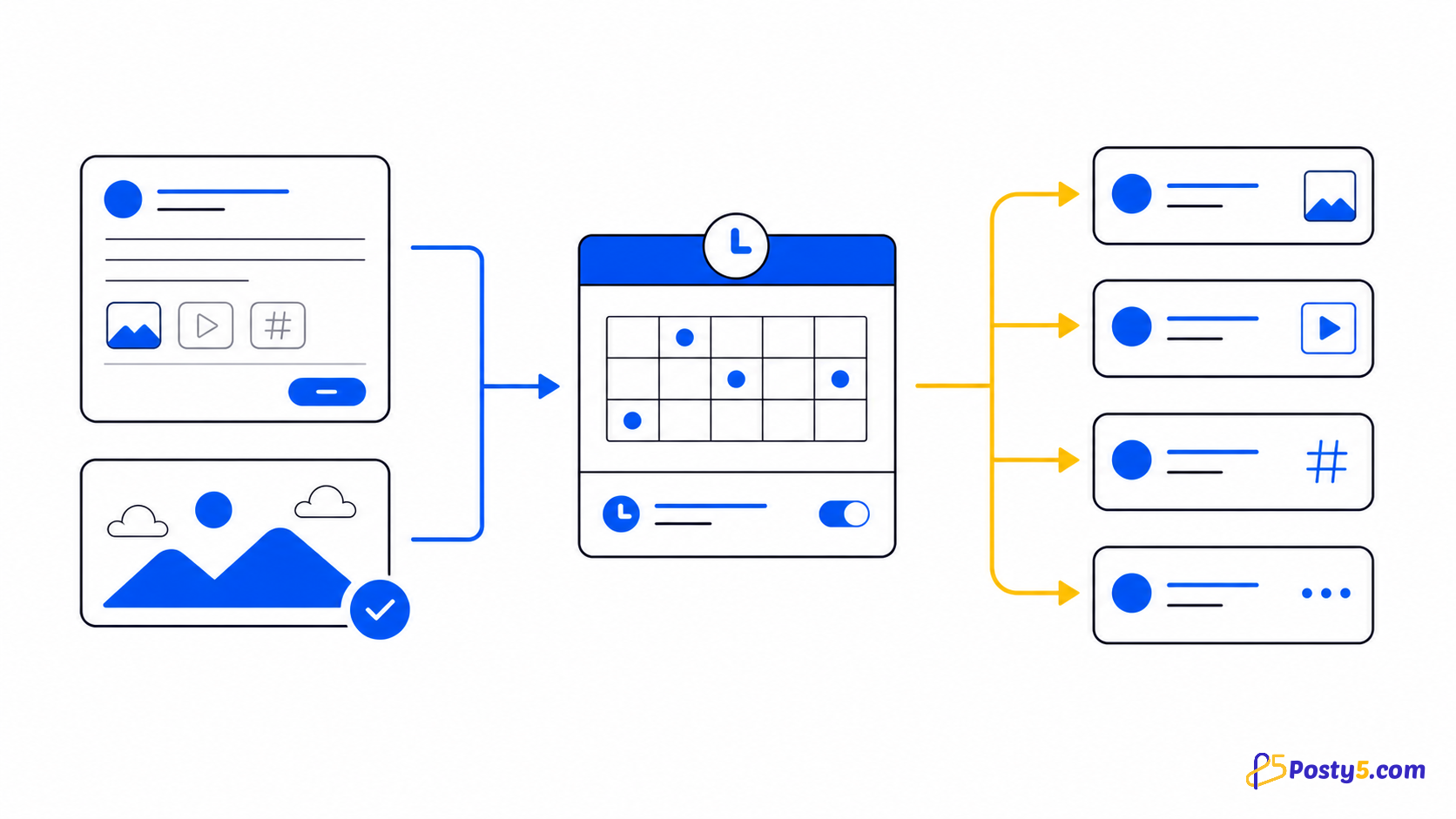
The template you download from Posty5 has one row per post and a column for each part of the post. Every row is one of two kinds, with options for timing and for per-platform text:
- Text posts: the words of the post. Text rows go to Facebook Pages, Threads and X; YouTube, TikTok and Instagram do not take text-only posts and are skipped. A text row can also carry an optional link for the Facebook version.
- Image posts by URL: one or more public image addresses. Up to 10 URLs in one row publish as a carousel to Instagram, Facebook and Threads, and X receives the first 4. The carousel guide covers the image rules, such as Instagram's need for one shared aspect ratio.
- A date and time per row, or none: rows with their own time go out then; rows without one follow the spread, which starts at a time you pick and leaves a gap of 5 minutes to 24 hours between posts.
- Separate text for Threads and X: Threads takes up to 500 characters and X 280 weighted characters, so a long caption can have a shorter version for each.
The CSV template has no video rows. Videos, including long videos and stories, are still created one at a time in the composer.
Bulk schedule posts step by step
- Sign in to Posty5, open Social Media Publisher and open Create Post for the workspace or account the posts should go to.
- Choose the Bulk Schedule card.
- Download the CSV template.
- Fill in one row per post, up to 50, and save the file as CSV.
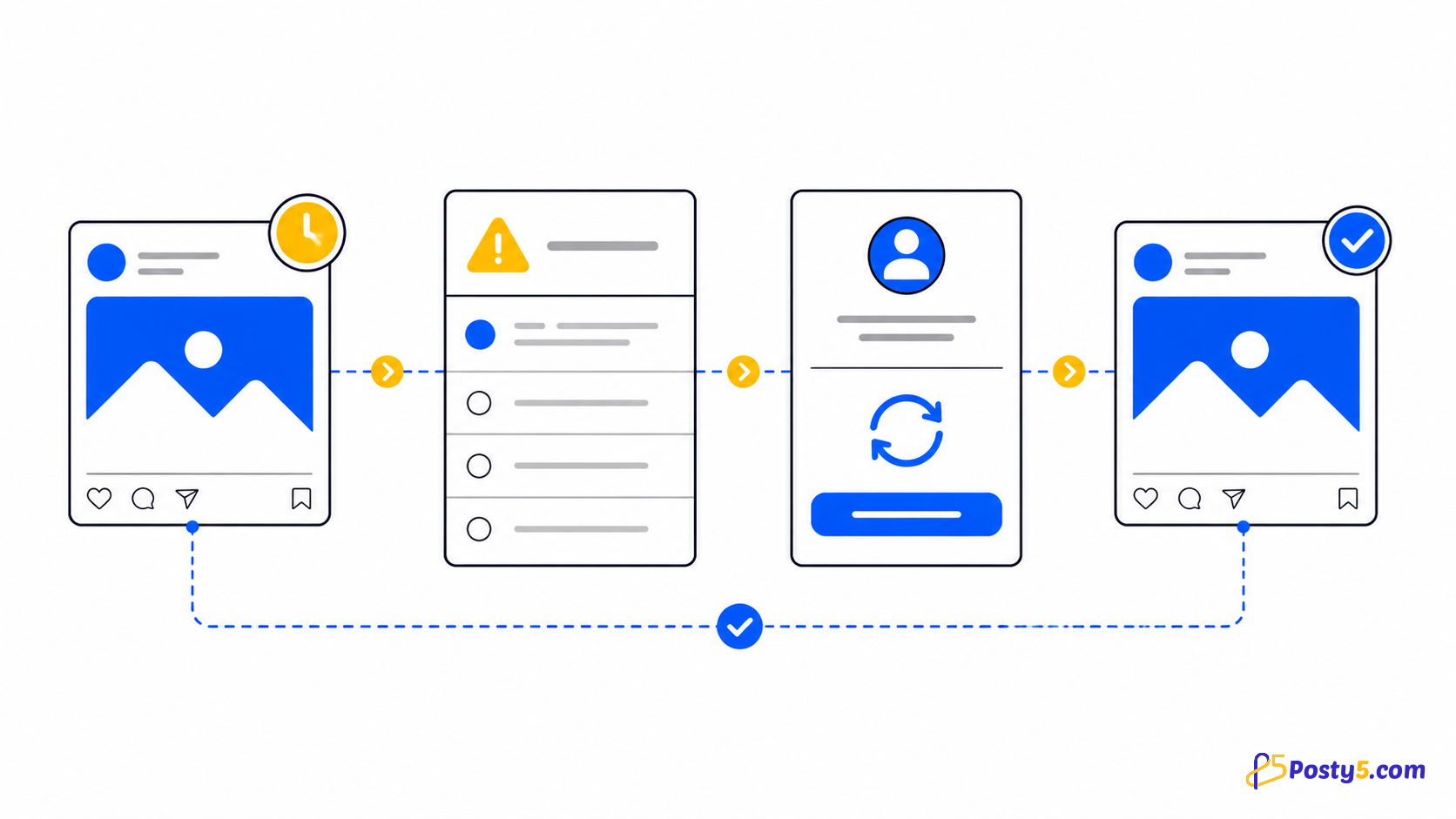
- Upload the file. A preview lists every row as it will be sent and marks the rows that have errors, each with its reason; fix those in the file and upload it again.
- For rows without their own time, set the spread: the start time and the gap between posts, from 5 minutes to 24 hours.
- Decide whether the batch should stop at the first row that fails or carry on with the rest.
- Create the batch, then read the results: each row shows whether its post was created, with a link to the post, or why it failed.
Schedule your next batch
Open Social Media Publisher, choose Bulk Schedule in Create Post and download the template to start.
After the batch: the posts on your calendar
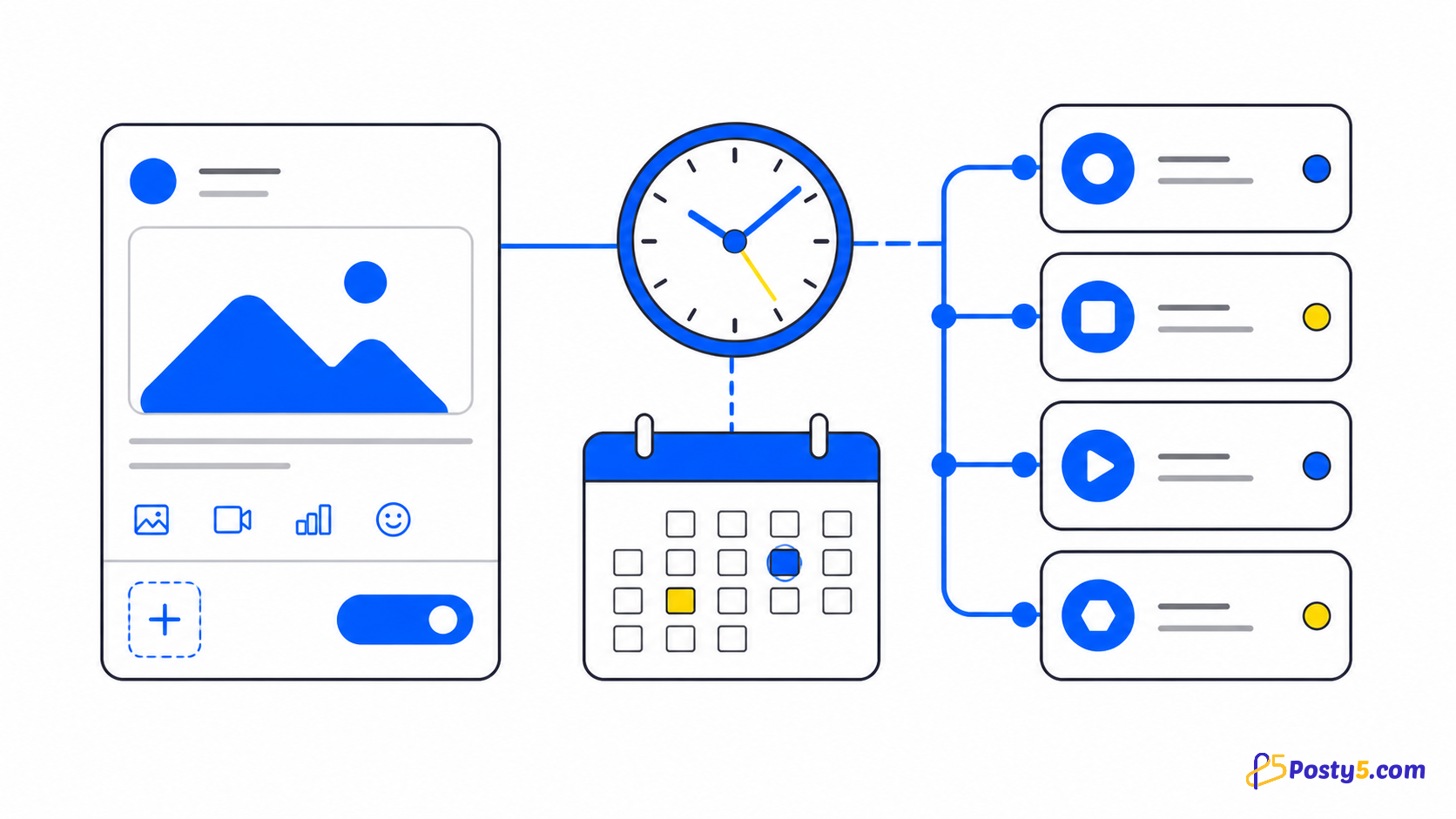
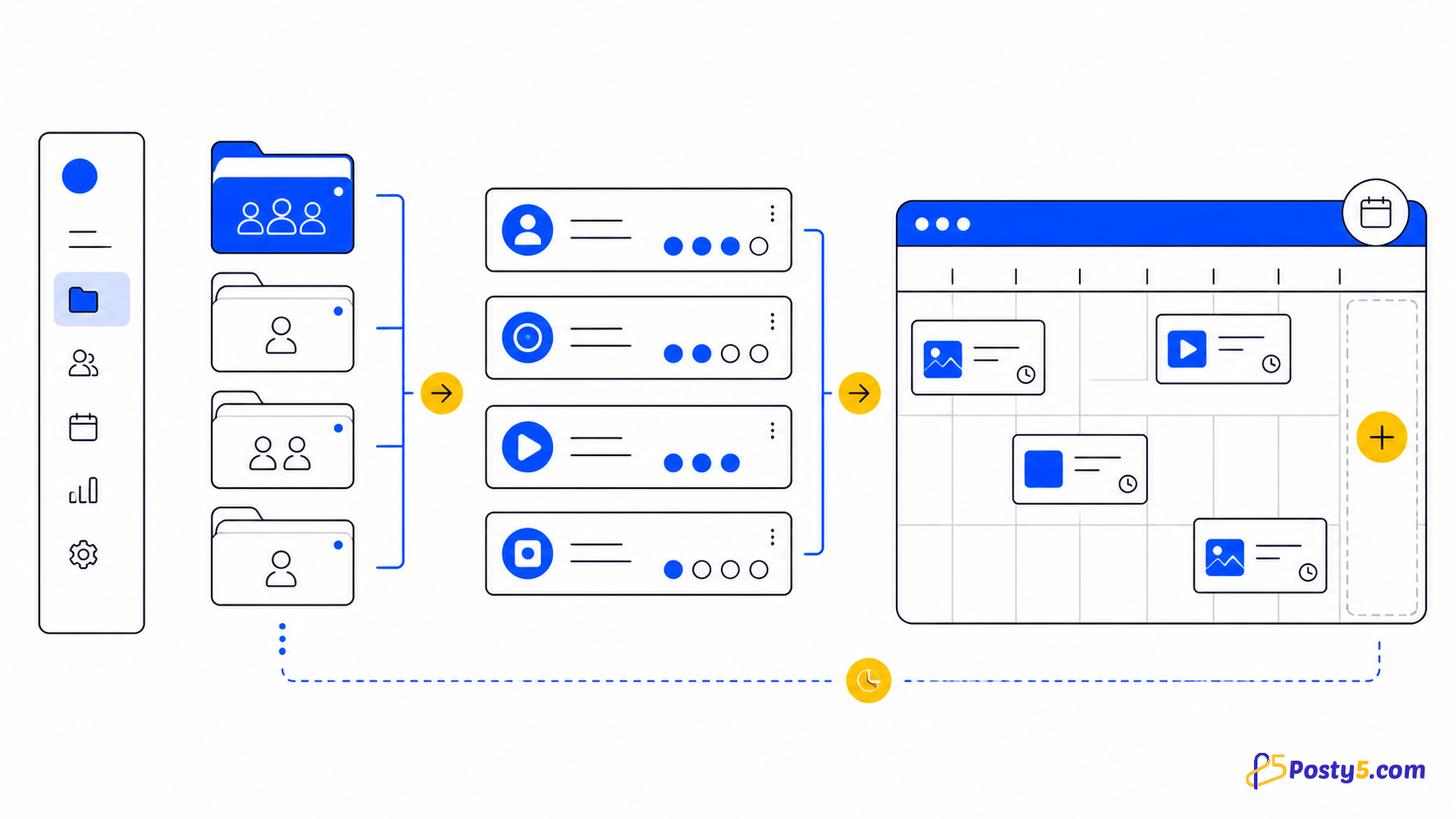
Every created post is an ordinary scheduled post. It appears on the content calendar on the day it is due, in your profile's time zone, and in the post list alongside everything else. From there it behaves like a post you made by hand: it has its own status page with a result for every destination.
If a destination fails when the time comes, the post is marked on the calendar and its status page says why. The publishing-status guide explains what each status means and when a retry helps.
Limits to know before you upload
- Up to 50 posts per batch, and one batch at a time: you cannot start a second batch while the first is still being created.
- No video rows in the CSV template: rows are text posts or images by URL.
- Image rows take image addresses (URLs), not uploaded files.
- Rows for X need the Pro plan or higher and a connected X account; see the guide to scheduling posts on X.
- Each row is billed like a single post of its kind, so a batch costs what its posts would cost if you created them one by one. The pricing page lists what each plan includes.
Frequently asked questions
How many posts can I bulk schedule at once?
Up to 50 per CSV file. Only one batch is created at a time, so upload the next file once the first has finished.
Which plans include bulk scheduling?
Bulk scheduling is available on the Pro plan or higher, because every post in the file is a scheduled post. Each row is billed like a single post; the pricing page lists what each plan includes.
Can I bulk schedule videos?
Not with the CSV template: its rows are text posts or images by URL. Create video posts one at a time in the composer.
Do I need a date on every row?
No. Rows with their own date and time use it; the others are spread out from a start time you choose, with a gap of 5 minutes to 24 hours between posts.
What happens if some rows are wrong?
The preview marks every row with an error before anything is created, so you can fix the file first. When you create the batch you choose whether to stop at the first failure or carry on, and the results list every row.
Can one row be a carousel?
Yes. Put up to 10 image URLs in the row and it publishes as a carousel to Instagram, Facebook and Threads; X receives the first 4 images.