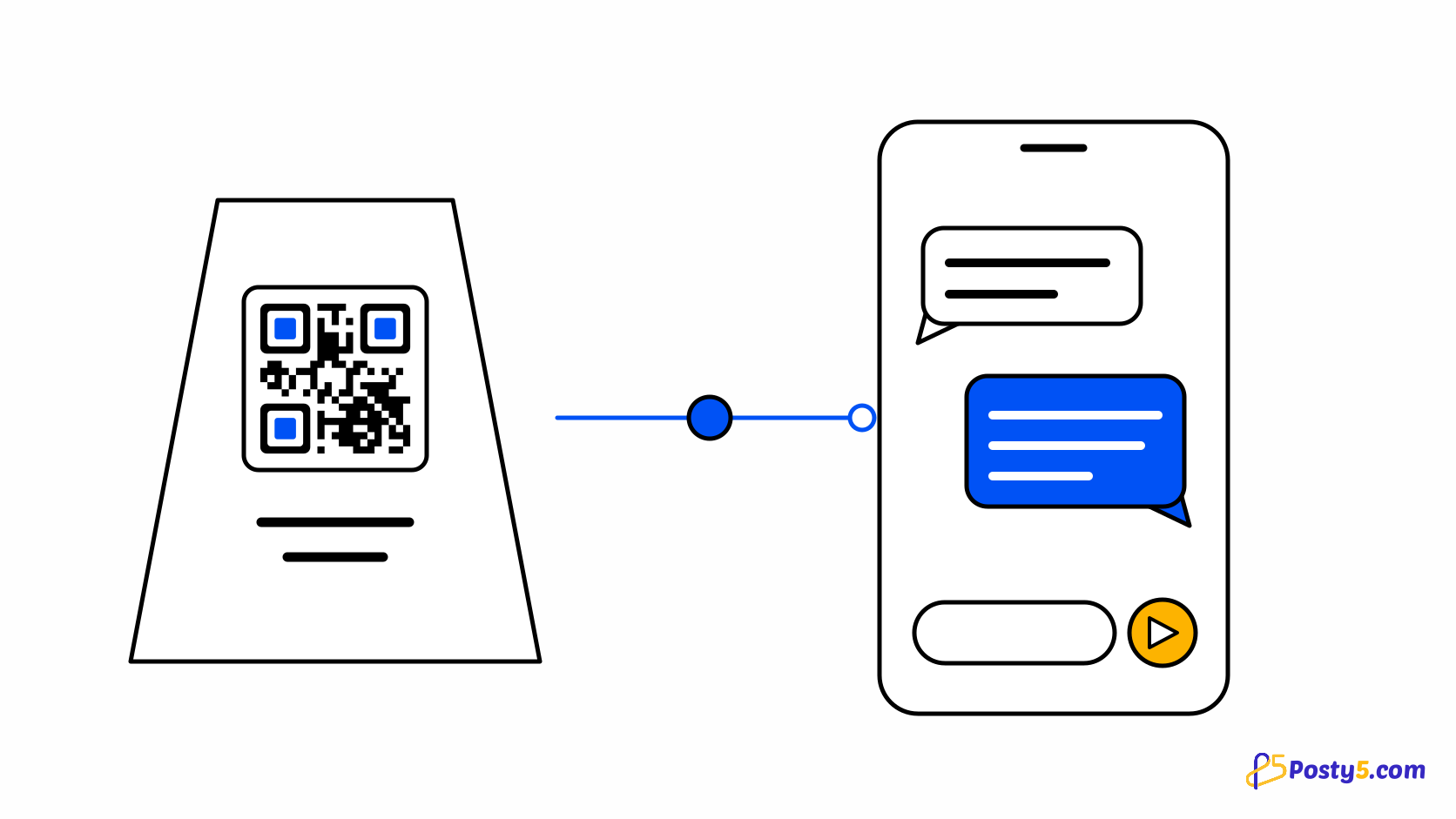
A WhatsApp QR code opens a chat with your number on the scanning phone, with an optional message already typed. The customer still presses send.
Create it in three steps
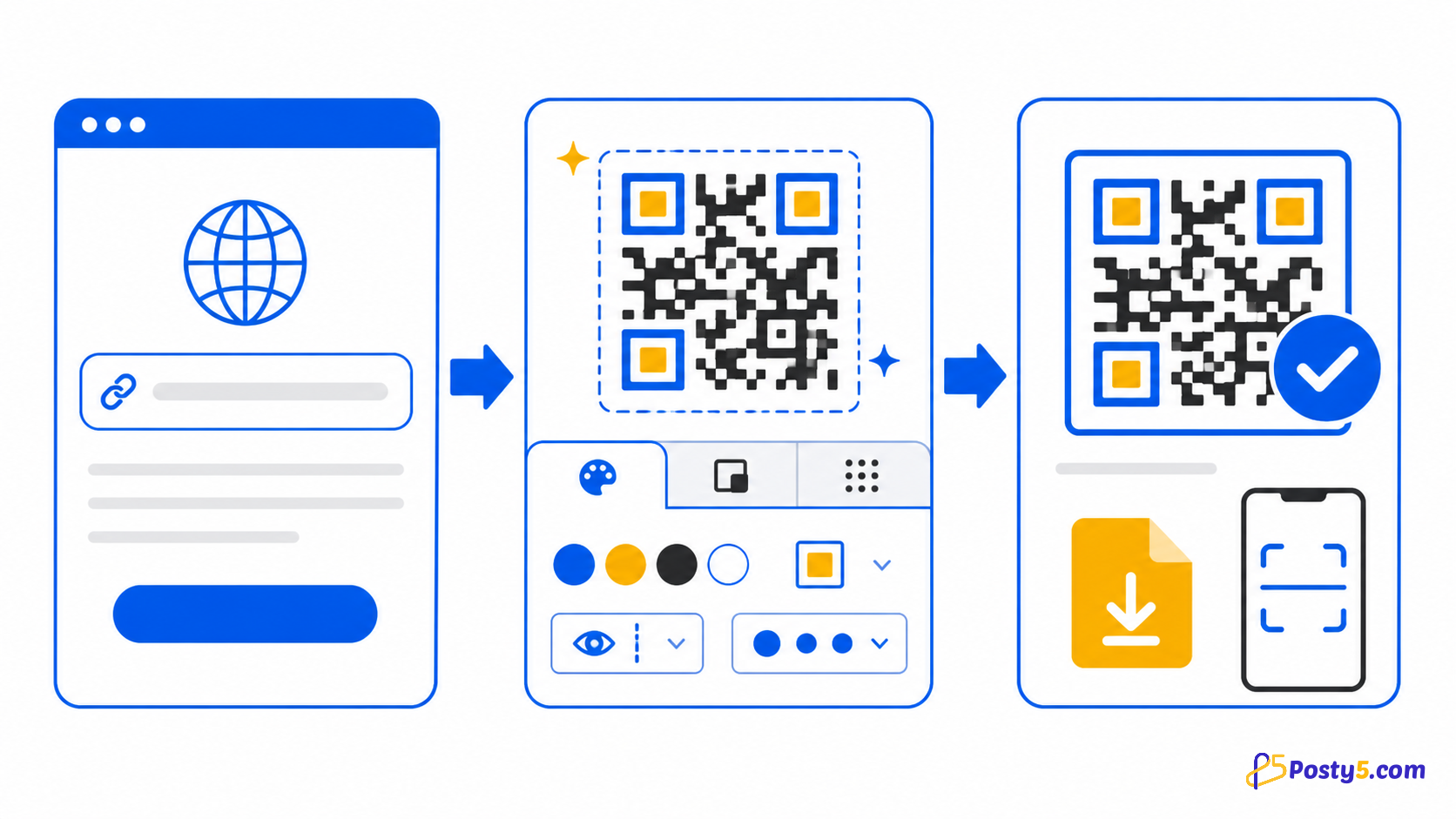
- Choose the WhatsApp type and enter your full number with its country code, between 7 and 15 digits.
- Add an optional message of up to 700 characters, for example which poster or product the customer scanned.
- Download the code, scan it and check that WhatsApp opens the chat with your number and message.
Writing the number
Use the international format. Posty5 removes plus signs, spaces, dashes, brackets and a leading 00, then opens a wa.me chat link, so +44 20 7946 0000 and 0044 20 7946 0000 open the same chat.
What it does not do
The code opens a chat. It does not send the message, reply automatically or connect a WhatsApp Business inbox. For a link to share online rather than print, use a WhatsApp link.
Frequently asked questions
Which number format should I use?
Use the international format. Posty5 removes plus signs, spaces, dashes, brackets and a leading 00, then opens a wa.me chat link, so +44 20 7946 0000 and 0044 20 7946 0000 open the same chat.
Does the code send the message automatically?
The code opens a chat. It does not send the message, reply automatically or connect a WhatsApp Business inbox. For a link to share online rather than print, use a WhatsApp link.
Related articles
- Read: How to Create a vCard QR Code That Saves Your Contact
- Read: How to Create a Google Review QR Code
- Read: One QR Code for the App Store and Google Play
- Read: How to Create a PDF QR Code for Menus, Flyers and Brochures
- Read: Posty5 QR Code Generator: Create and Customise QR Codes
- Read: How to Create a QR Code in Three Steps
- Read: QR Code Not Scanning? Causes and Fixes
- Read: Posty5 WhatsApp Link Generator: Create Click-to-Chat Links