How to Add a Logo to a QR Code Without Breaking It
Design without hurting scans
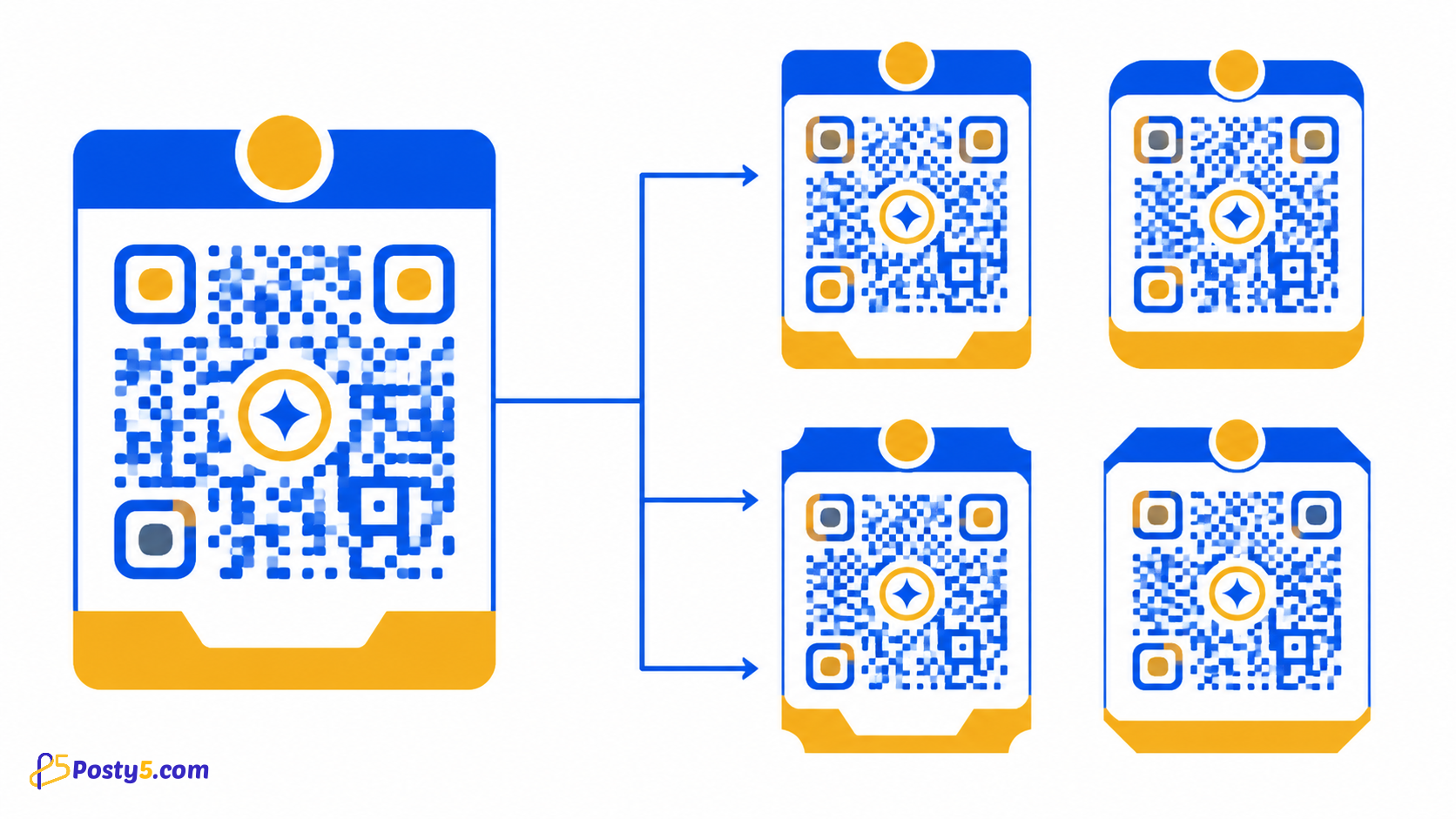
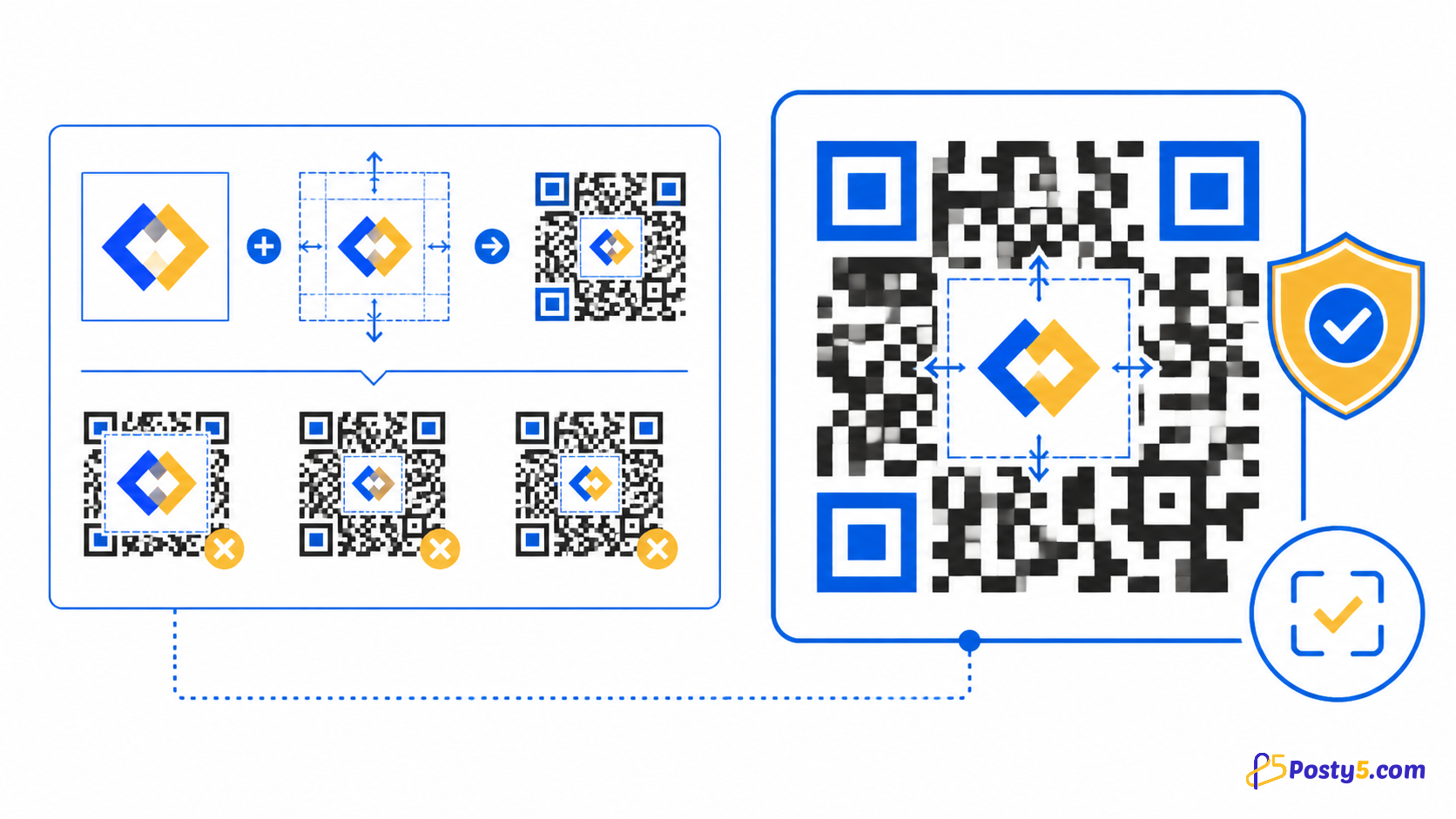
A centre logo can have its own size and background. Keep it modest, use stronger error correction when appropriate and test because the logo covers data modules.
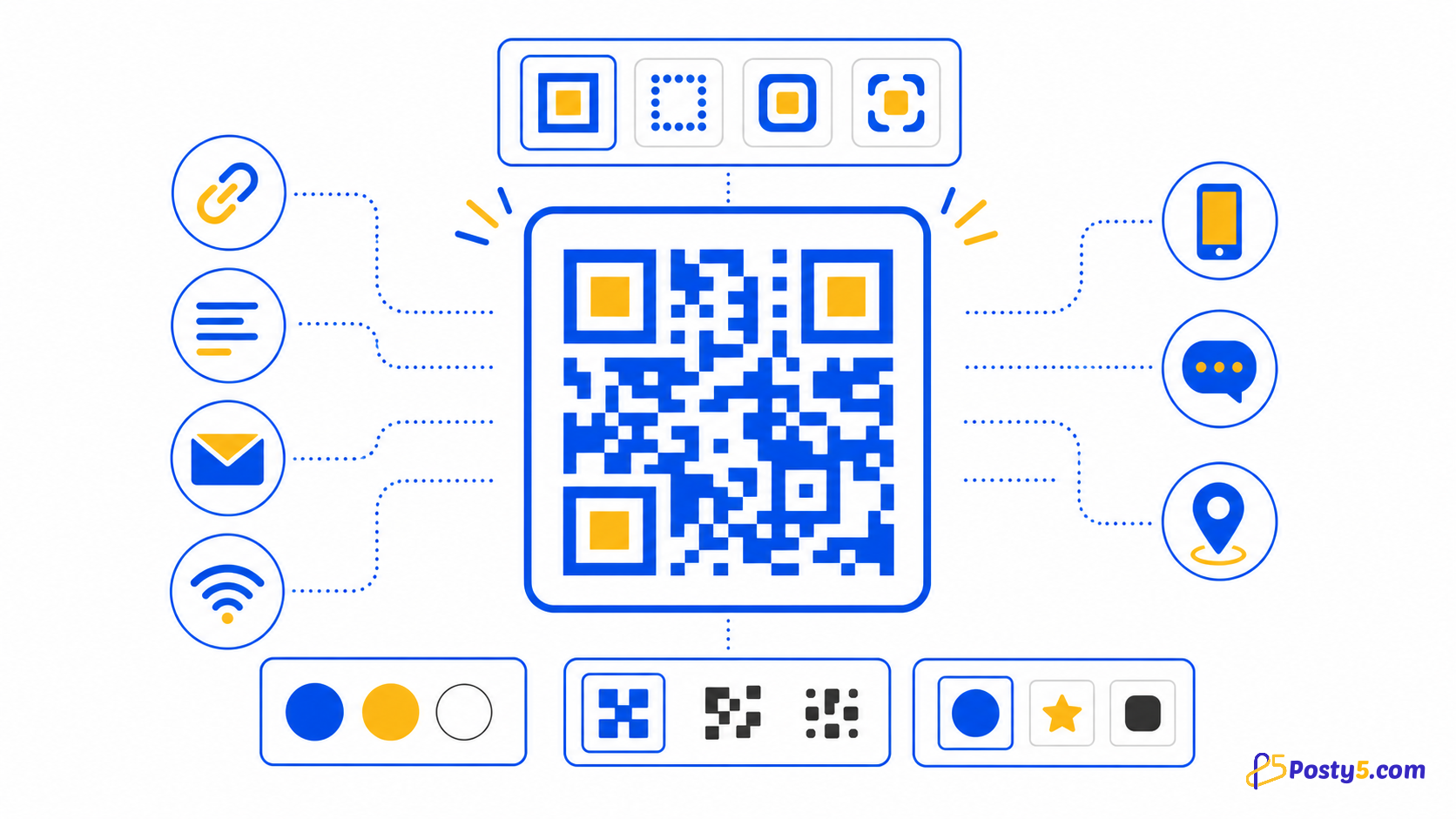
Design controls include foreground, background and quiet-zone colours, individual corner markers, dot scale, title, size and error-correction level.
Open QR Code GeneratorCreate your QR code
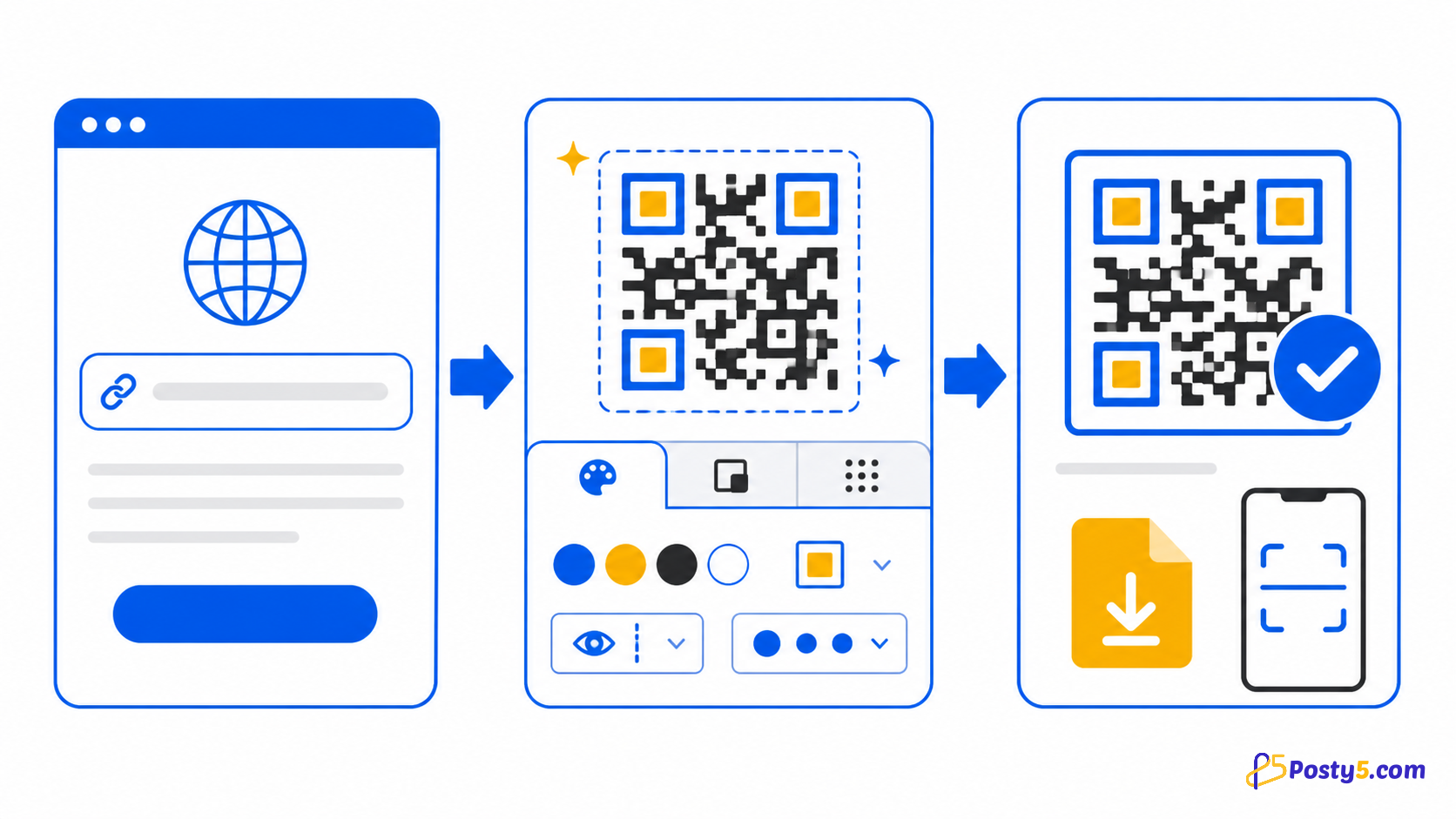
- Choose the target type, enter its required values, customise the preview, download the PNG and scan-test the exact file before using it.
- A centre logo can have its own size and background. Keep it modest, use stronger error correction when appropriate and test because the logo covers data modules.
- Keep strong contrast, preserve a clear quiet zone, test the final printed size on more than one phone and repeat the test after adding a logo or changing colours.
Prepare for print
Keep strong contrast, preserve a clear quiet zone, test the final printed size on more than one phone and repeat the test after adding a logo or changing colours.
Fix scanning problems
If scanning fails, check the encoded value, blur, glare, low contrast, damaged corners, a crowded quiet zone, excessive logo coverage and the real scanning distance.
Frequently asked questions
Design without hurting scans?
A centre logo can have its own size and background. Keep it modest, use stronger error correction when appropriate and test because the logo covers data modules.
Prepare for print?
Keep strong contrast, preserve a clear quiet zone, test the final printed size on more than one phone and repeat the test after adding a logo or changing colours.
Fix scanning problems?
If scanning fails, check the encoded value, blur, glare, low contrast, damaged corners, a crowded quiet zone, excessive logo coverage and the real scanning distance.
What Posty5 creates?
Posty5 output from the public generator is verified as PNG. Do not assume SVG, PDF, JPEG, vector export or editable destinations after printing.
Continue through the QR Code guides
- Read: Posty5 QR Code Generator: Create and Customise QR Codes
- Read: How to Create a QR Code in Three Steps
- Read: How to Create a Wi-Fi QR Code for Guests
- Read: QR Code Design Templates: Reuse One Branded Style
- Read: QR Codes for Restaurants: Menus, Wi-Fi and Reviews
- Read: QR Codes for Events: Registration, Directions and Feedback
- Read: QR Code Not Scanning? Causes and Fixes
- Read: QR Code Generator Alternative: What Posty5 Offers