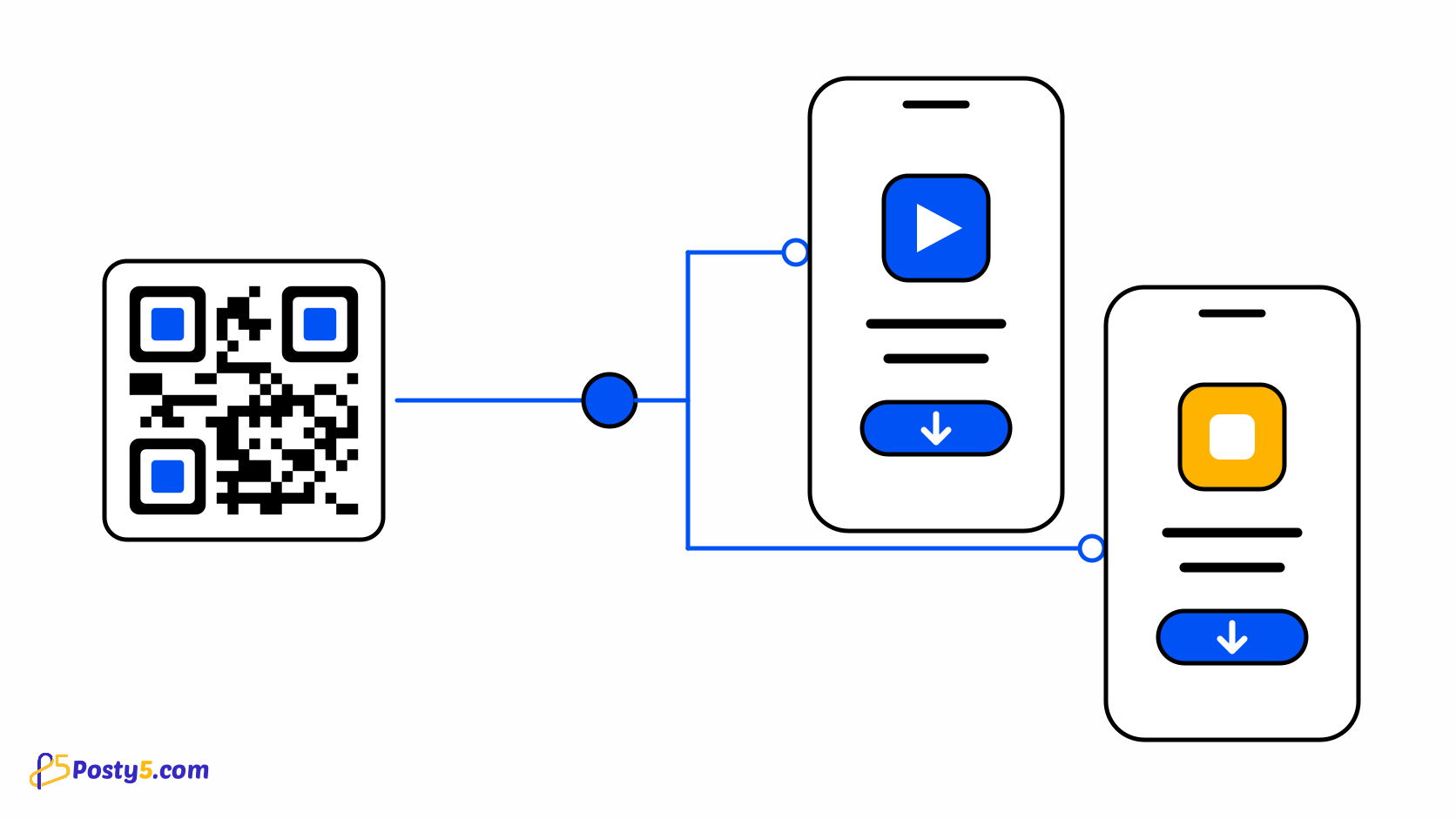
The App Store type gives you one printed code for your app. Android phones open your Google Play page, iPhones and iPads open your App Store page, and every other device opens a fallback page you choose.
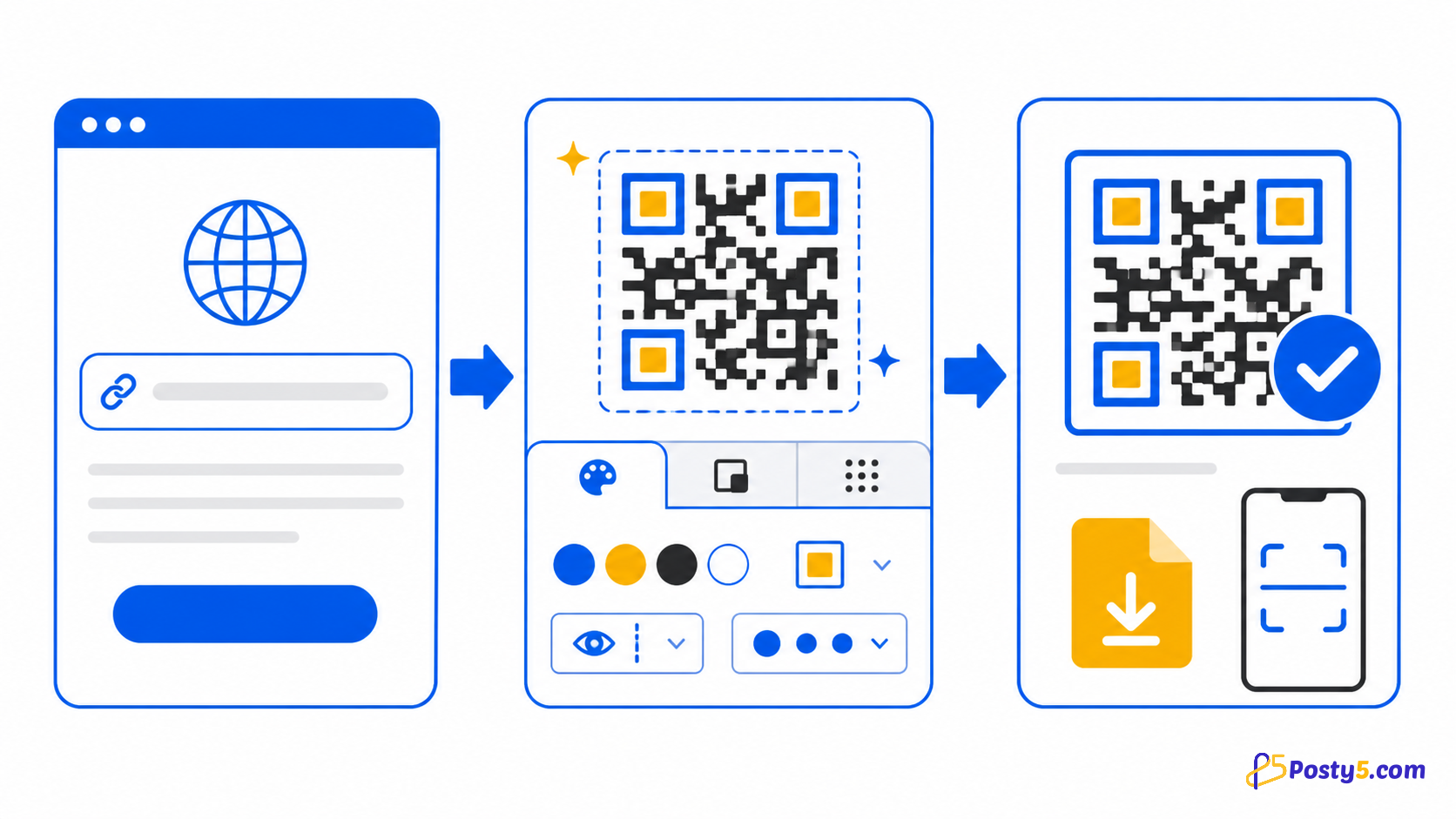
Create it in three steps
- Choose the App Store type and paste your Google Play link and your App Store link.
- Add the fallback URL, a web page for computers and other devices. It is required.
- Sign in to save the code, download it and test it on an iPhone, an Android phone and a computer.
How the code chooses
Store links must be real play.google.com or apps.apple.com addresses. The choice is made when the code is scanned, so this type is always dynamic and needs a saved code. An iPad browsing in desktop mode is treated as a computer and gets the fallback.
Changing the links later
Because the code is dynamic, you can edit the store links or the fallback after printing and the same printed code follows them. It does not open your app directly and does not report installs.
Frequently asked questions
Why does this type need an account?
Store links must be real play.google.com or apps.apple.com addresses. The choice is made when the code is scanned, so this type is always dynamic and needs a saved code. An iPad browsing in desktop mode is treated as a computer and gets the fallback.
Can I change the store links after printing?
Because the code is dynamic, you can edit the store links or the fallback after printing and the same printed code follows them. It does not open your app directly and does not report installs.
Related articles
- Read: How to Create a vCard QR Code That Saves Your Contact
- Read: How to Create a Google Review QR Code
- Read: How to Create a WhatsApp QR Code for Scan-to-Chat
- Read: How to Create a PDF QR Code for Menus, Flyers and Brochures
- Read: Posty5 QR Code Generator: Create and Customise QR Codes
- Read: How to Create a QR Code in Three Steps
- Read: QR Code Not Scanning? Causes and Fixes