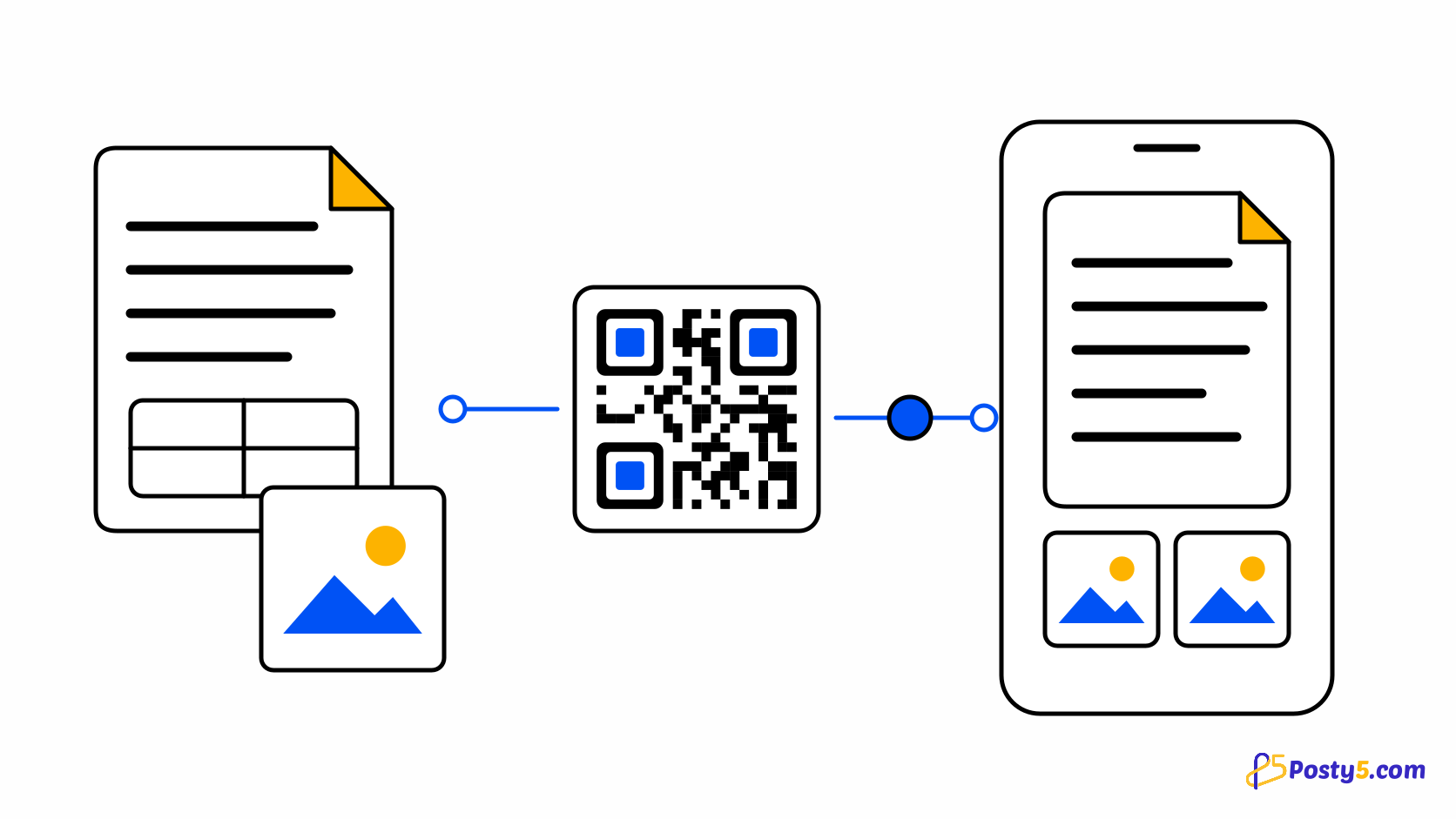
The File type uploads a PDF or an image and gives you a QR code that opens it. It suits a printed-style menu, a flyer, a brochure or a price list.
Create it in three steps
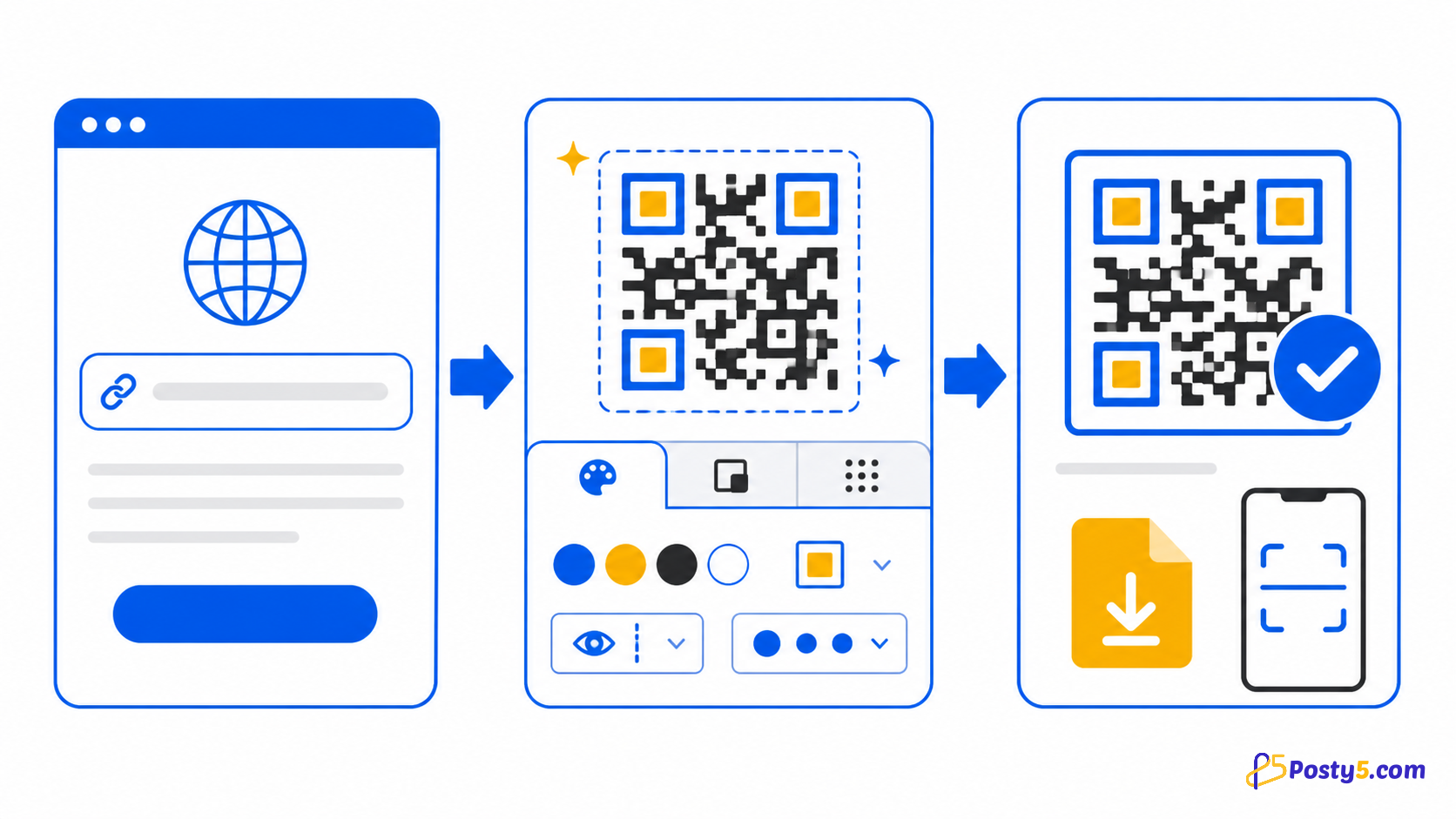
- Choose the File type and pick a PDF, JPG, PNG or WebP file of up to 10 MB.
- Sign in: the file uploads and the code is saved. File upload is an account feature, and the option shows as locked when your account does not include it.
- Download the code and open it on a phone using mobile data to check how quickly the file loads.
Files and limits
Accepted files are PDF, JPG, PNG and WebP. Word, Excel and other formats are not accepted, so export them to PDF first. Keep menus light: a smaller file opens faster on a phone.
Why it is always dynamic
Posty5 hosts the file and sends each scan to it, so a file code is always dynamic and has to be saved to an account. It cannot be a plain static image.
Frequently asked questions
Which files can I upload?
Accepted files are PDF, JPG, PNG and WebP. Word, Excel and other formats are not accepted, so export them to PDF first. Keep menus light: a smaller file opens faster on a phone.
Why does a PDF QR code need an account?
Posty5 hosts the file and sends each scan to it, so a file code is always dynamic and has to be saved to an account. It cannot be a plain static image.
Related articles
- Read: How to Create a vCard QR Code That Saves Your Contact
- Read: How to Create a Google Review QR Code
- Read: How to Create a WhatsApp QR Code for Scan-to-Chat
- Read: One QR Code for the App Store and Google Play
- Read: Posty5 QR Code Generator: Create and Customise QR Codes
- Read: How to Create a QR Code in Three Steps
- Read: QR Code Not Scanning? Causes and Fixes
- Read: QR Codes for Restaurants: Menus, Wi-Fi and Reviews