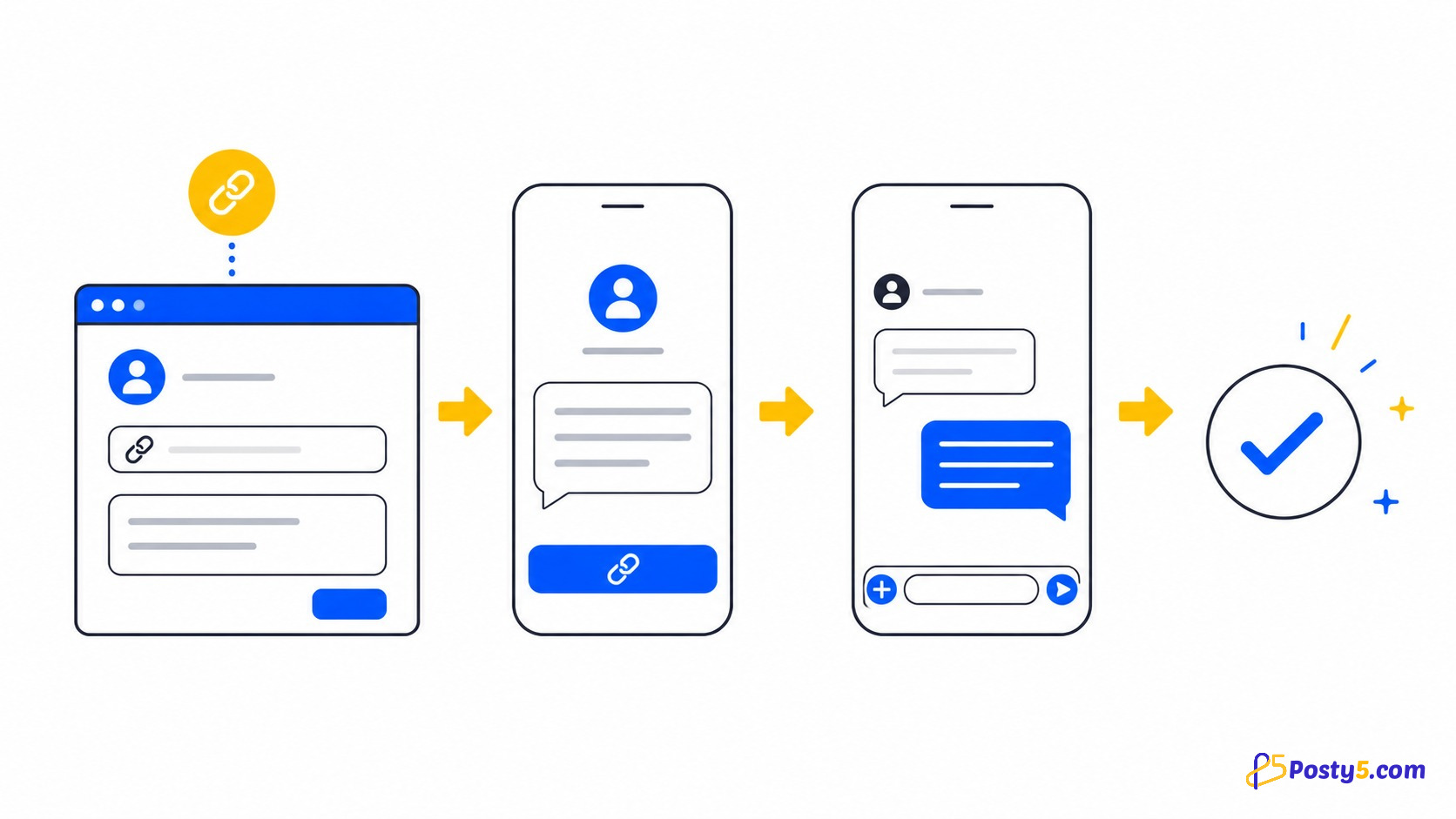
Asking a customer to save a phone number before they can send a message creates several chances to lose them. A click-to-chat link removes those steps: the customer opens the link, sees the intended chat and can send a message that is already prepared for them. The Posty5 WhatsApp Link Generator builds that route from a phone number and an optional opening message.
What a click-to-chat link does
The link carries two pieces of information: the WhatsApp phone number and, when you add one, a suggested first message. Opening the link takes the visitor directly to the chat instead of asking them to create a contact and search for it. The visitor still reviews and sends the message; Posty5 does not send anything on their behalf.
A useful opening message gives the conversation context. “Hi, I’m asking about the blue backpack on your product page” is more useful than a generic greeting because the business immediately knows what the visitor needs.
What Posty5 generates on each device
The generator chooses a different destination according to the device on which you press
Start Chat. On a phone it creates an app-style
whatsapp://send route. On a
computer it creates an
https://web.whatsapp.com/send
route. This distinction matters when a link works on your phone but fails for a customer
using a desktop browser.
The Create Short Link action deliberately passes the web form of the address to Posty5’s URL Shortener. That makes it the safer choice for a link you plan to publish in a bio, email or website because the shared address is not tied to the device on which you created it.
Open the WhatsApp Link GeneratorThe useful parts of the generator
A message written in advance
Write the words you want the customer to send first. Use one short sentence that names the product, service or page where they found you. If the field is empty, Posty5 uses “Hi” as the message text.
A QR code for the same route
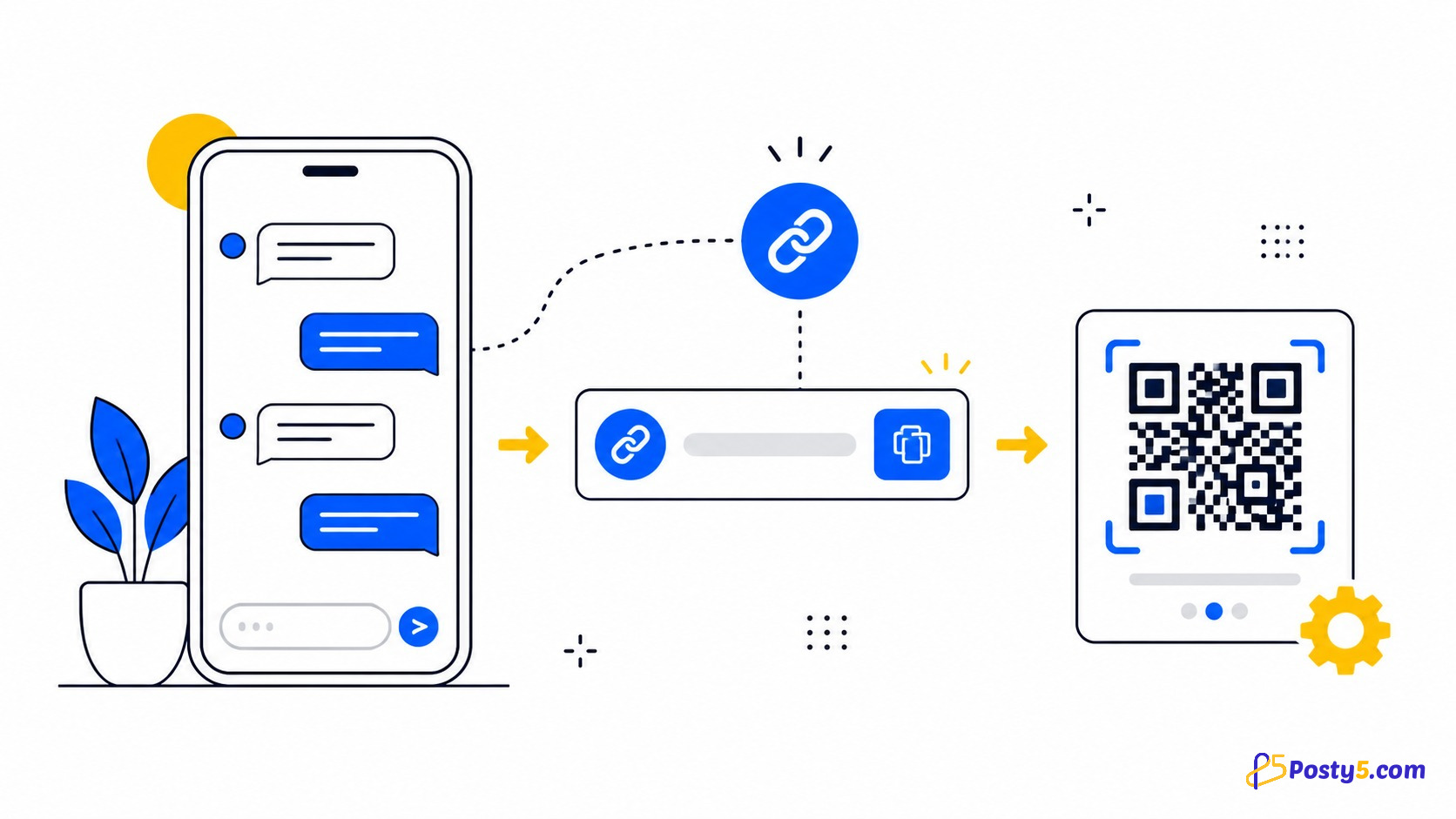
The preview turns the chat destination into a QR code. You can adjust its visual options, apply a QR template and download the result for packaging, receipts, cards or a shop window. Test the downloaded image before printing it in quantity.
A short link for sharing
A raw chat destination is long. Create Short Link opens the Posty5 shortener with the desktop destination already filled in. The resulting short link can record link opens; it does not count messages or conversations.
Browser-side link assembly
The number and message are combined into the chat destination in your browser. The page makes separate requests to detect a country prefix and load QR templates, but the number and message are not submitted to a link-generation endpoint.
How to create and test the route
-
1. Enter the phone number
Keep the detected country prefix and enter the rest of the number without the local leading zero. Digits only are the safest format.
-
2. Replace the sample message
Write the customer’s opening message, not the reply you intend to send back.
-
3. Test with Start Chat
Confirm that WhatsApp opens the intended number and shows the message correctly on your device.
-
4. Choose the shareable output
Use Create Short Link for online placements or Download for a QR code that will appear in print.
For a focused walkthrough, follow the step-by-step guide to creating a WhatsApp link with a message.
Where to place it
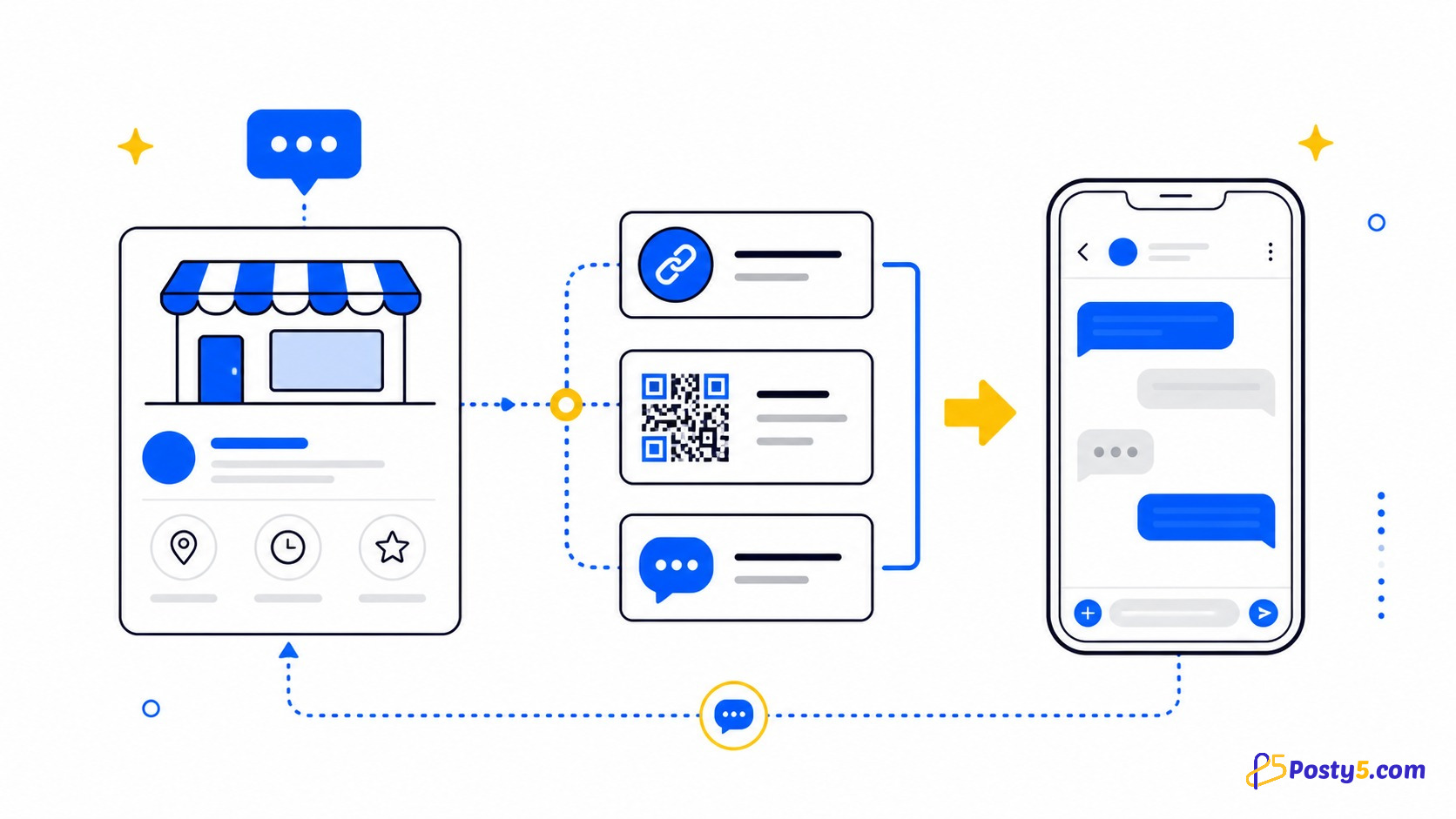
| Placement | Best output | Message idea |
|---|---|---|
| Social profile | Short link | Name the profile or campaign. |
| Website contact button | Short link | Name the page or service. |
| Email signature | Short link | Name the enquiry type. |
| Packaging or receipt | QR code | Name the product or order. |
| Shop window | QR code | Ask about stock or opening hours. |
See how small businesses can use a different message for each placement.
Write a message that gives useful context
- Online seller: “Hi, I’m asking about the blue backpack on your product page.”
- Consultant: “Hi, I’d like to ask about the website review service.”
- Restaurant: “Hi, I’d like to ask whether a table is available this evening.”
Keep the sentence short and leave room for the customer to explain their question. Avoid writing marketing copy or pretending to speak for the customer.
What the tool does not do
Posty5 generates a route into WhatsApp; it is not the WhatsApp Business Platform. It does not send messages, create automatic replies, run a chatbot, rotate enquiries between team members or track what happens inside a conversation.
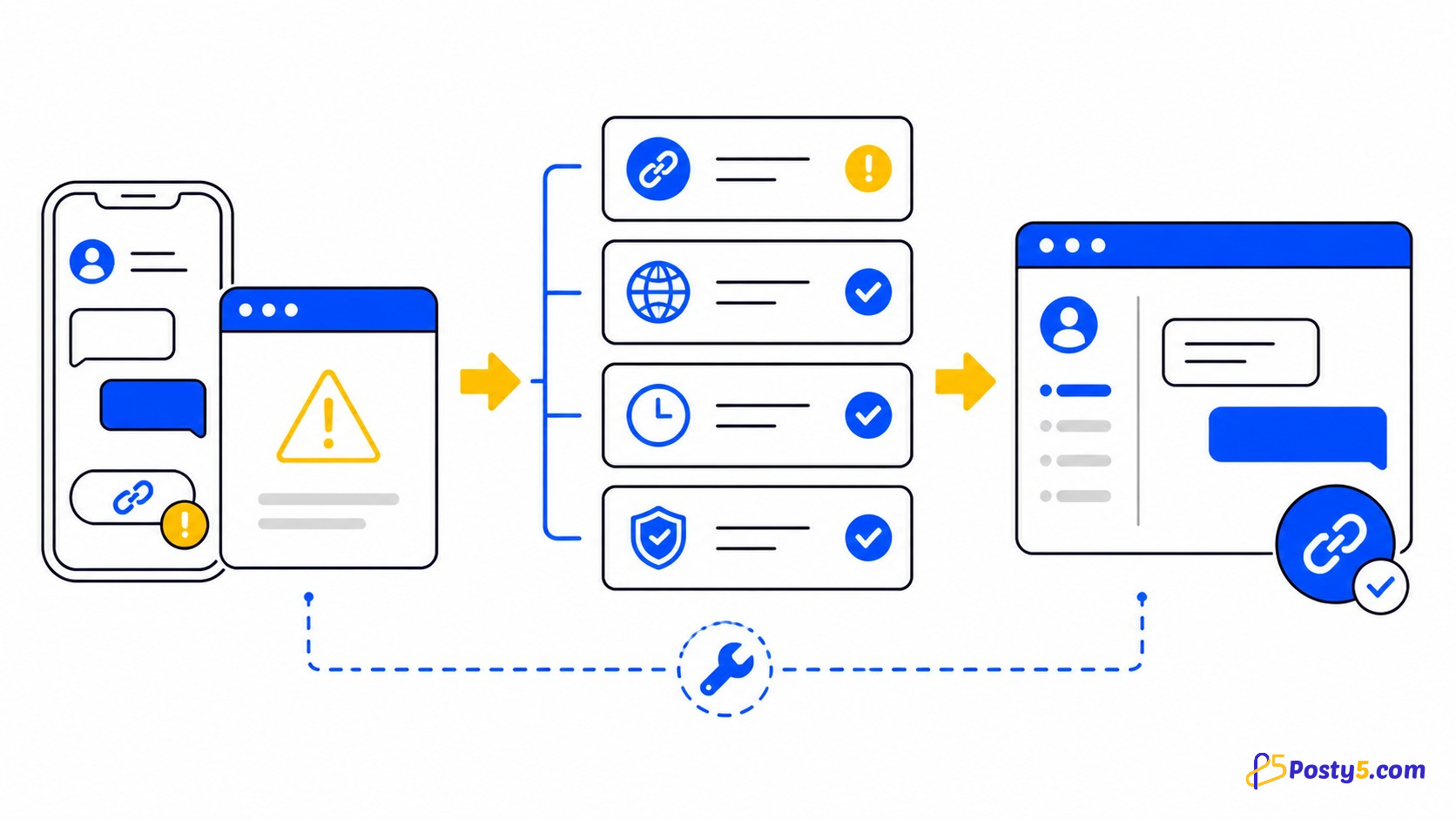
The receiving number must be usable in WhatsApp, and WhatsApp controls how the pre-filled message is handled on each version and device. If a shared link fails, use the WhatsApp link troubleshooting checklist.
Frequently asked questions
How do I create a WhatsApp link?
Enter a valid phone number and an optional message, test it with Start Chat, then use Create Short Link for a shareable address or Download for a QR code.
Can the first message be written in advance?
Yes. Posty5 adds the message to the destination. WhatsApp presents it as the customer’s opening text, and the customer still chooses whether to send it.
Does the customer need to save my number?
No. The route opens the intended chat directly, although the customer still needs access to WhatsApp.
Can I see how many conversations started?
No. A Posty5 short link can count opens of that link, but the chat itself and the messages inside it are not tracked.
Is my number submitted when the link is assembled?
The number and message are combined in the browser. Separate page requests may detect a country prefix or load QR templates, but they do not create the link from your entered text.
Create a route customers can use
Enter the number, write one useful opening sentence and test it before placing it online or in print.
Open the generator