QR Codes for Restaurants: Menus, Wi-Fi and Reviews
Practical uses
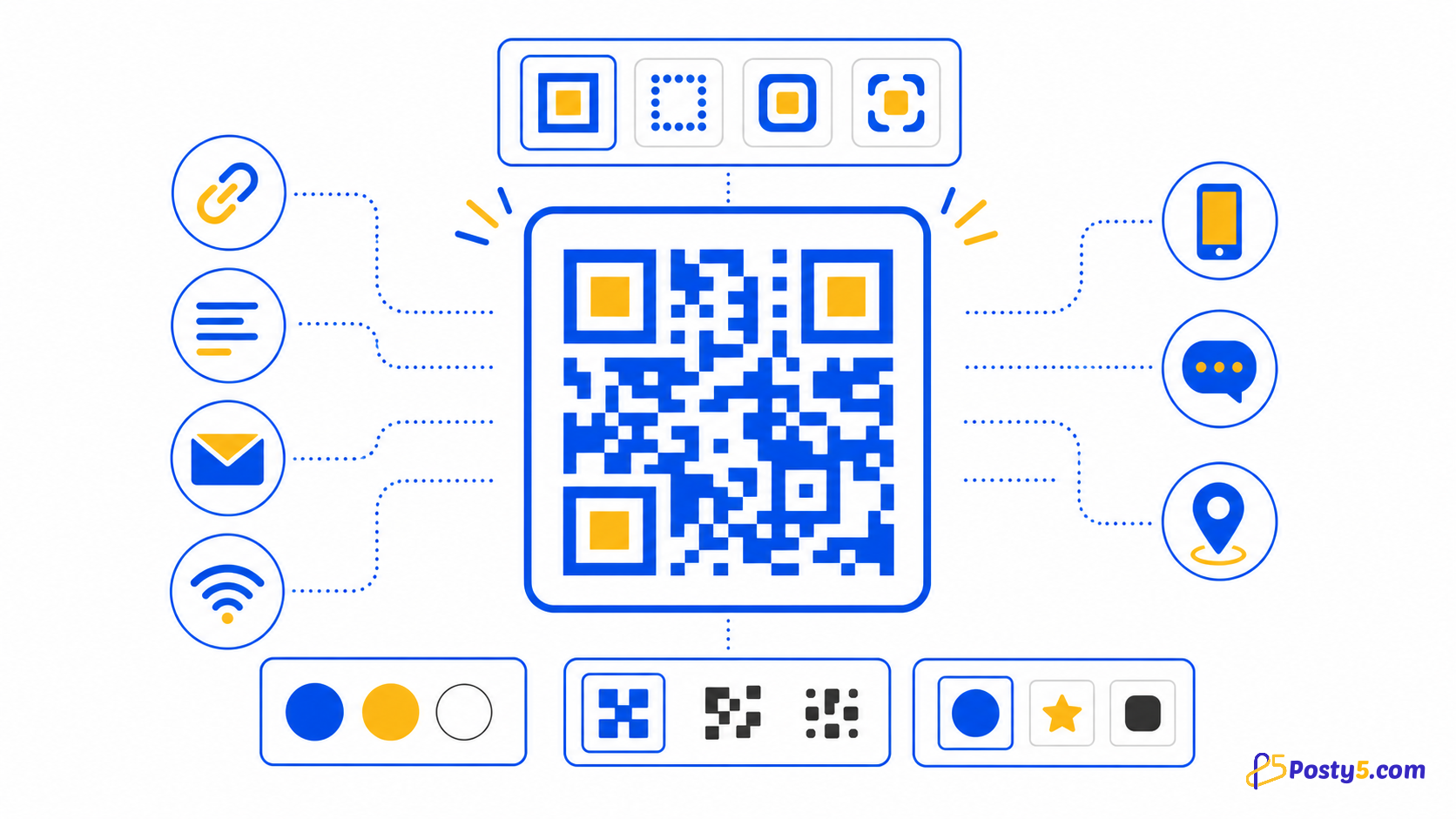
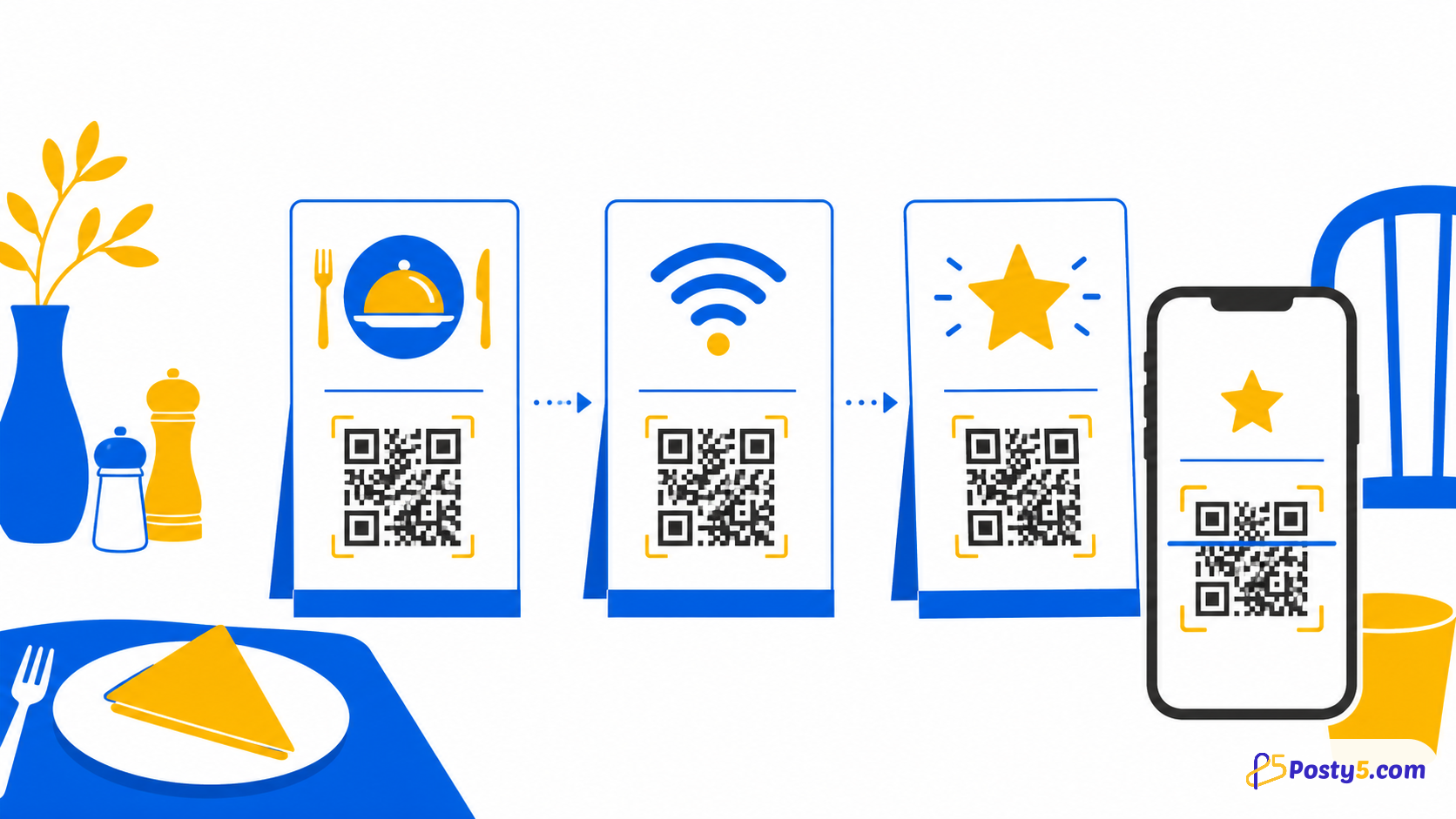
Restaurants can connect a menu page or a PDF menu, guest Wi-Fi and a review page. Use separate labelled codes so customers know what each scan opens.
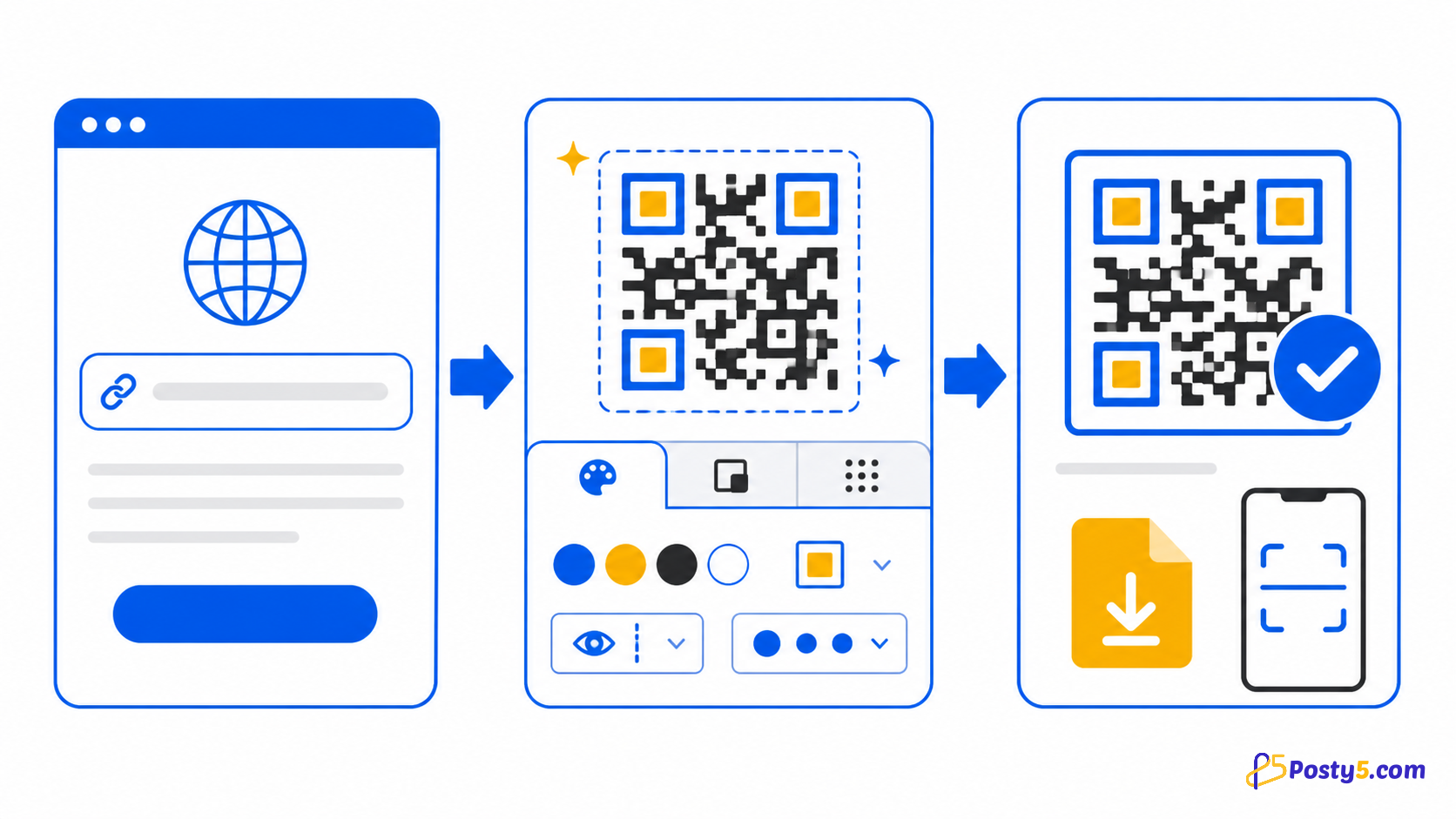
- Choose the target type, enter its required values, customise the preview, download the PNG and scan-test the exact file before using it.
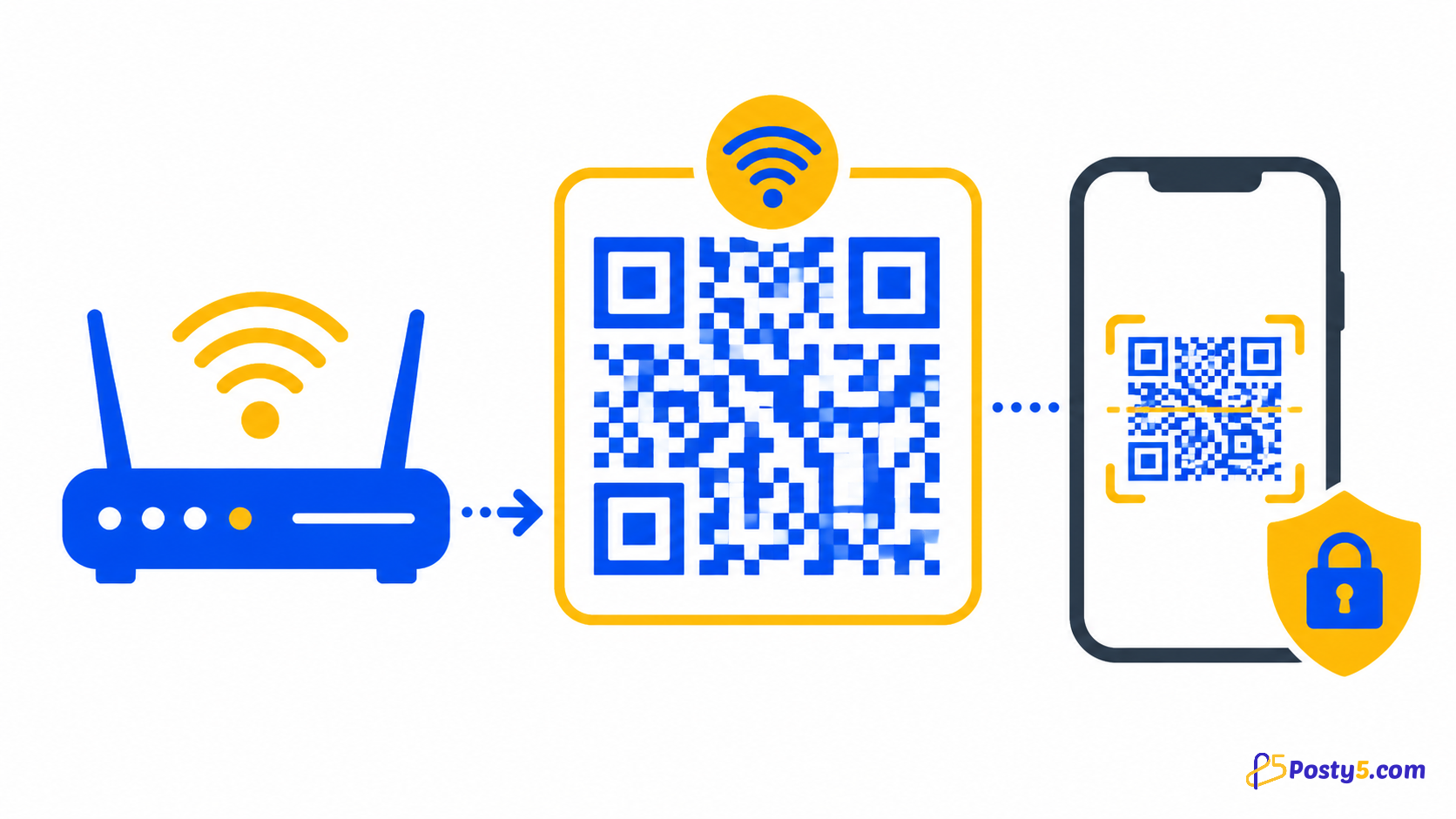
- A Wi-Fi QR needs the network name, authentication type and password. Test it with a guest device before placing it on tables or signs.
- When a printed code may need a different destination later, point it to a managed short link and test that workflow before printing; do not rely on an unverified retargeting promise.
Create your QR code
- Restaurants can connect a menu page or a PDF menu, guest Wi-Fi and a review page. Use separate labelled codes so customers know what each scan opens.
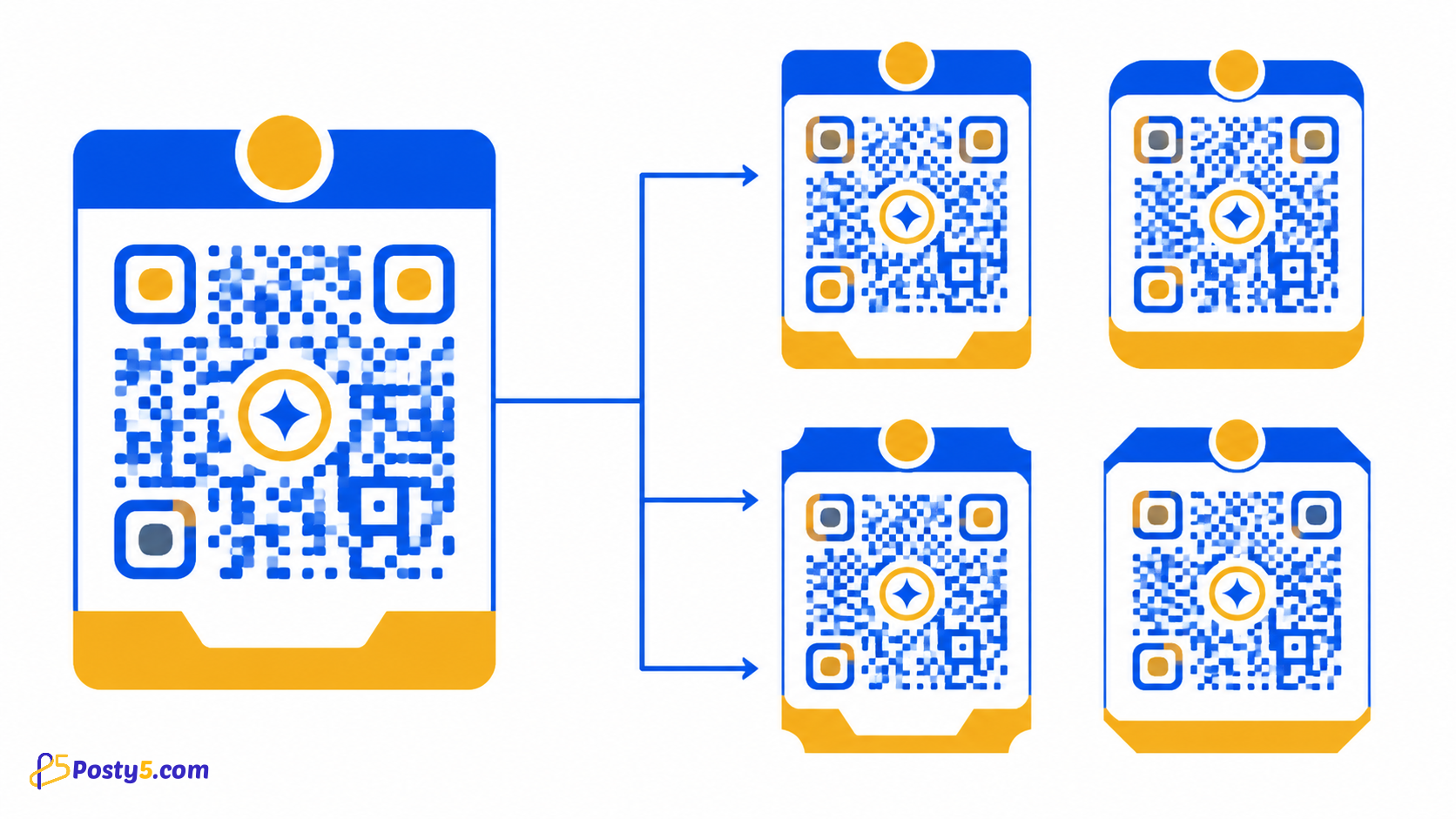
- Design controls include foreground, background and quiet-zone colours, individual corner markers, dot scale, title, size and error-correction level.
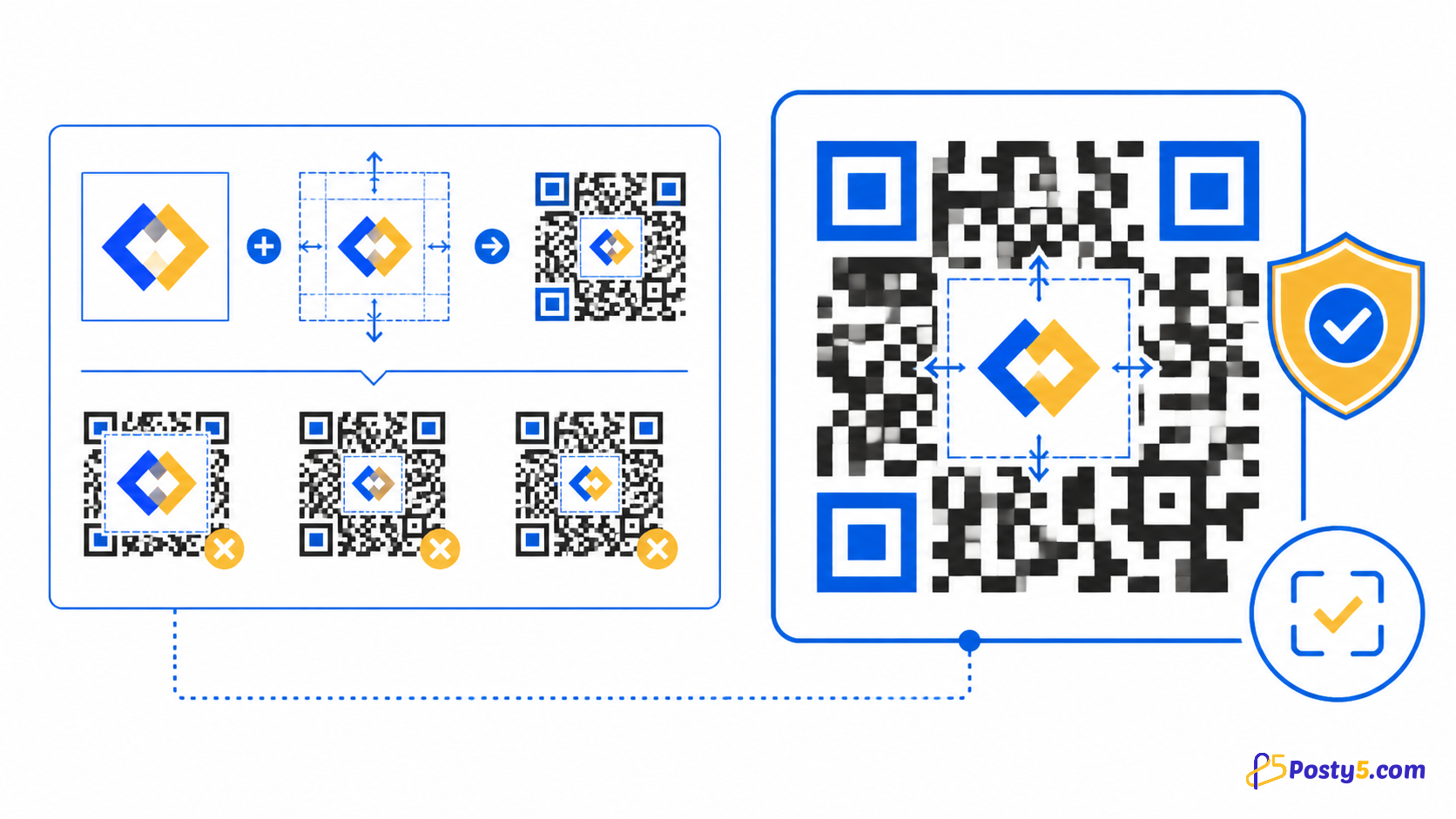
- Keep strong contrast, preserve a clear quiet zone, test the final printed size on more than one phone and repeat the test after adding a logo or changing colours.
Prepare for print
Keep strong contrast, preserve a clear quiet zone, test the final printed size on more than one phone and repeat the test after adding a logo or changing colours.
Fix scanning problems
If scanning fails, check the encoded value, blur, glare, low contrast, damaged corners, a crowded quiet zone, excessive logo coverage and the real scanning distance.
Frequently asked questions
What Posty5 creates?
Restaurants can connect a menu page or a PDF menu, guest Wi-Fi and a review page. Use separate labelled codes so customers know what each scan opens.
Create your QR code?
Choose the target type, enter its required values, customise the preview, download the PNG and scan-test the exact file before using it.
Prepare for print?
Keep strong contrast, preserve a clear quiet zone, test the final printed size on more than one phone and repeat the test after adding a logo or changing colours.
Fix scanning problems?
If scanning fails, check the encoded value, blur, glare, low contrast, damaged corners, a crowded quiet zone, excessive logo coverage and the real scanning distance.
Continue through the QR Code guides
- Read: Posty5 QR Code Generator: Create and Customise QR Codes
- Read: How to Create a QR Code in Three Steps
- Read: How to Add a Logo to a QR Code Without Breaking It
- Read: How to Create a Wi-Fi QR Code for Guests
- Read: QR Code Design Templates: Reuse One Branded Style
- Read: QR Codes for Events: Registration, Directions and Feedback
- Read: QR Code Not Scanning? Causes and Fixes
- Read: QR Code Generator Alternative: What Posty5 Offers