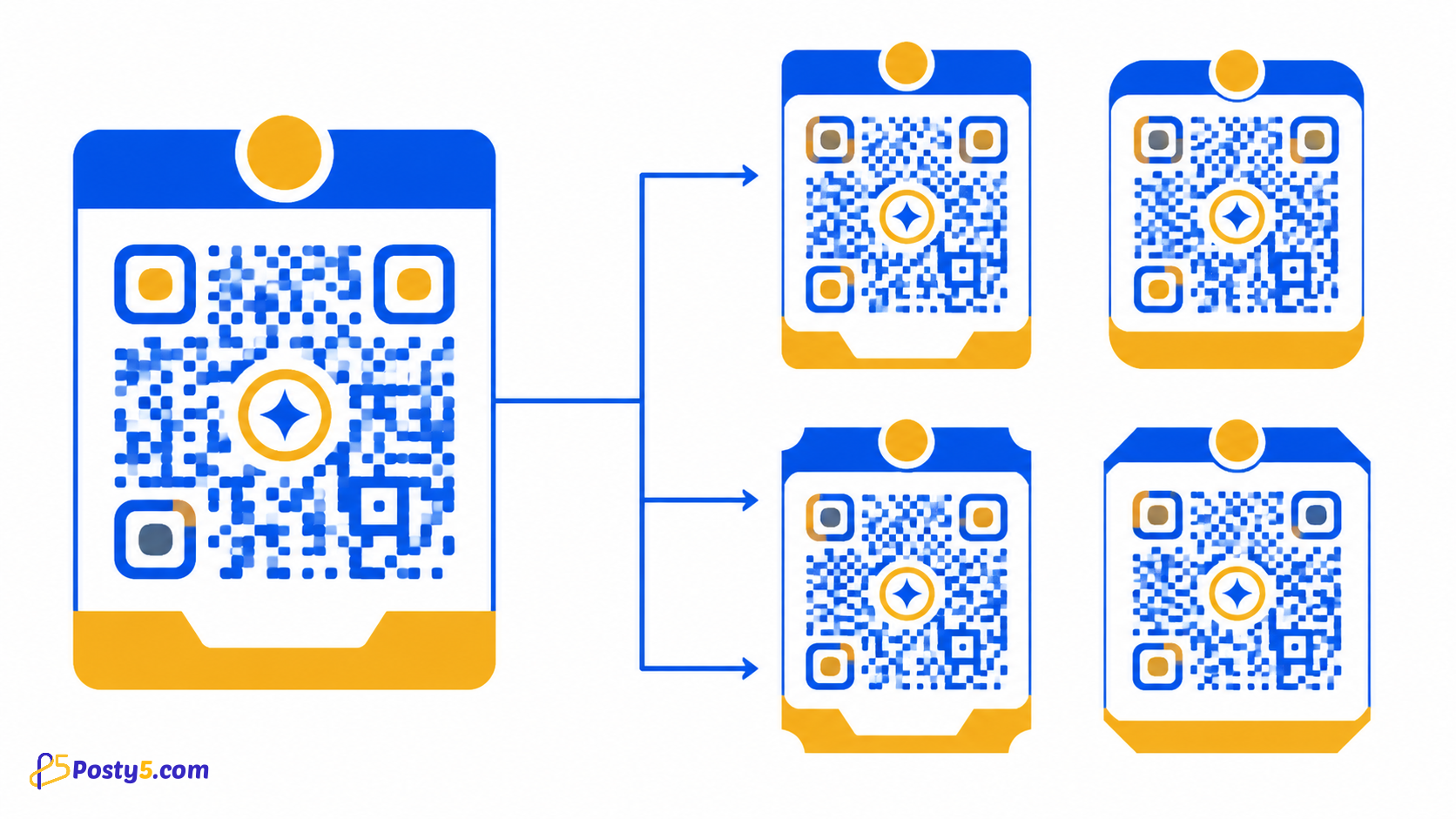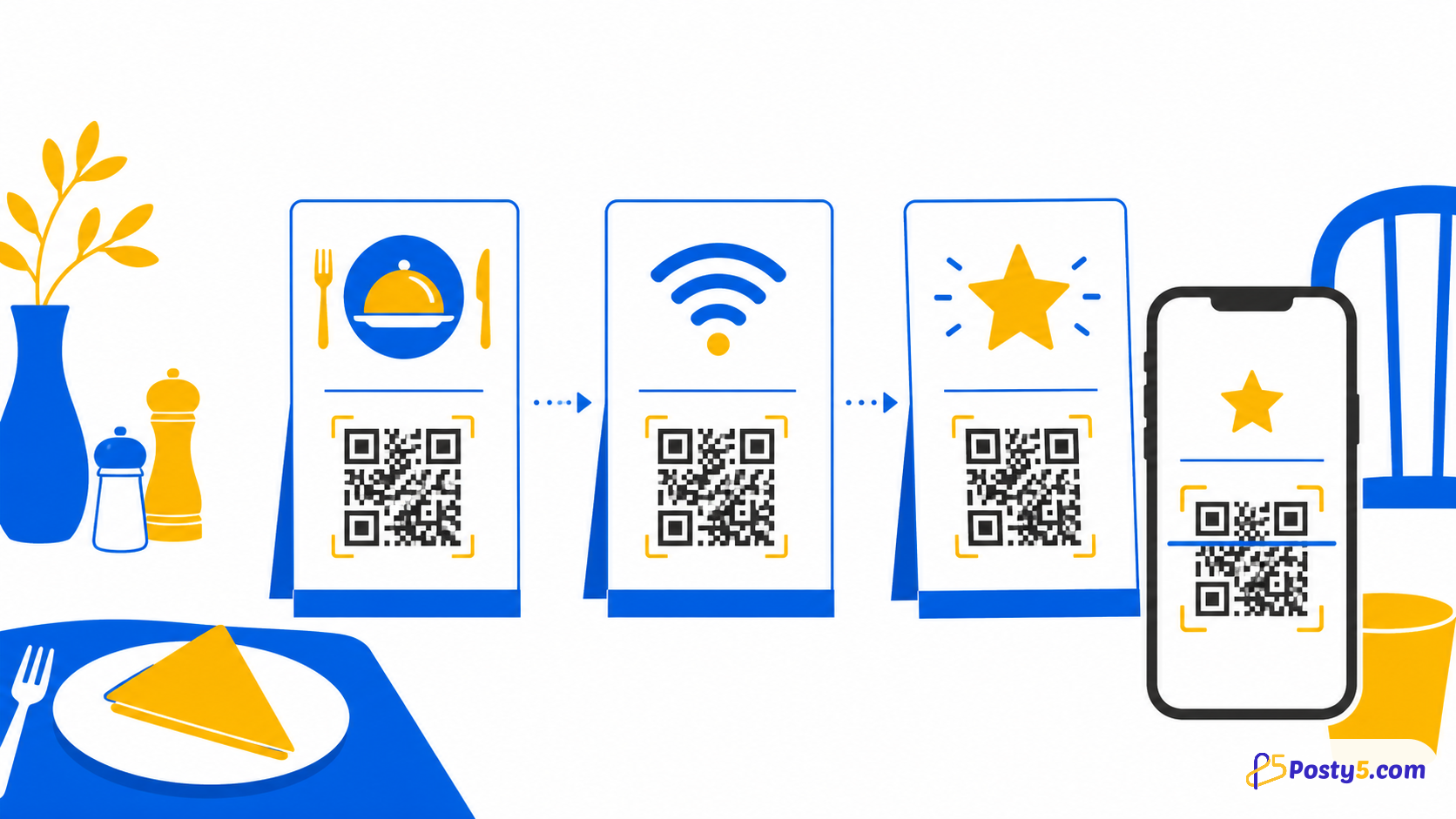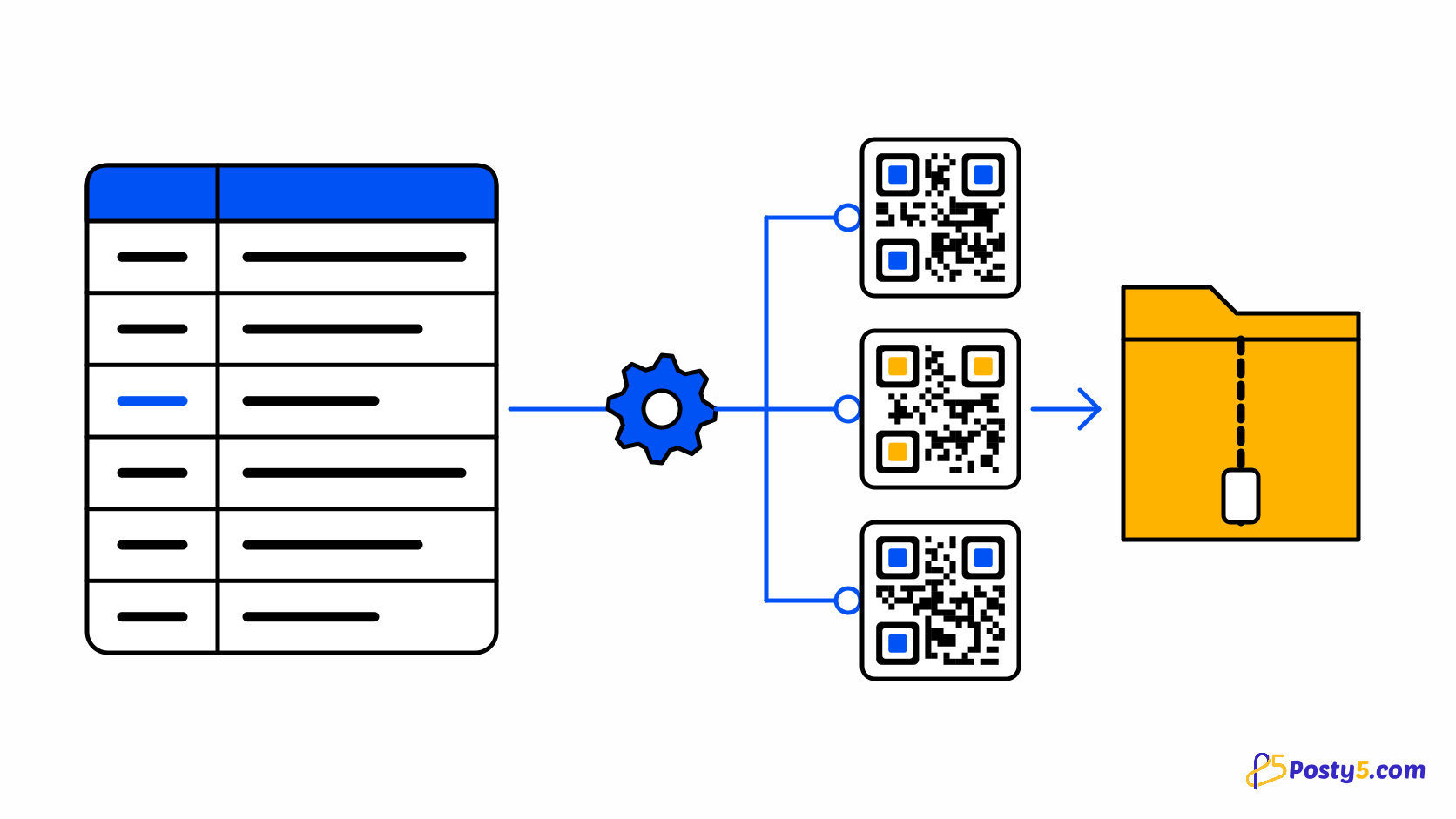
Badges, table cards, shelf labels and product tags all need their own QR code, and making hundreds by hand is not an option. Posty5's bulk import turns one CSV file into QR codes, checks every row before anything is created, and builds one ZIP with a PNG image per row, named the way your printer needs.
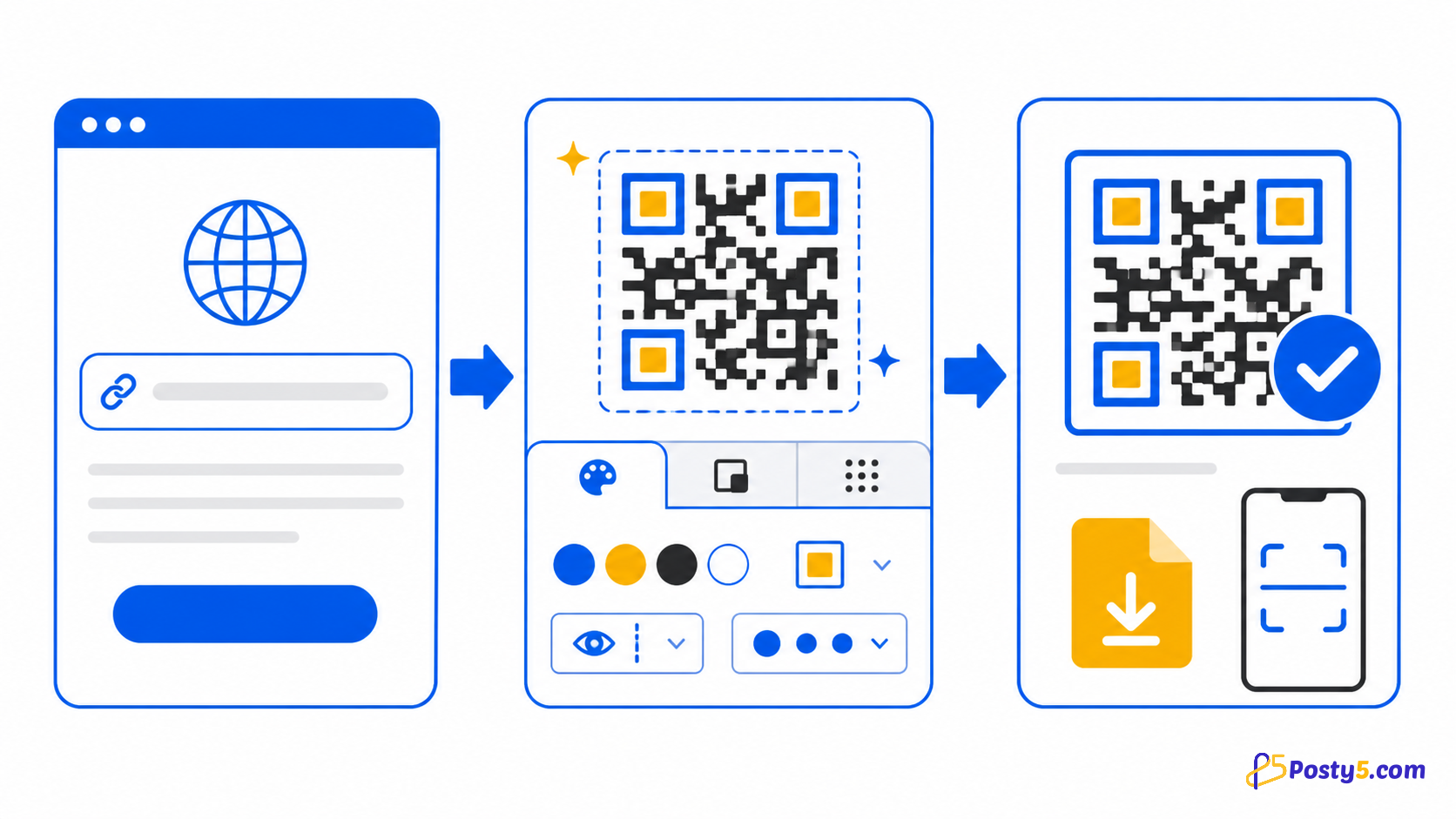
- Open Bulk import — Open QR Code Generator in the Posty5 dashboard and choose Bulk import.
- Fill the template — Download the CSV template and fill one row per QR code, with fileName set to the name each image needs.
- Upload and check — Upload the file, pick the default template and the image size, and check it. Posty5 lists every failing row before anything is created.
- Generate the codes — Start the import and follow its progress, or leave the page and wait for the notification.
- Download the ZIP — Download the ZIP of PNG images and the results file.
Before you start
You need a signed-in Posty5 account. Open QR Code Generator in the dashboard and choose Bulk import. Bulk generation depends on your plan: if your plan does not include it, the page shows it as locked.
Start from the CSV template the page offers: it has the header row and one example row.
Build the CSV file
Every row may carry these columns. Column names are not case-sensitive.
type | What the code holds. Left empty, it is url. |
name | A name for your own list. |
customId | Your own ending for the code's link, when your plan allows custom endings. It must be unused, including by an earlier row. |
tag | A tag to group and filter the codes later. |
refId | Your own reference, for example a product or attendee code. |
templateId | The design template of this row. It overrides the default you pick. |
fileName | The image's name inside the ZIP. Left empty, the code's name is used. |
Then add the columns of the row's type:
url | url |
freeText | text |
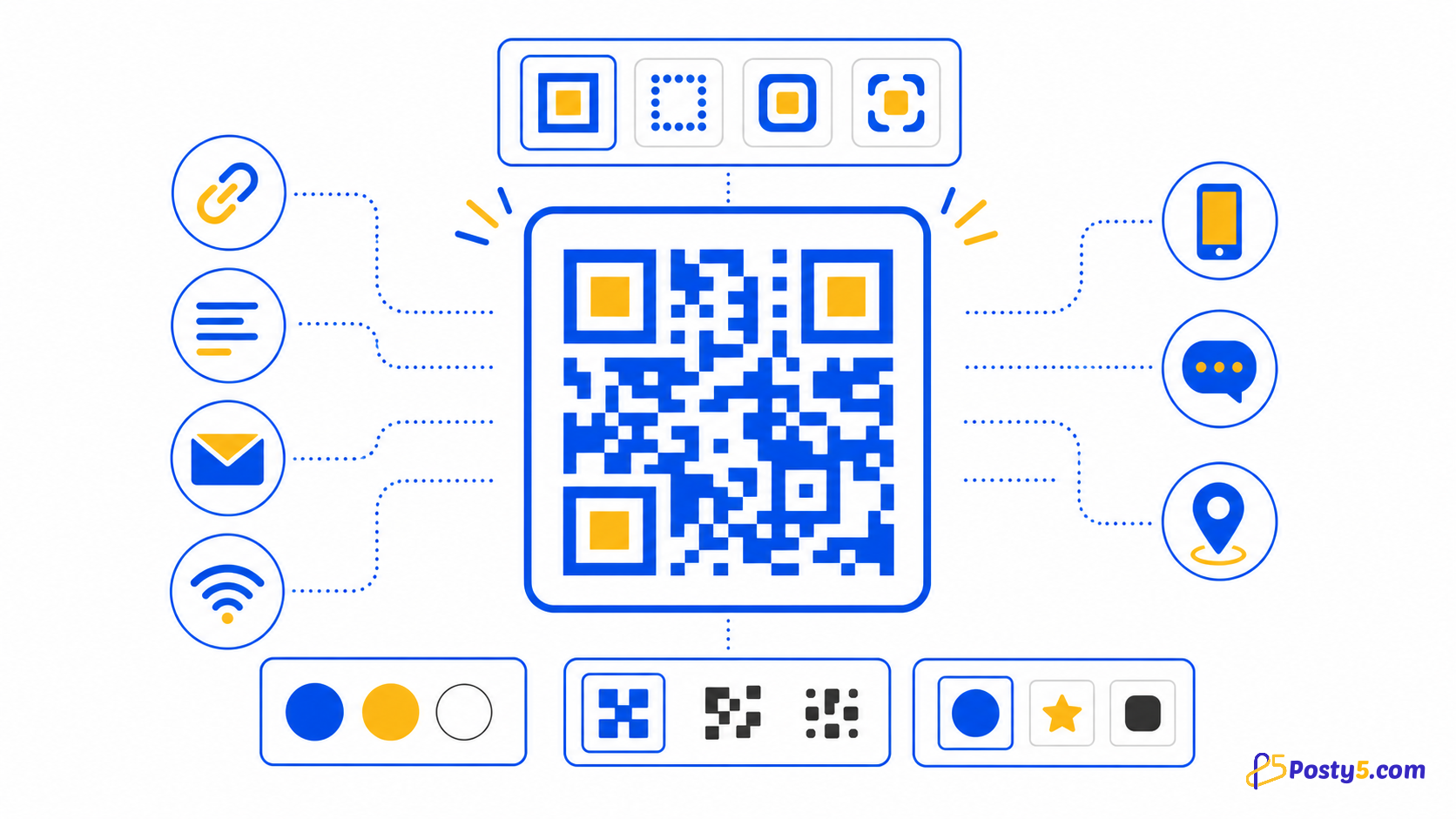
email | email, subject, body |
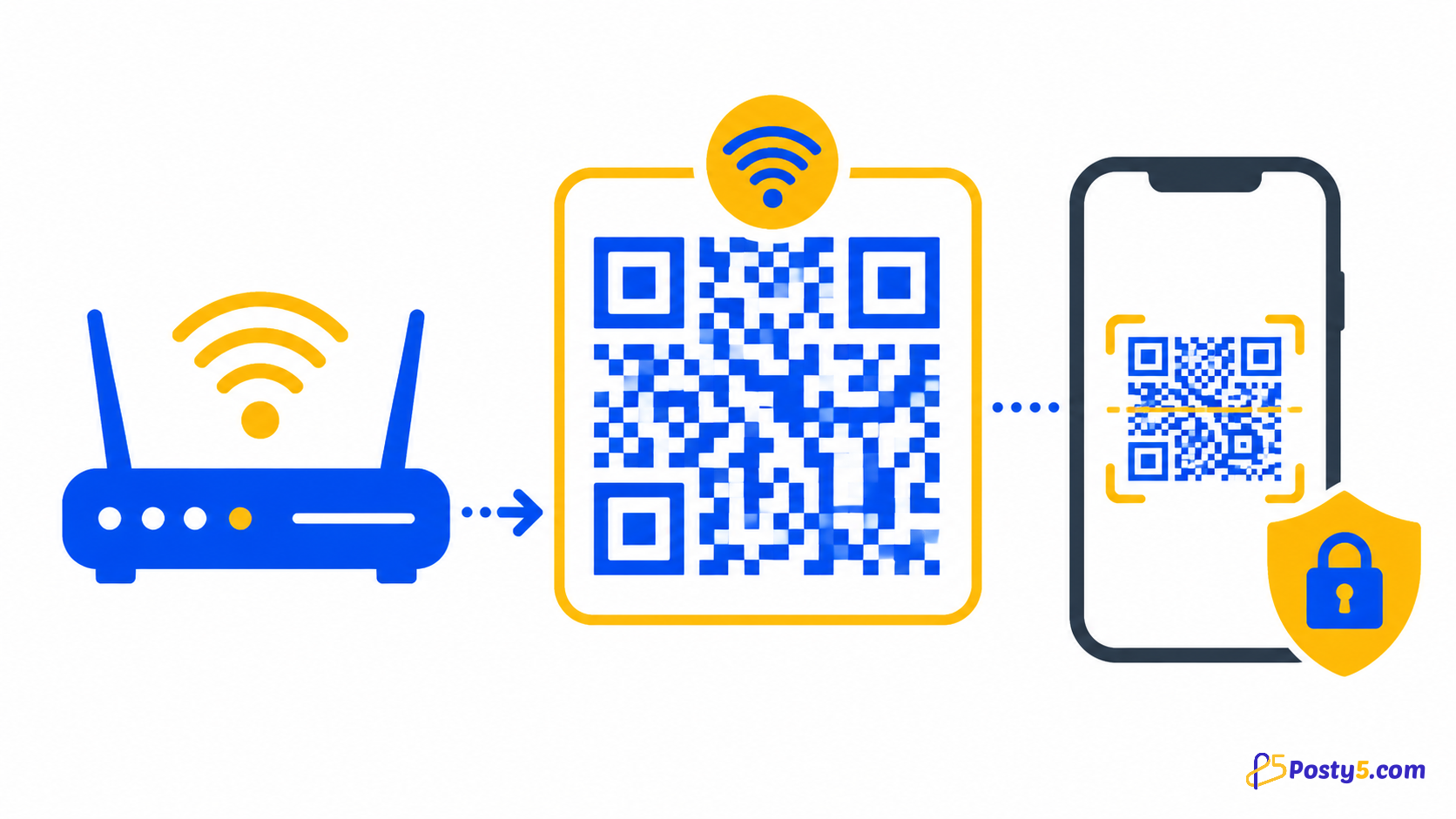
wifi | ssid, security, password |
call | phoneNumber |
sms | phoneNumber, message |
geolocation | latitude, longitude, mapUrl |
Save the file as UTF-8 CSV with commas and a header row. A file-type QR code cannot be created in bulk, because each file needs its own upload.
Start a QR bulk importUpload, choose the image size and check
After the upload, pick the default template, tag and ref ID, and the image size: 512, 1,024 or 2,000 pixels. Images are PNG. Then check the file: Posty5 reads every row without creating anything and lists each failing row with its number and the reason — a missing or invalid value for the row's type, a value that is too long, a custom ending that is taken or not allowed on your plan, or a template that is not yours.
Generate the codes
Start the import. It runs in the background and shows how many rows were processed, created and failed; you can leave the page and a notification tells you when it has finished.
You can cancel a running import. Codes created before the cancel stay in your account.
- One file holds up to 5,000 rows and 2 MB.
- Up to 20,000 rows can be created in bulk per account per day (UTC), counting every import and API call together.
- One import runs at a time, and up to three more can wait behind it.
- If your account runs out of credits, that row and every row after it fail, and the codes already created stay.
Download the ZIP and the results
When the import finishes, download the ZIP of images, the results file (one line per row, with its status and the new code's details) and, if any row failed, the errors file with those rows as you wrote them.
Image names are made safe for every system and shortened to 100 characters. Two rows with the same name get -2, -3 and so on, and a name with no usable letters becomes qr- followed by the row number.
A download link works for 15 minutes; open the import again from your past imports to get a new one. Uploaded and result files are kept for 7 days and an import's record for 30 days.
Your codes after the import
Every row is a normal QR code in your QR code list. You can open it, edit it and download it again like a code you created by hand.
From the QR code list, Export CSV and Export JSON download your codes, following the list's filters, up to 50,000 rows per file. Wi-Fi passwords are never included in an export.
A static QR code holds its content directly, so scanning it never reaches Posty5 and no scan is counted for it. Only codes that point at a Posty5 address can count scans.
Doing it from code
Developers can submit the same CSV or JSON rows as a job through the Posty5 API (POST /api/link-bulk-jobs) with an API key and poll it until the ZIP is ready. The same checks and limits apply. The routes are documented in the API reference.
Frequently asked questions
How many QR codes can I generate at once?
One file holds up to 5,000 rows and 2 MB, and up to 20,000 rows can be created in bulk per account per day.
Which QR types work in bulk?
URL, free text, email, Wi-Fi, phone call, SMS and geolocation. File codes cannot be created in bulk.
Can I edit a QR code made in bulk?
Yes. Every row becomes a normal QR code in your list that you can open, edit and download again.
Will I see scans for these codes?
Only for codes that point at a Posty5 address. A static code holds its content directly, so its scans never reach Posty5.
How long is the ZIP available?
Each download link works for 15 minutes, and the files are kept for 7 days; open the import again to get a fresh link.