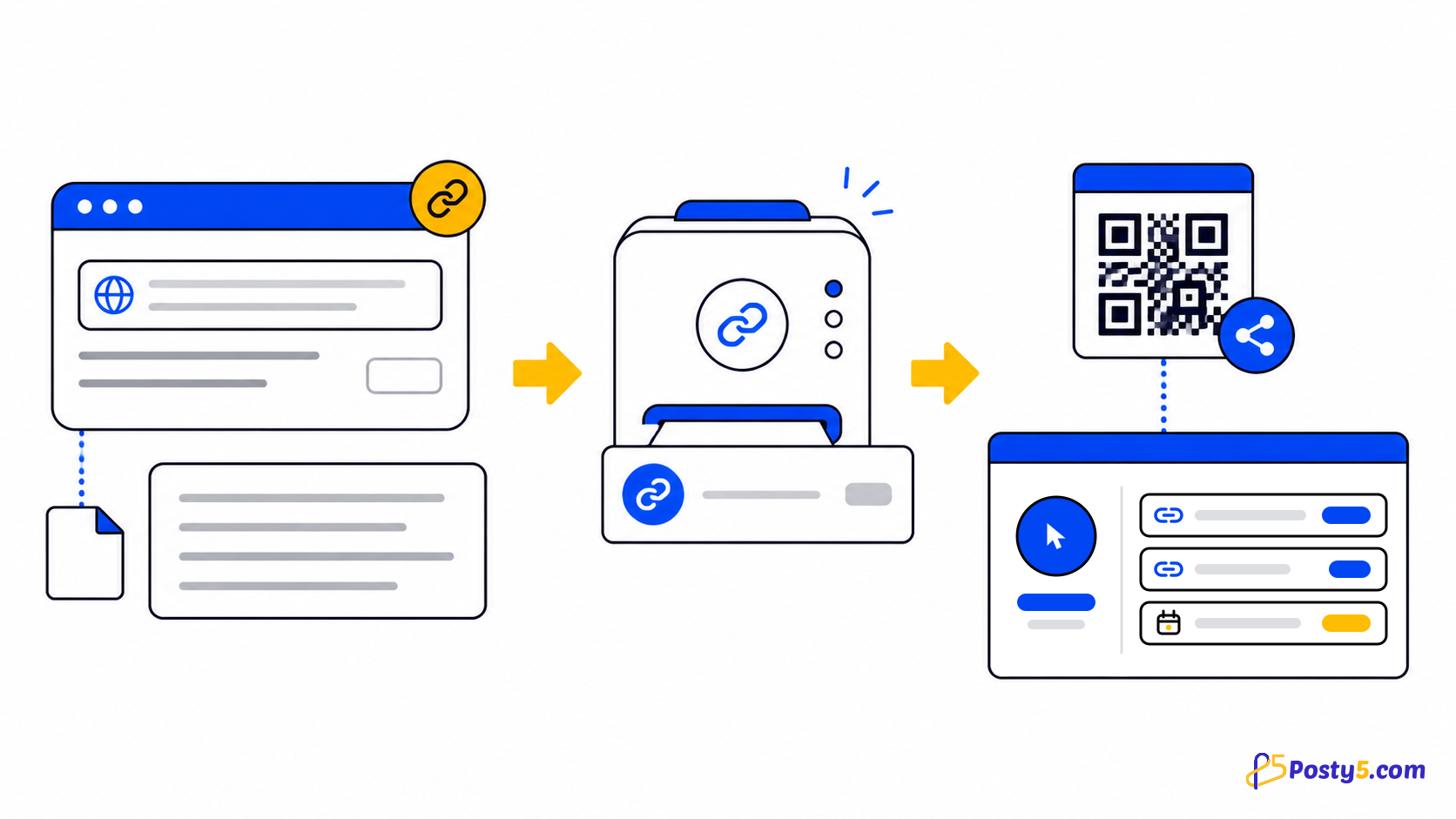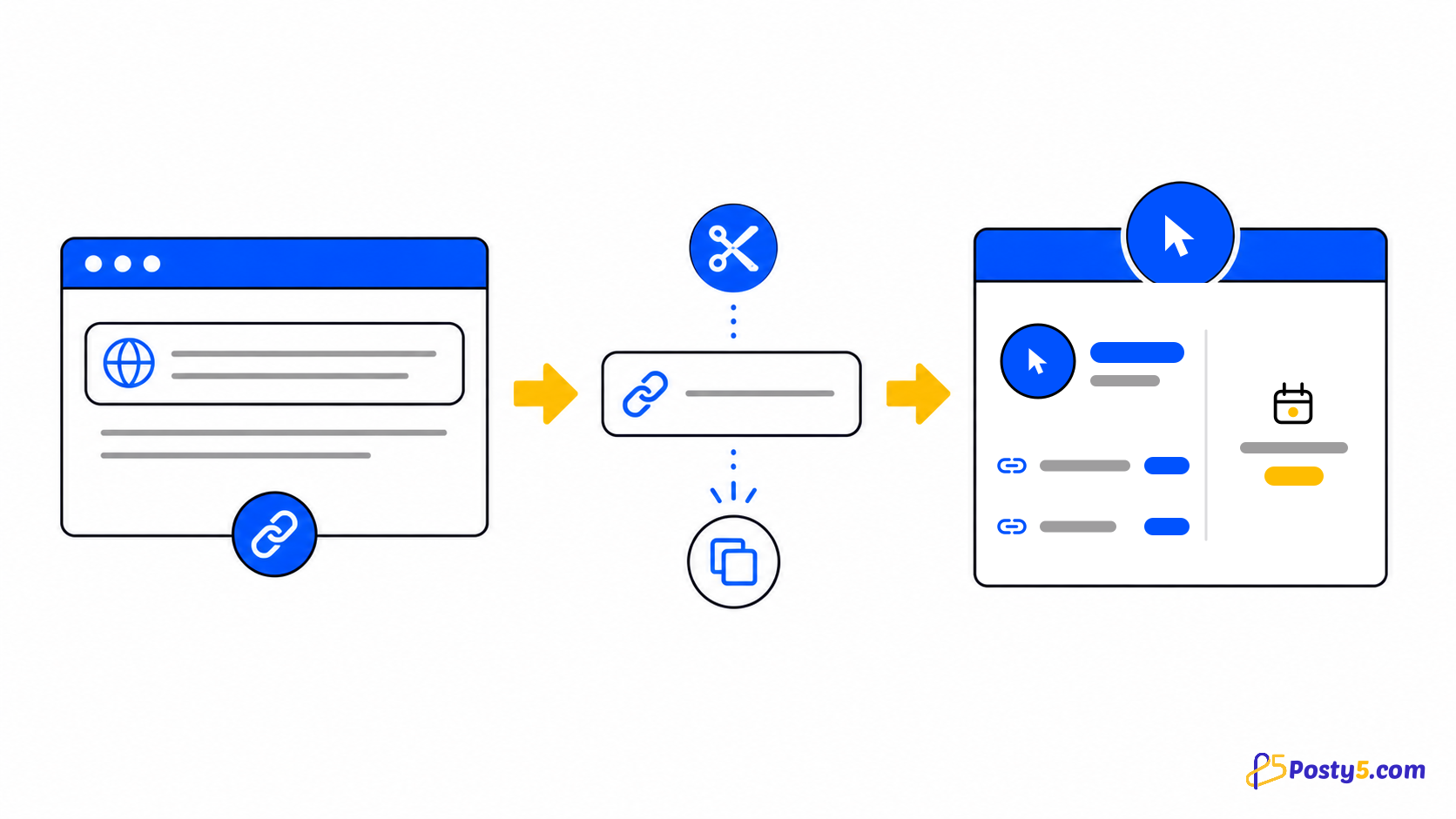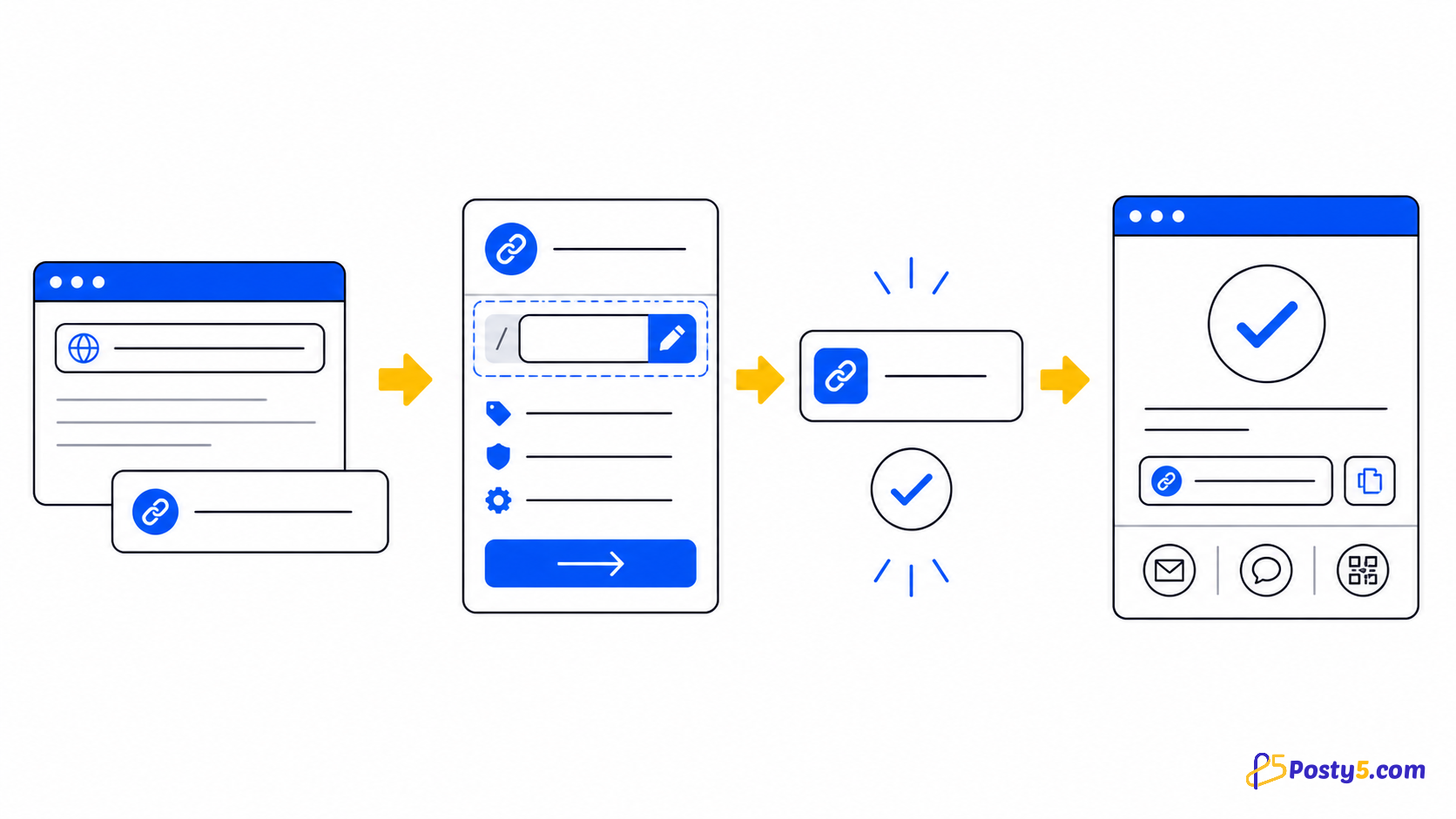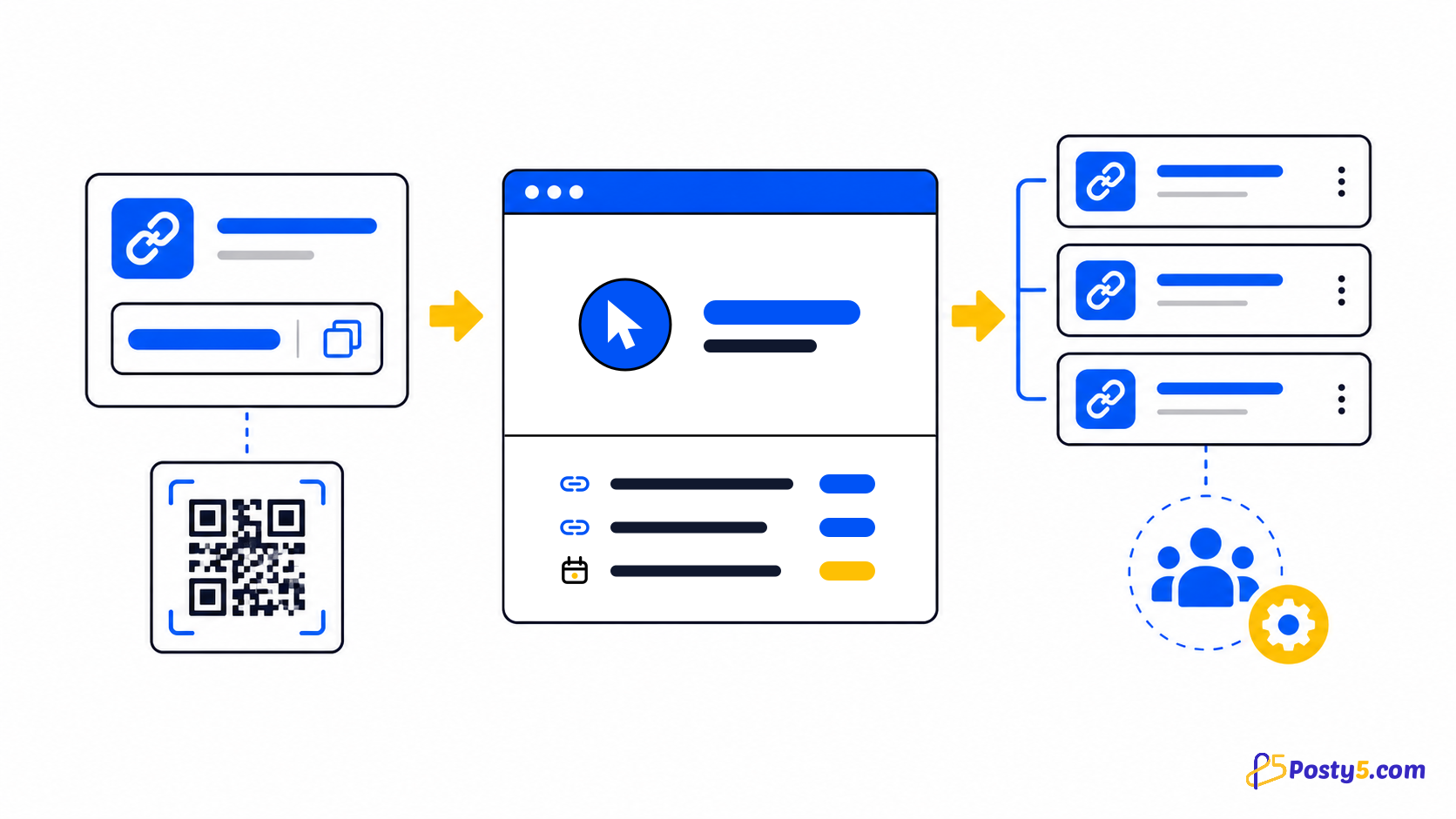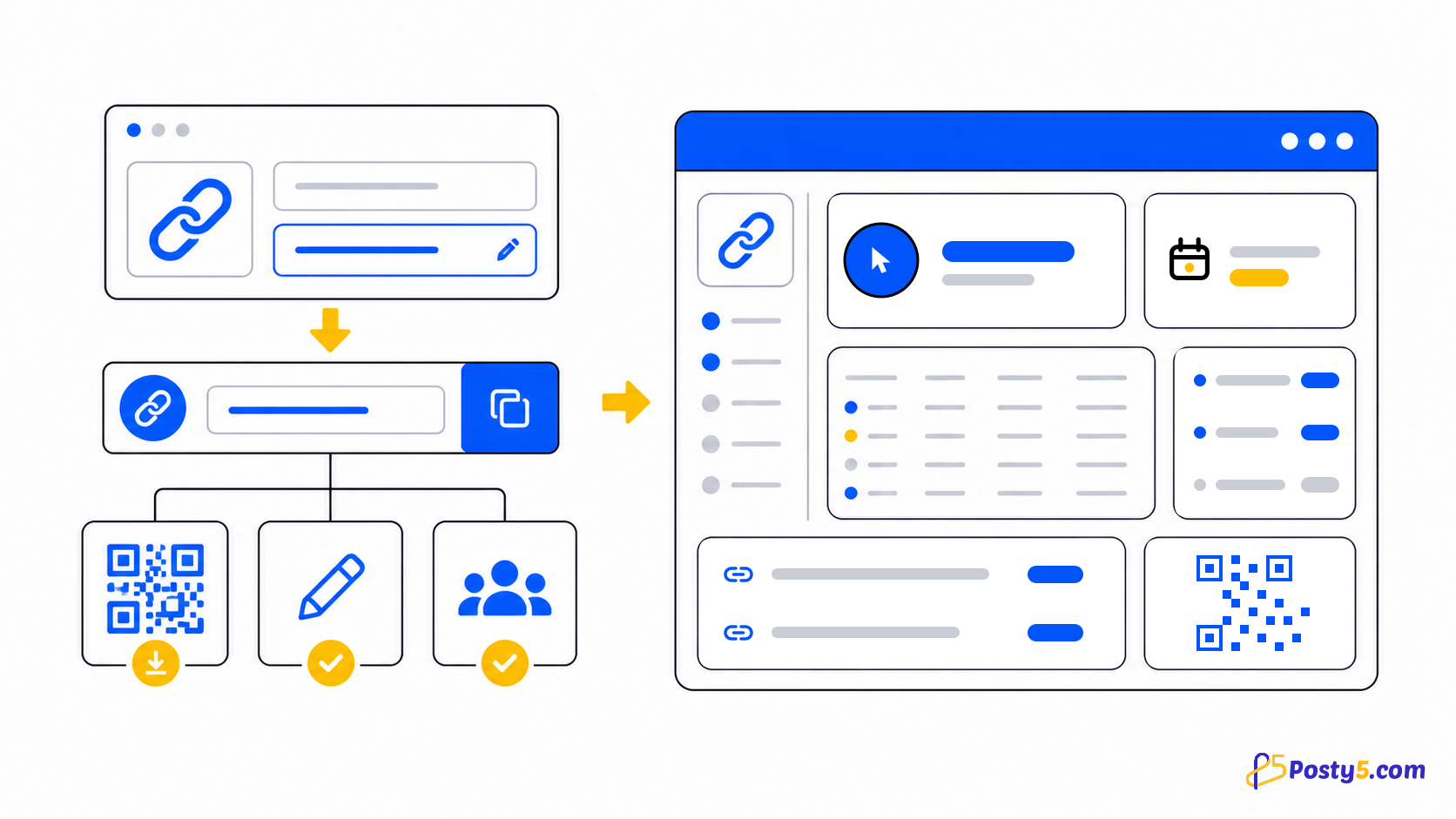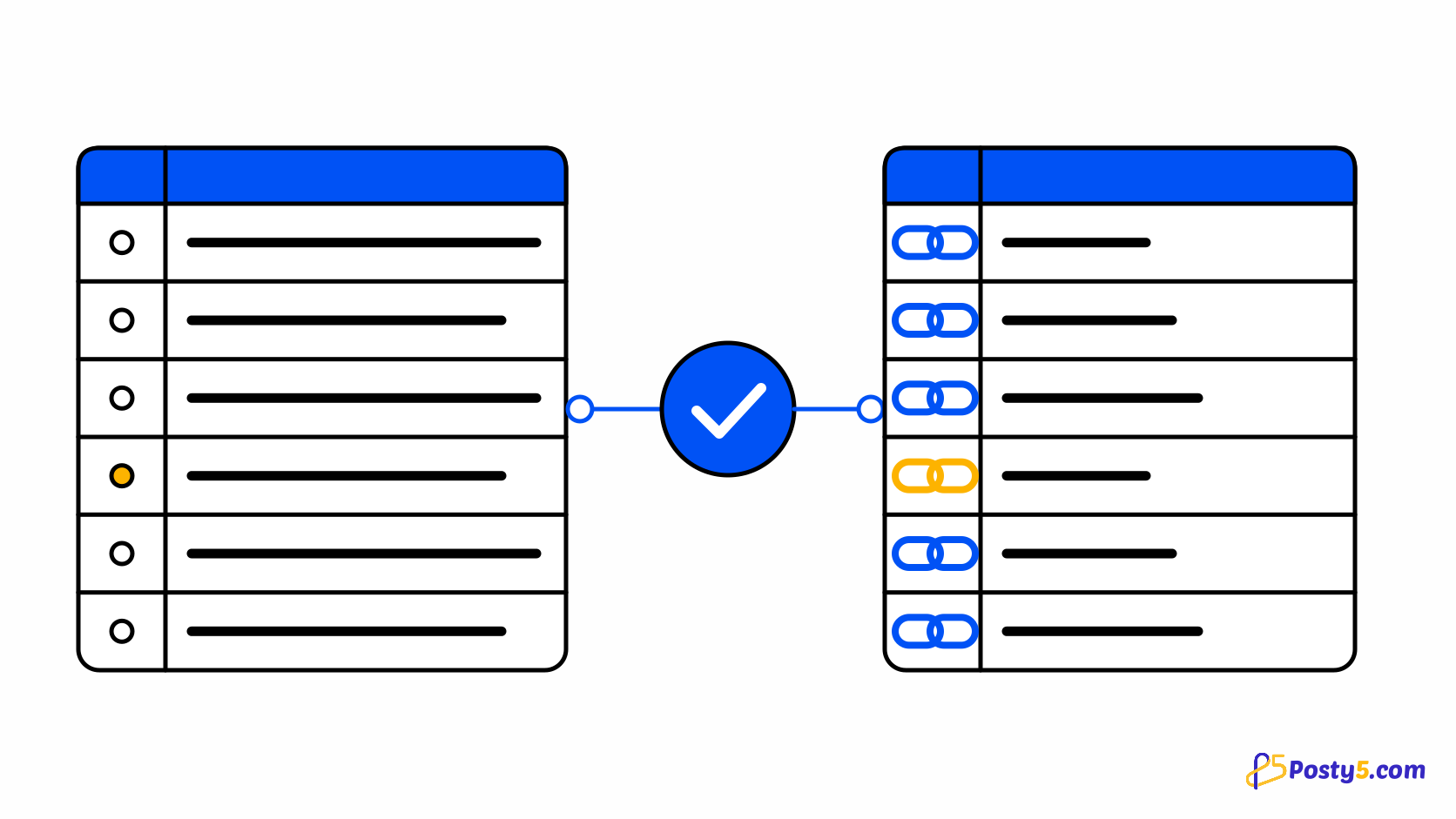
Creating short links one at a time stops working once a campaign sheet or a product catalogue has hundreds of rows. Posty5's bulk import takes one CSV file, checks every row before anything is created, creates the links in the background and gives you a results file with each short address next to the row it came from.
- Open Bulk import — Open URL Shortener in the Posty5 dashboard and choose Bulk import.
- Fill the template — Download the CSV template and fill one row per destination URL; only the url column is required.
- Upload and check — Upload the file, pick the defaults for empty columns and check it. Posty5 lists every failing row before anything is created.
- Run the import — Start the import and follow its progress, or leave the page and wait for the notification.
- Download the results — Download the results file with each short address, and the errors file if any row failed.
Before you start
You need a signed-in Posty5 account. Open URL Shortener in the dashboard and choose Bulk import. Bulk creation depends on your plan: if your plan does not include it, the page shows it as locked.
Start from the CSV template the page offers. It has the right header row and one example row, so you only replace the example with your own data.
Prepare the CSV file
Only the url column is required. Column names are not case-sensitive, and a column Posty5 does not know is ignored and reported in the check step.
url | The destination address. Required. baseUrl is accepted as another name for it. |
name | A name for your own list. Left empty, Posty5 fills it in the background from the destination page. |
customId | Your own ending for the short link, when your plan allows custom endings. It must be unused, including by an earlier row of the same file. |
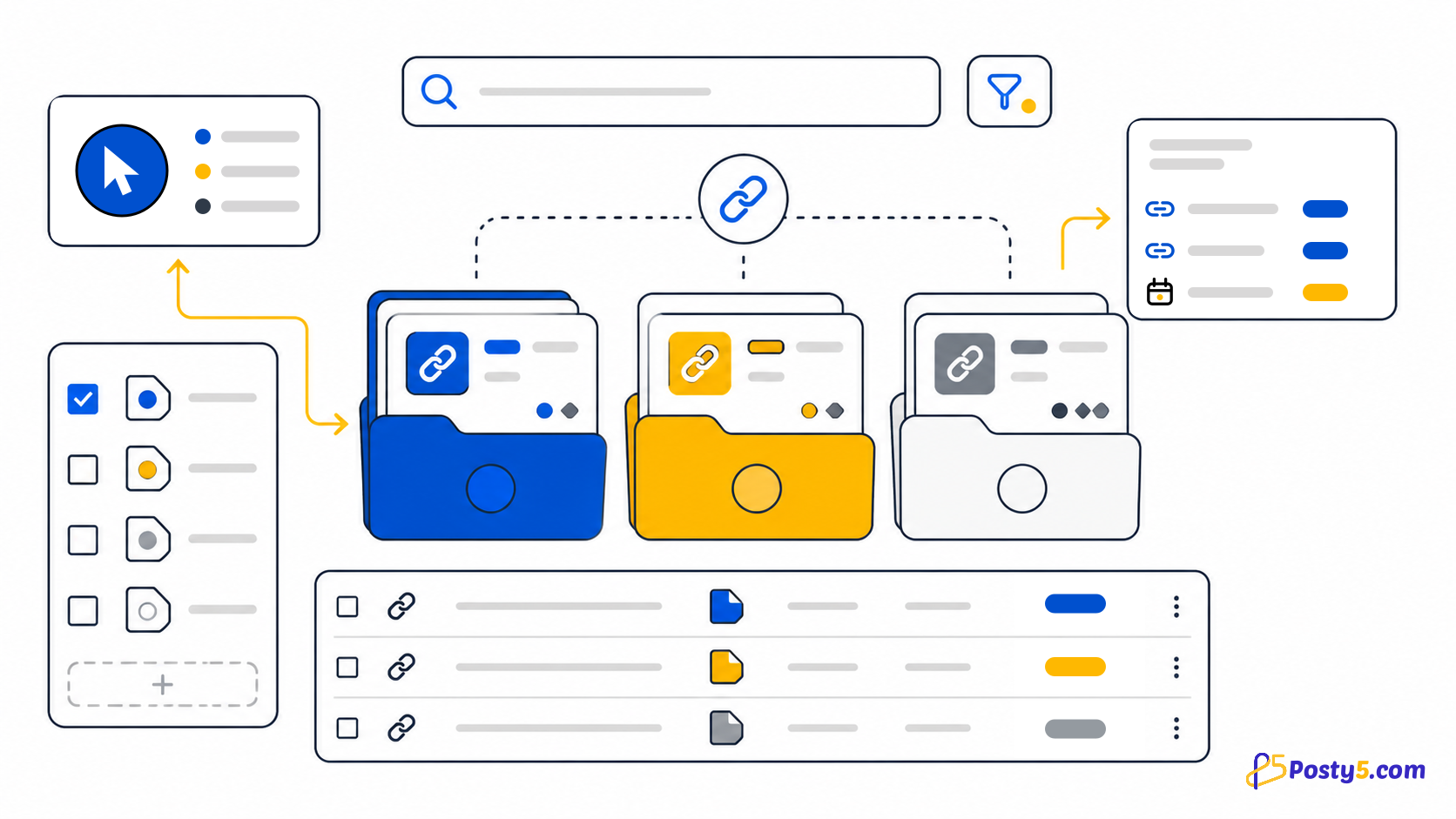
tag | A tag to group and filter the links later. |
refId | Your own reference, for example a product code from your system. |
templateId | The QR code template of this row. It overrides the default you pick on the upload step. |
Save the file as UTF-8 CSV with commas and a header row. Values that contain commas go in double quotes, which spreadsheet apps do on their own when they export CSV.
Start a bulk importUpload and check the file
After the upload, pick the defaults for rows that leave a column empty (template, tag and ref ID), then check the file. Posty5 reads every row without creating anything and lists each failing row with its number, counting from the first row under the header. A row fails when:
- the URL is missing, is not a valid web address, or is longer than 2,048 characters
- the URL is blocked as unsafe, exactly as it would be for a single link
- a name, tag or reference is longer than 255 characters
- the custom ending is not allowed on your plan, is invalid, or is already in use
- the template does not exist or is not yours
Run the import
Start the import when the check looks right. It runs in the background: the page shows how many rows were processed, created and failed, and you can leave it — a notification tells you when the import has finished.
You can cancel a running import. Links created before the cancel stay in your account.
Page titles and app deep links are fetched after each link is created, so a new link may show its host name as its name for a short while.
- One file holds up to 5,000 rows and 2 MB.
- Up to 20,000 rows can be created in bulk per account per day (UTC), counting every import and API call together.
- One import runs at a time, and up to three more can wait behind it.
- If your account runs out of credits during an import, that row and every row after it fail, and the links already created stay.
Download the results
When the import finishes, download the results file. It has one line per row of your file: the row number, its status (created, failed, skipped, or not processed when the import stopped before reaching it), the new link's ID and short address, and the reason when a row failed.
A second file holds only the failed rows with your original values, so you can fix them and upload that file again.
Past imports are listed with their status and counts, so you can open one later and download its files again. Uploaded and result files are kept for 7 days and an import's record for 30 days — download what you need before then. The links themselves are never removed.
Export your links later
- From the short-link list, choose Export CSV or Export JSON to download your links with their visit counters.
- The export follows the filters applied to the list, so filter by tag first to export one campaign.
- One export holds up to 50,000 rows, newest first; a longer list is cut there and the file says so.
- A CSV cell that starts with =, +, - or @ gets a leading apostrophe, so a spreadsheet app shows it as text instead of running it as a formula.
Doing it from code
Developers can do the same through the Posty5 API with an API key: POST /api/short-link/bulk creates up to 100 rows in one request and answers one result per row, and POST /api/link-bulk-jobs submits a whole file as a job you can poll. Both use the same checks and limits as the dashboard. The routes are documented in the API reference.
Frequently asked questions
How many URLs can I import at once?
One file holds up to 5,000 rows and 2 MB, and up to 20,000 rows can be created in bulk per account per day.
What happens to a row with a bad URL?
The check step lists it with its row number and reason before anything is created. During the import a failing row never stops the other rows.
Can I choose my own short endings?
Yes, in the customId column, when your plan allows custom endings. Each ending must be unused, including by an earlier row of the same file.
How long can I download the results?
Uploaded and result files are kept for 7 days. The links themselves stay in your account.
Can I export my short links?
Yes. The short-link list exports CSV or JSON with each link's visit counters, following the list's filters, up to 50,000 rows per file.