
Posty5 Studio has a new layout. If you used it before, the long menu with every tool in it is gone, and you may be wondering where things went. Nothing was removed: every service is still there, it is just organised around the work you do most.
This article walks through the new home page, favorites, recent visits, the sidebar, the search and the statistics pages, so you can find your way in a couple of minutes. The steps work the same for a brand-new account.
What changed, in one minute
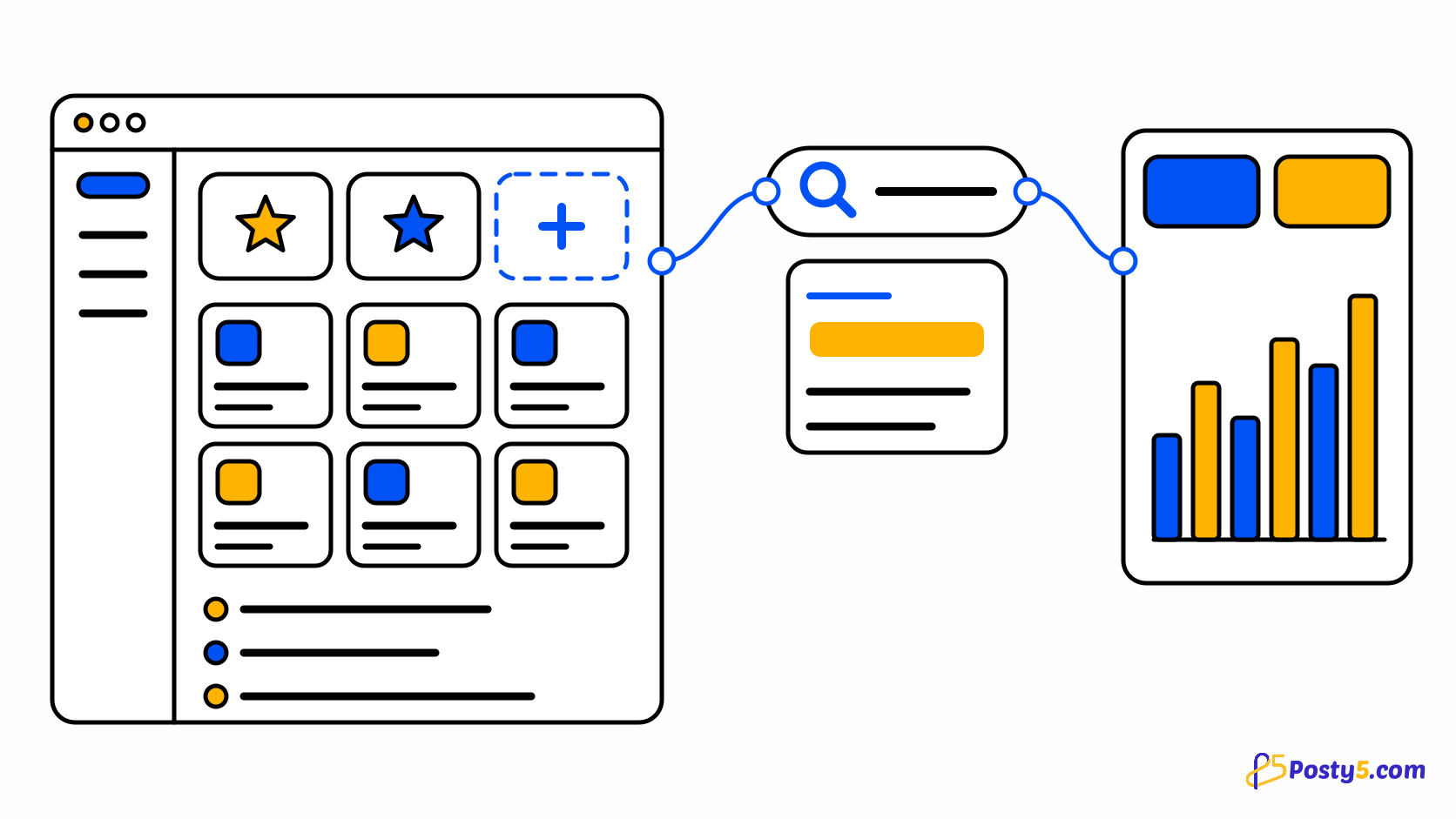
- Studio opens on All Services: your favorites at the top, a card for every service you can use, and the pages you visited last.
- You can pin up to three services as favorites.
- The sidebar shows only the pages of the service you are in, with a way back to All Services.
- One search box at the top finds services, pages and your own content. Press Ctrl K, or ⌘ K on a Mac, to jump to it.
- Each service opens on its own Statistics page.
All Services: your new home page
The home page lists every service on your account as a card with a short description. Click a card to open that service. Services such as your account and developer tools are grouped below the tools under Account & Developers.
If the list is long, type in Search services to filter the cards by name, or use Sort to show them in the default order, from A to Z, or with the ones you used most recently first.
Pin up to three favorites
Favorite Services, at the top of the home page, has three slots for the services you open every day.
- Click Add Service in an empty slot and pick a service, or drag a service's card onto an empty slot.
- Open Manage Favorites to change their order or remove one.
- In the same window, Visible services lets you hide services you never use. A hidden service leaves the home page and the menu until you show it again.
Three is the limit. To pin a fourth service, remove one first.
Favorites are saved to your Posty5 account, so they follow you to any browser or device where you sign in.
Recently visited
Below the services, Recently Visited shows the last pages you opened and how long ago. It is the quickest way back to the short link you edited this morning or the post you were scheduling yesterday.
The home page shows the latest five. View All opens your recent history, up to the last 20 pages.
A sidebar that follows the service you are in
On the home page, the sidebar holds only a few app-wide links: All Services, Favorites, Recent and Settings. Once you open a service, it shows that service's pages and nothing else, so the menu stays short however many services your account has.
To switch to another service, click All Services at the top of the sidebar, or use the search described next.
Search everything with Ctrl+K
The search box at the top of every page looks in two places at once. It matches services and pages by name, and it searches your own content: short links, QR codes, hosted and built pages, social posts, form submissions, social accounts, workspaces, hashtag groups, QR code templates, stores and API keys.
Press Ctrl K (⌘ K on a Mac) from anywhere to put the cursor in it. Results are grouped by type; use the arrow keys and Enter to open one without touching the mouse. A group appears only for services you can open.
Statistics for every service
Each service now opens on its Statistics page instead of a bare list. It shows the key numbers as tiles, charts by day, and the latest items you created. The short link and QR code pages, for example, show how many you created, the visits they received in the period, and the top ones by visits.
Open Filter to choose a period, then press Search. The page changes only when you press Search, so you can adjust the dates first; Reset puts the default period back. The numbers are those of the last search, not a live feed, so search again to see newer activity.
The Getting around Posty5 Studio guide covers each of these screens step by step.
Open Studio and pin your first favorite
Sign in, pick the three services you use most, and press Ctrl K the next time you need something else.
Store owners: the same layout in the store control panel
If you run an online store on Posty5, its store control panel works the same way: an All Services home with favorites and recent visits, a sidebar per area, the same Ctrl K search across your store's content, and Statistics pages for areas such as orders, products and customers.
The control panel keeps its own list of favorites, separate from the one in Studio.
Frequently asked questions
Where did the Posty5 menu go?
It now follows the service you are in. On the home page you see every service as a card; inside a service, the sidebar lists that service's pages and a link back to All Services.
How do I pin a tool to the Posty5 home page?
Click Add Service in an empty Favorite Services slot and pick the tool, or drag its card onto the slot. You can pin up to three, and reorder or remove them in Manage Favorites.
Can I hide a service I never use?
Yes. Open Manage Favorites and switch it off under Visible services. It leaves the home page and the menu until you switch it back on.
Where are the statistics for my short links, QR codes and posts?
Open the service: each one starts on its Statistics page. Choose a period under Filter and press Search to update the numbers.
Do the statistics update live?
No. They show the period you last searched. Press Search again to load newer activity.