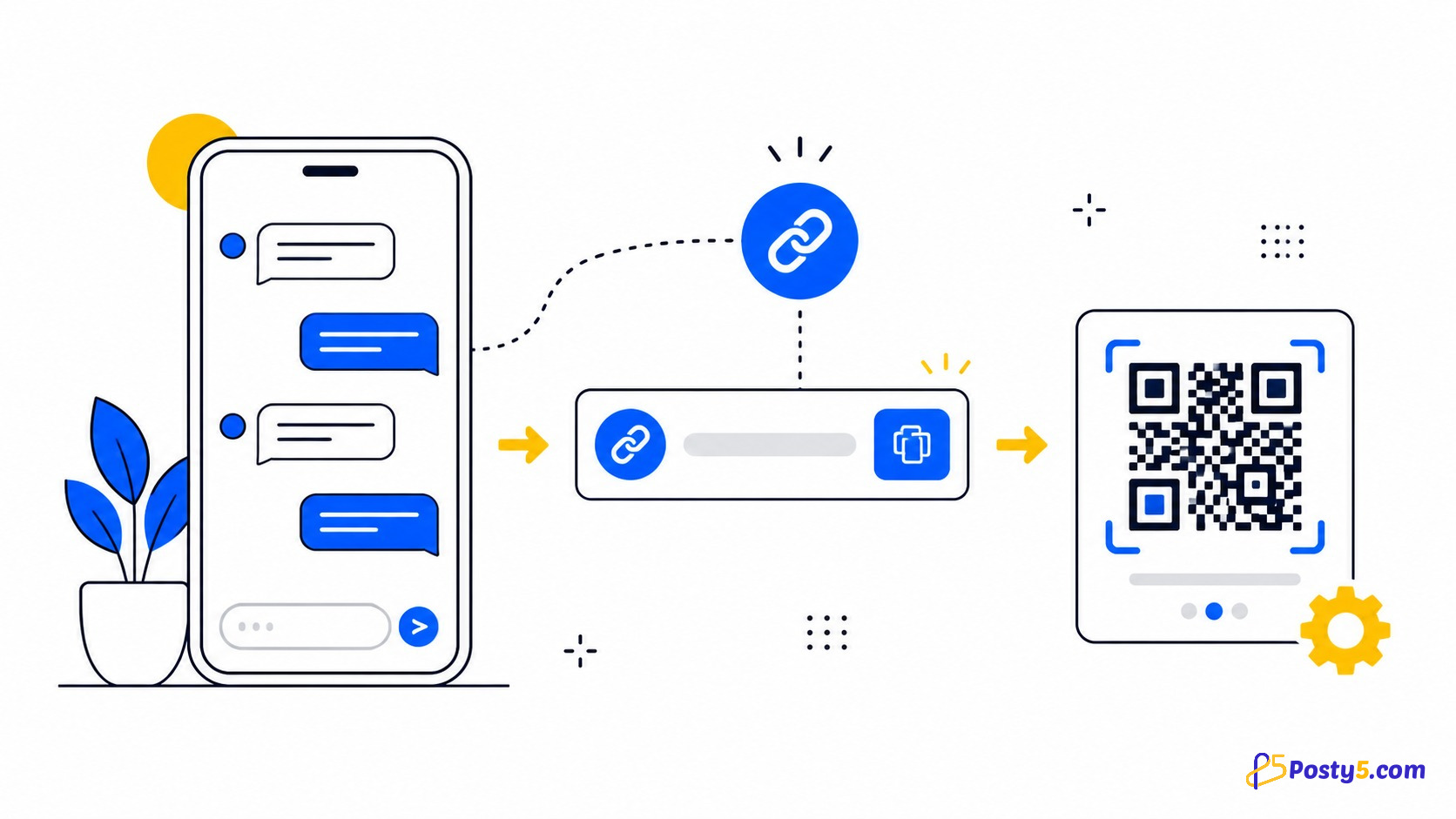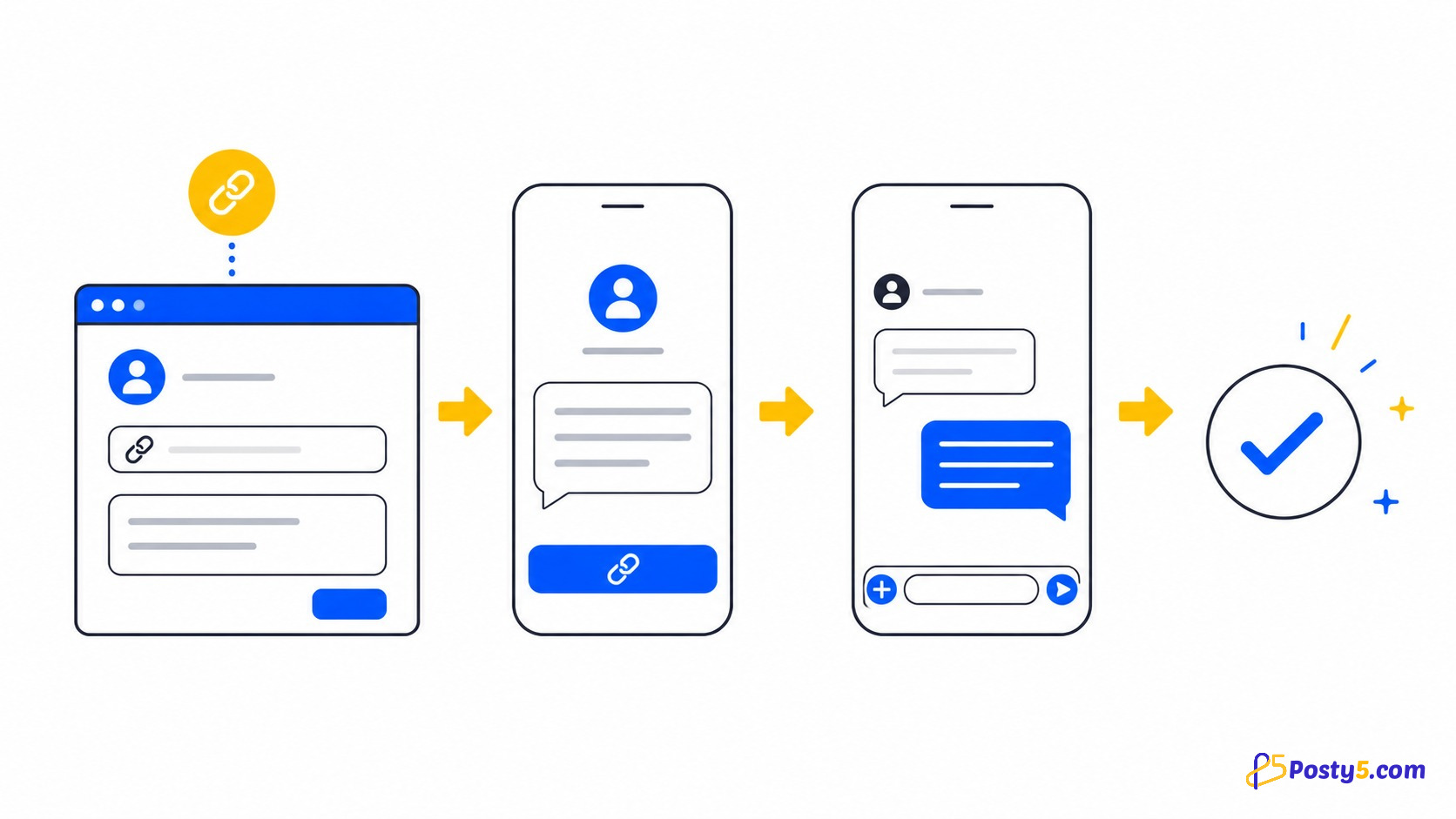
A click-to-chat route lets someone open a conversation with your number without creating a contact first. With Posty5, you enter the number, write the customer’s first message, test it and then turn it into a shareable short link or QR code. No account is required to use the generator.
What you need
- The receiving number, including its country prefix.
- One short sentence you want the customer to send first.
- A second device or computer for a final test before publishing.
Number formatting causes most avoidable failures. Keep the country prefix, remove the leading zero used only in the local format and use digits only where possible.
How to create the link
Step 1: Open the generator
Open the Posty5 WhatsApp Link Generator. It may detect your country and place the country prefix in the number field for you.
Step 2: Enter the number in international format
Keep the country prefix and add the rest of the number without its local leading zero.
For example, an illustrative Egyptian number written locally as
0100 000 0000 becomes
+20 100 000 0000. An
illustrative UK mobile beginning
07700 begins
+44 7700 internationally.
These are formatting examples, not contact numbers. If the field rejects the value, remove punctuation and spaces, confirm the country prefix and try again.
Step 3: Write the opening message
Write what the customer will send to you, not your reply to them. A product page might use “Hi, I’m asking about the blue backpack.” A service page might use “Hi, I’d like to ask about a consultation.” If the field is empty, Posty5 uses “Hi”.
Step 4: Test it, then choose the output
Press Start Chat to test the number and message on your current device. Press Create Short Link when you need an address for a website, bio or email. Use Download beside the QR preview when the destination will be printed.
What happens behind the two buttons
Start Chat uses an app-style
whatsapp://send destination on
a phone and a
https://web.whatsapp.com/send
destination on a computer. Posty5 adds the encoded message and phone number to that
destination.
Create Short Link always sends the web form to the Posty5 URL Shortener. Use that action for anything other people will open on different devices; a mobile-only app route copied into a website can fail for desktop visitors.
Common mistakes
- Keeping the local leading zero: use the country prefix instead.
- Writing your reply: the text should be the customer’s first message.
- Making the message too scripted: one useful sentence is enough.
- Sharing a phone-only route: use Create Short Link for public placements.
- Testing only on your own phone: also test on a computer or a second device.
Where to use the result
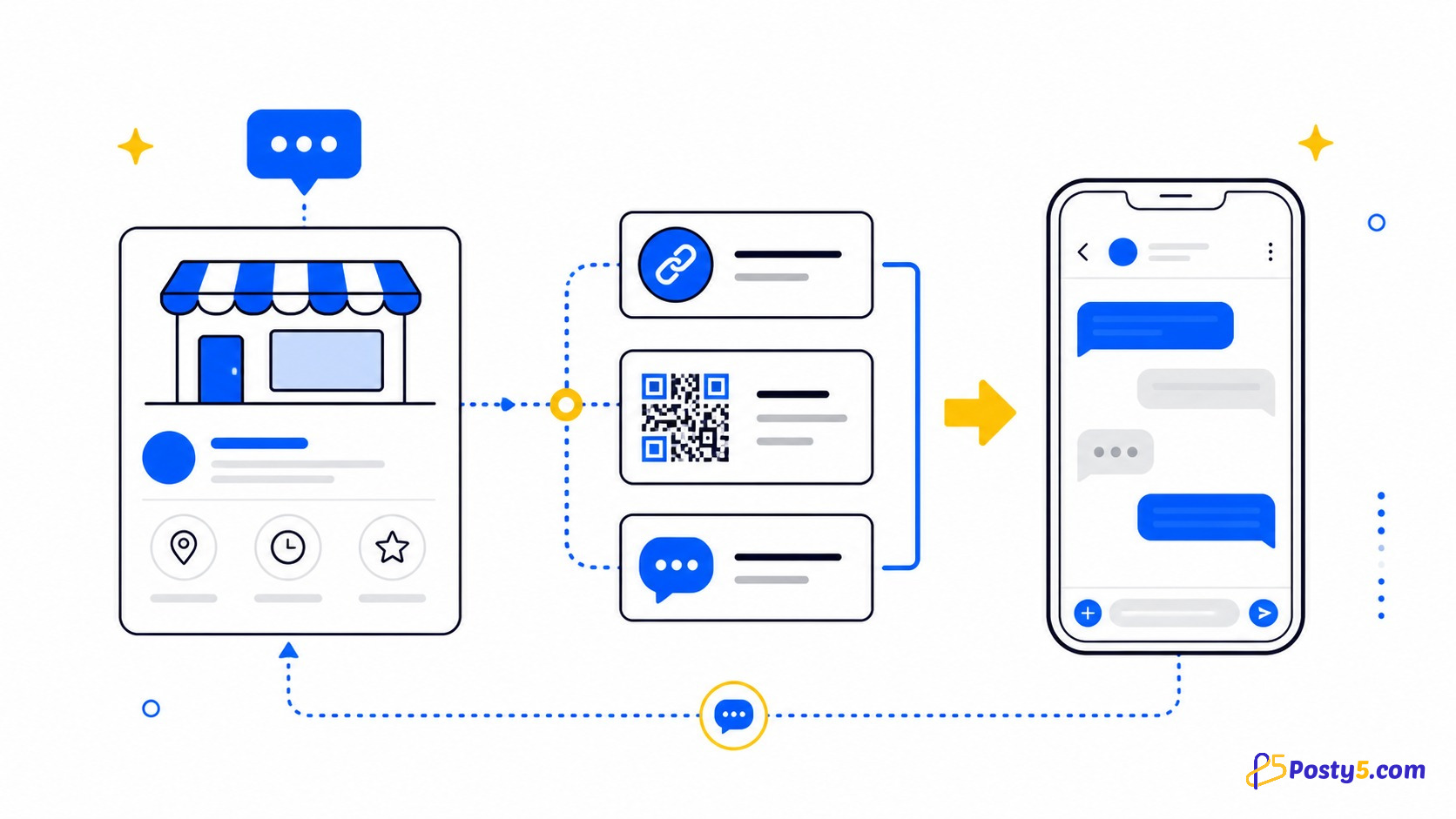
Put a short link in a social profile, website contact button or email signature. Put the QR code on packaging, receipts or signs. If you need a different opening message for each placement, see the guide to click-to-chat links for small businesses.
Frequently asked questions
Whose message is the pre-filled text?
It is the customer’s opening message to you. The customer can review it before sending.
What number format should I use?
Use the country prefix followed by the number without the local leading zero. Digits only are the safest input.
Does it work on a computer?
Yes. On desktop, Posty5 creates a web.whatsapp.com destination. Create Short Link also uses that web form.
Can I copy the raw chat URL?
The current interface does not display a raw URL to copy. Use Create Short Link for a shareable address or Start Chat for testing.
What should I do if it still fails?
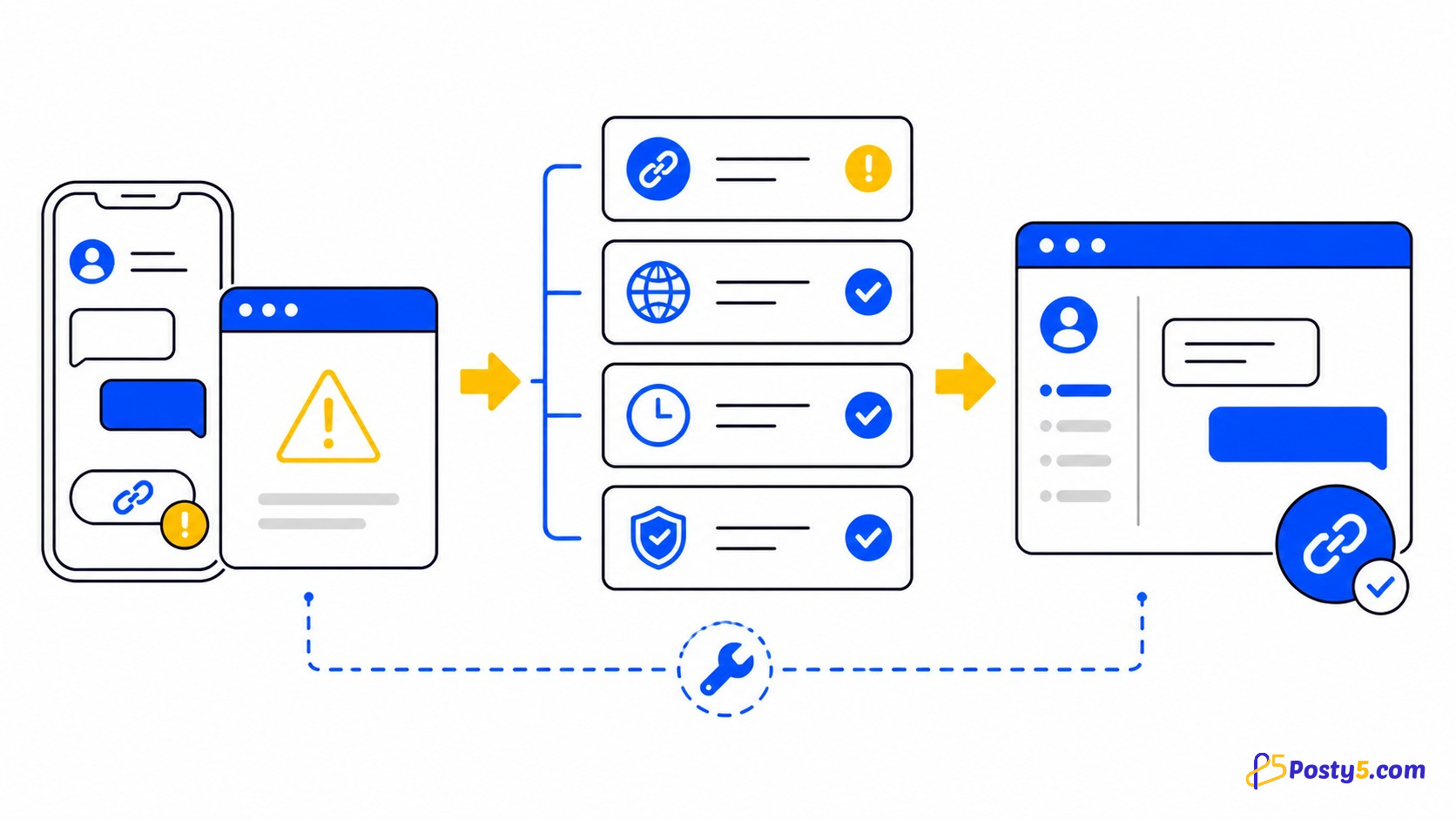
Work through the five checks for a WhatsApp link that will not open.
Create your link
Use a correctly formatted number, write one clear opening sentence and test on more than one device.
Open the generator