This guide explains Page Builder Slug Not Available? Fix Format and Availability from the current Posty5 implementation, so the steps match the editor rather than assumptions.
What the page includes
The verified structure for this page covers:
- lowercase letters, numbers and hyphens
- three-character availability check and a 60-character limit
- uniqueness across published pages
- alternative slugs and plan-dependent custom slugs
Choose the right template and structure
Remove spaces and punctuation, keep the value concise, then try a meaningful hyphenated alternative. Recheck availability before creating the page and avoid changing the published address later.
Build and publish step by step
Use this repeatable editor sequence:
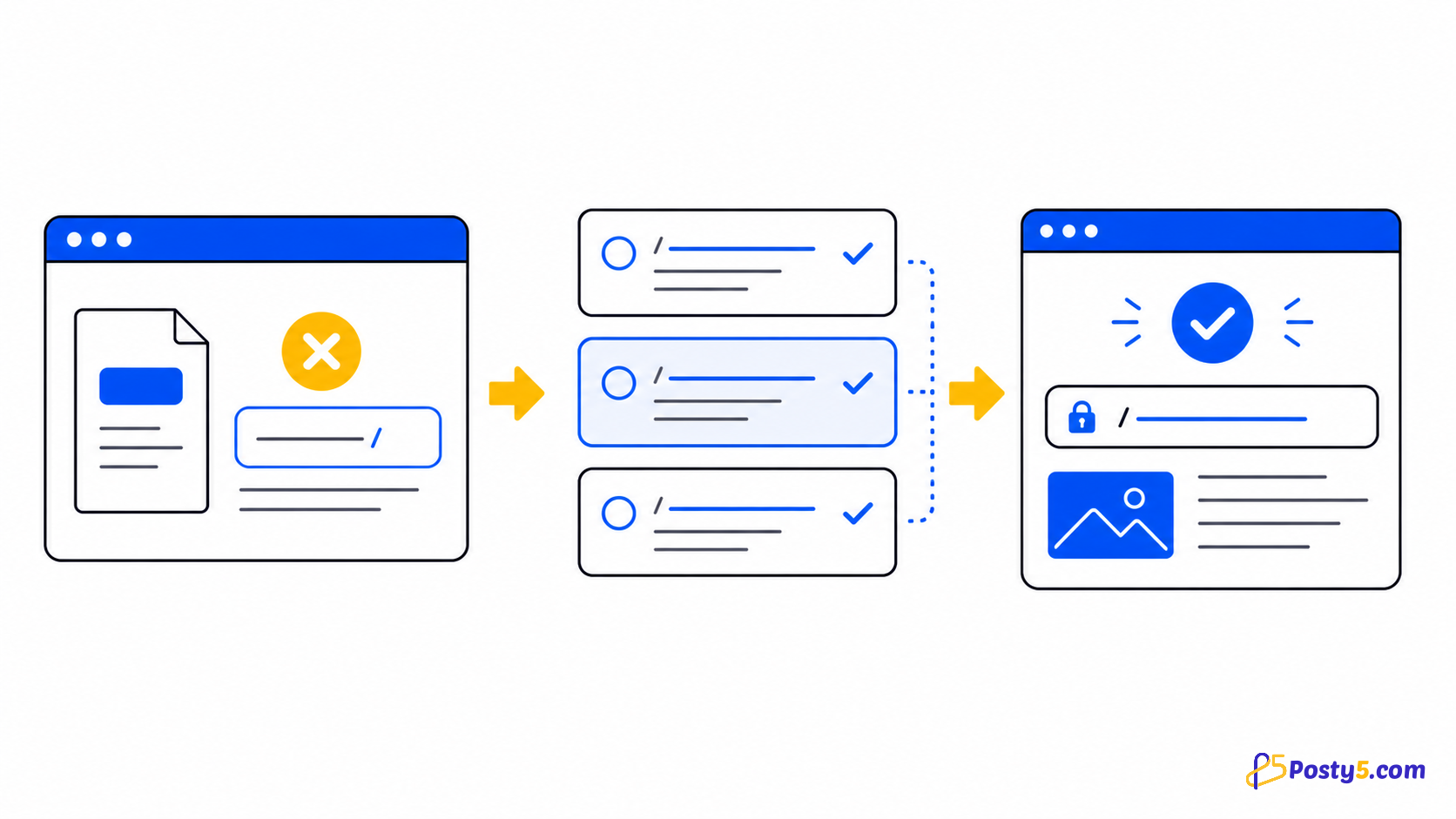
- Read whether the editor reports invalid format, unavailable value or restricted customization.
- Normalize the value to lowercase English letters, numbers and hyphens.
- Shorten it to 60 characters or fewer and remove leading, trailing or repeated hyphens.
- Try a meaningful alternative instead of impersonating another page.
- Run the availability check again, create the page, and keep the final public address stable.
Review before sharing
Open every link, check images and dates, read the page on a narrow screen, and verify a real submission in the dashboard when the template includes a form.
Open Page BuilderImportant boundaries
Use lowercase English letters, numbers and hyphens, with no spaces. The editor checks after three characters, the maximum is 60, the value must be unique, and custom choices can depend on the account plan.
Frequently asked questions
Do I need to write code?
No. The workflow uses a selected template and structured editor fields.
Can I edit the page after publishing?
Yes. Reopen the page, update its fields and publish the corrected version.
Can I choose the slug?
A custom slug must pass format and availability checks; access to custom choices can depend on the account plan.
Do all templates include a form?
No. Form fields and submission review apply only to templates that include a form.
Should I test the mobile view?
Yes. Preview both widths, then test the actual published address.
Which template should I choose?
Choose the template whose fields match the page goal; do not select by appearance alone.
Continue through the Page Builder guides
These guides cover the same Page Builder workflow from different angles: