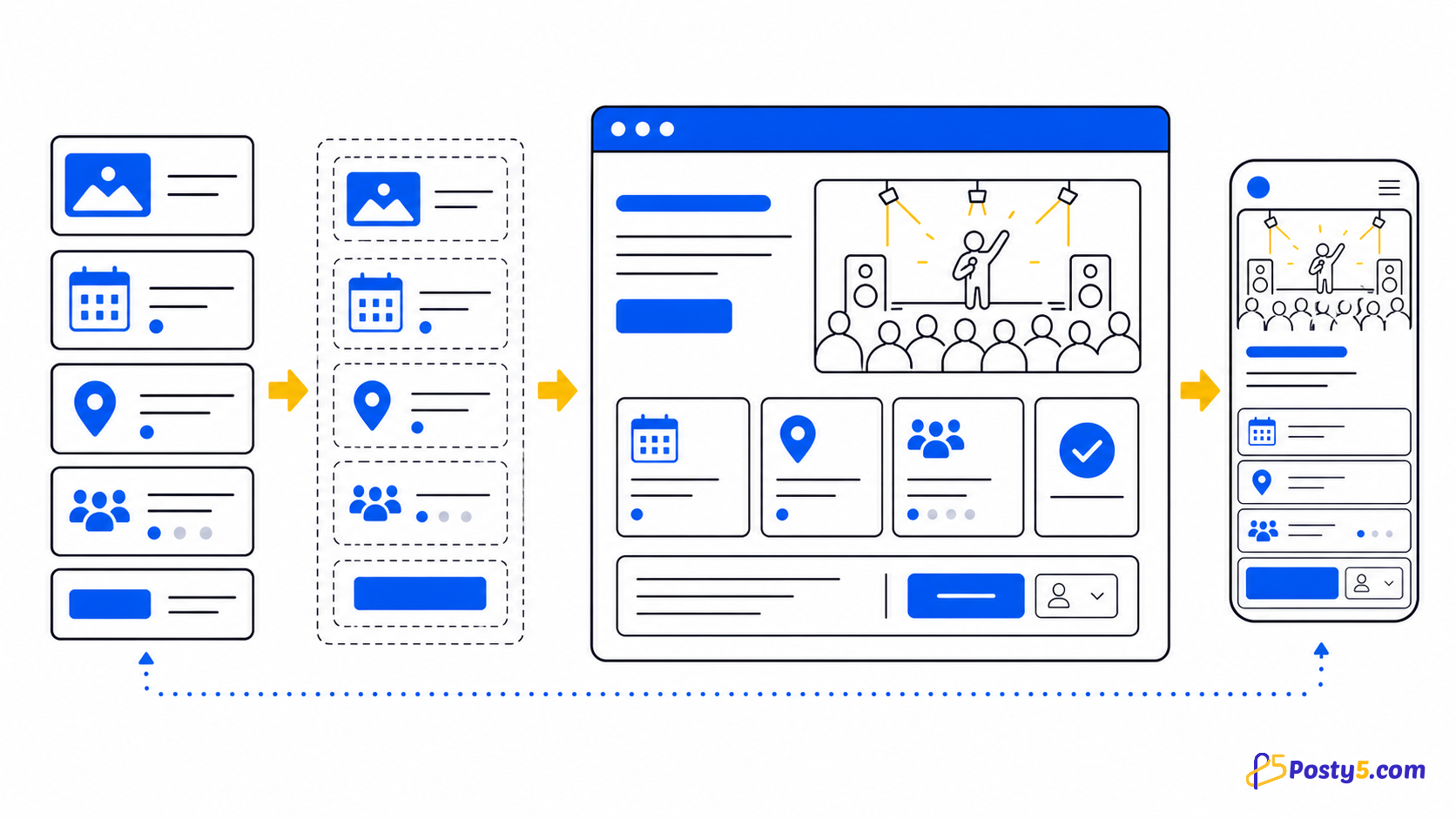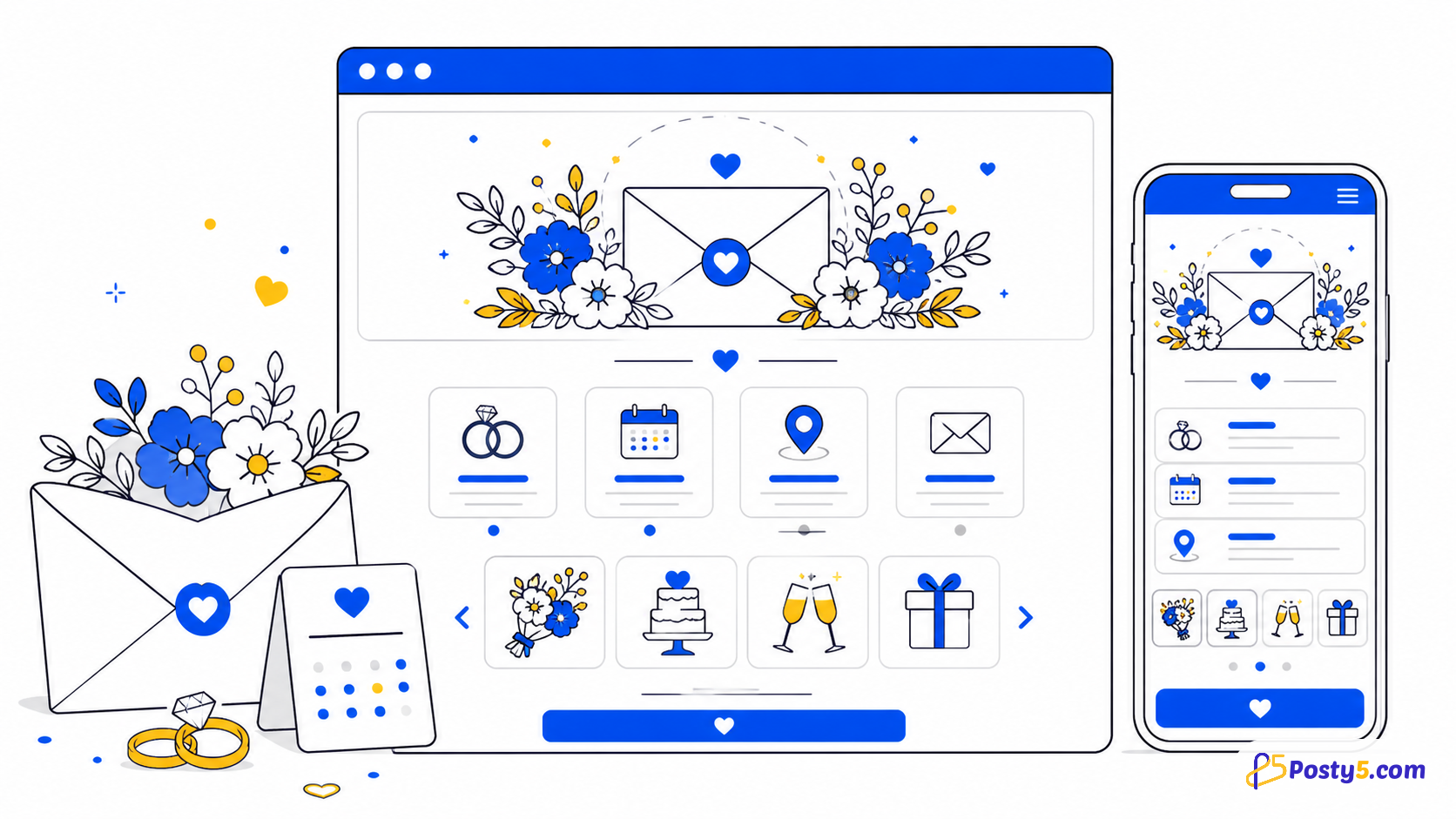
This guide explains How to Create a Link-in-Bio Page with Posty5 from the current Posty5 implementation, so the steps match the editor rather than assumptions.
What the page includes
The verified structure for this page covers:
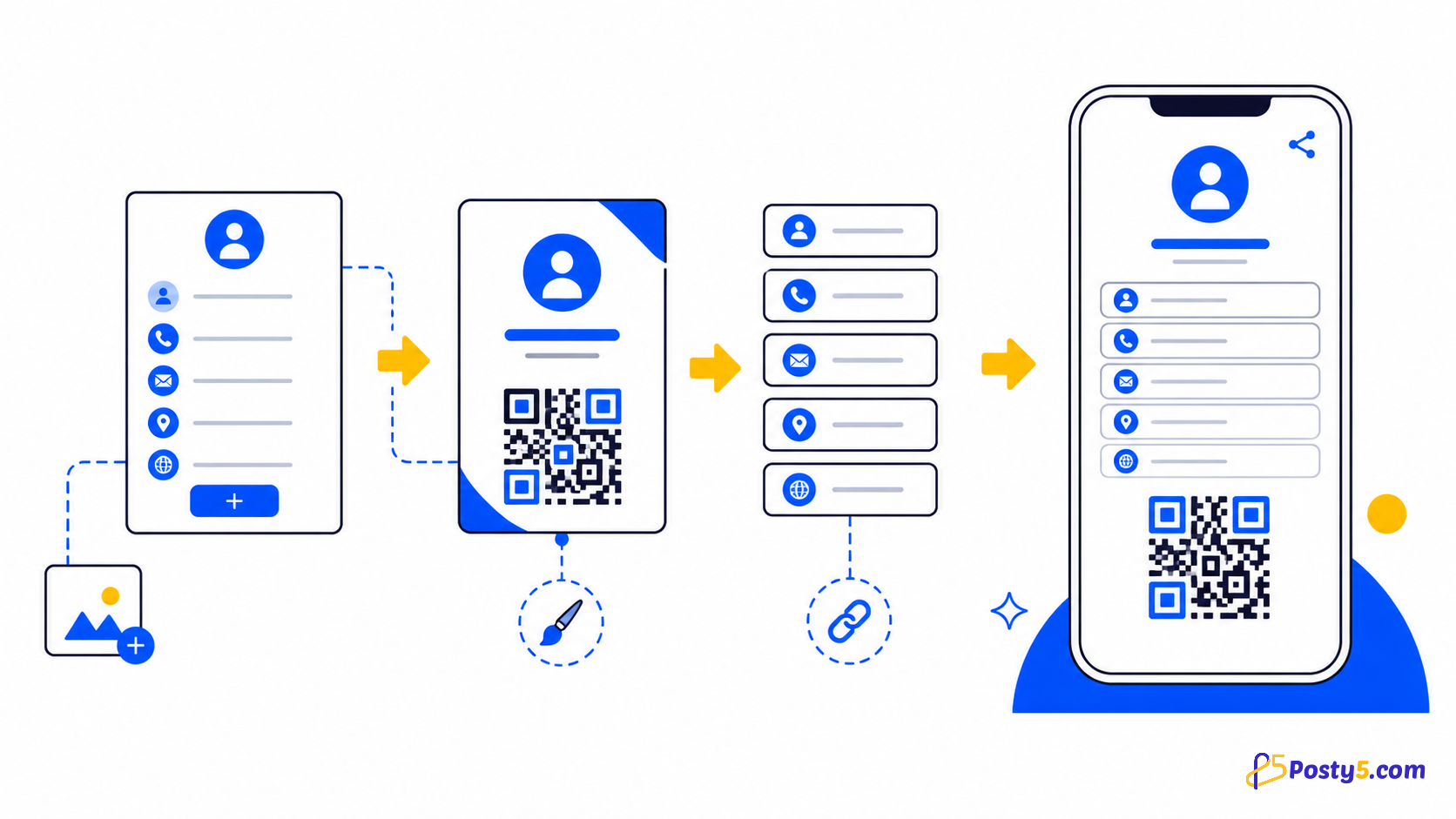
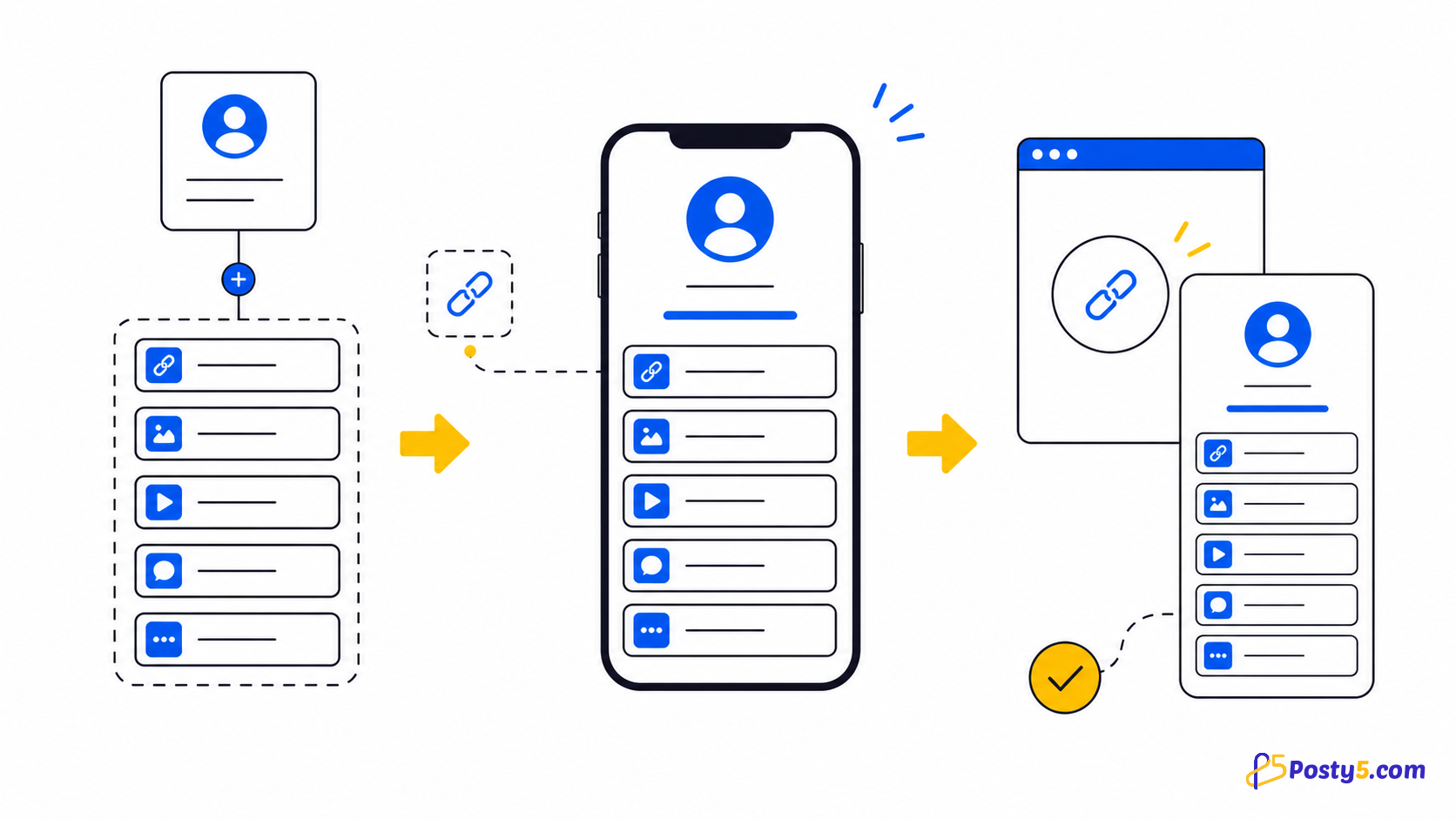
- profile image, name and tagline
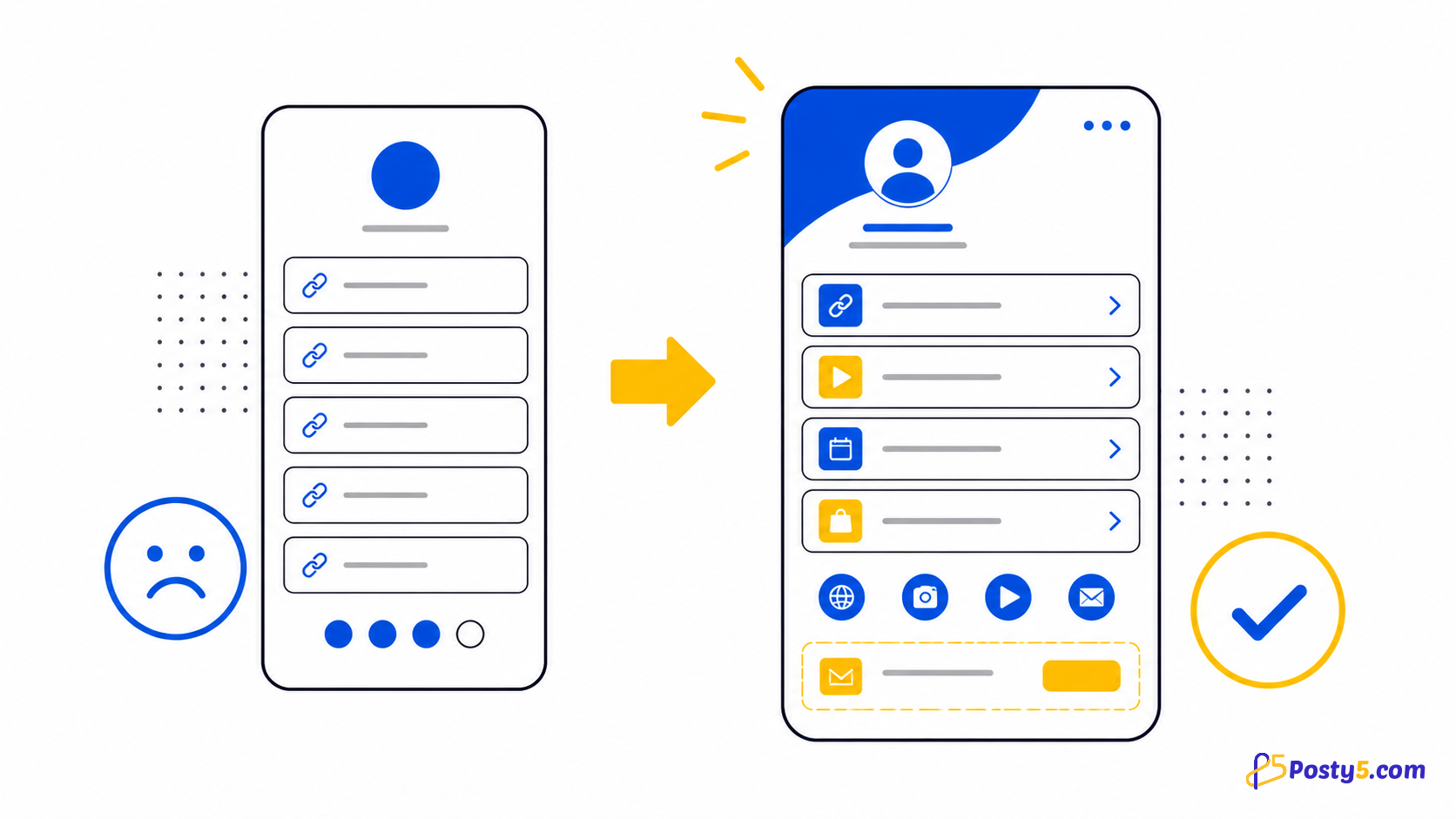
- stacked destination links and social links
- Classic and Tree variants
- optional review or click-count controls vary by variant
Choose the right template and structure
Select the closest template and variant for the page goal. Complete Page Info and give every visible section real content.
Build and publish step by step
Use this repeatable editor sequence:
- Select the closest template and variant for the page goal.
- Complete Page Info and give every visible section real content.
- Set SEO and Theme, then organize the Page Content fields.
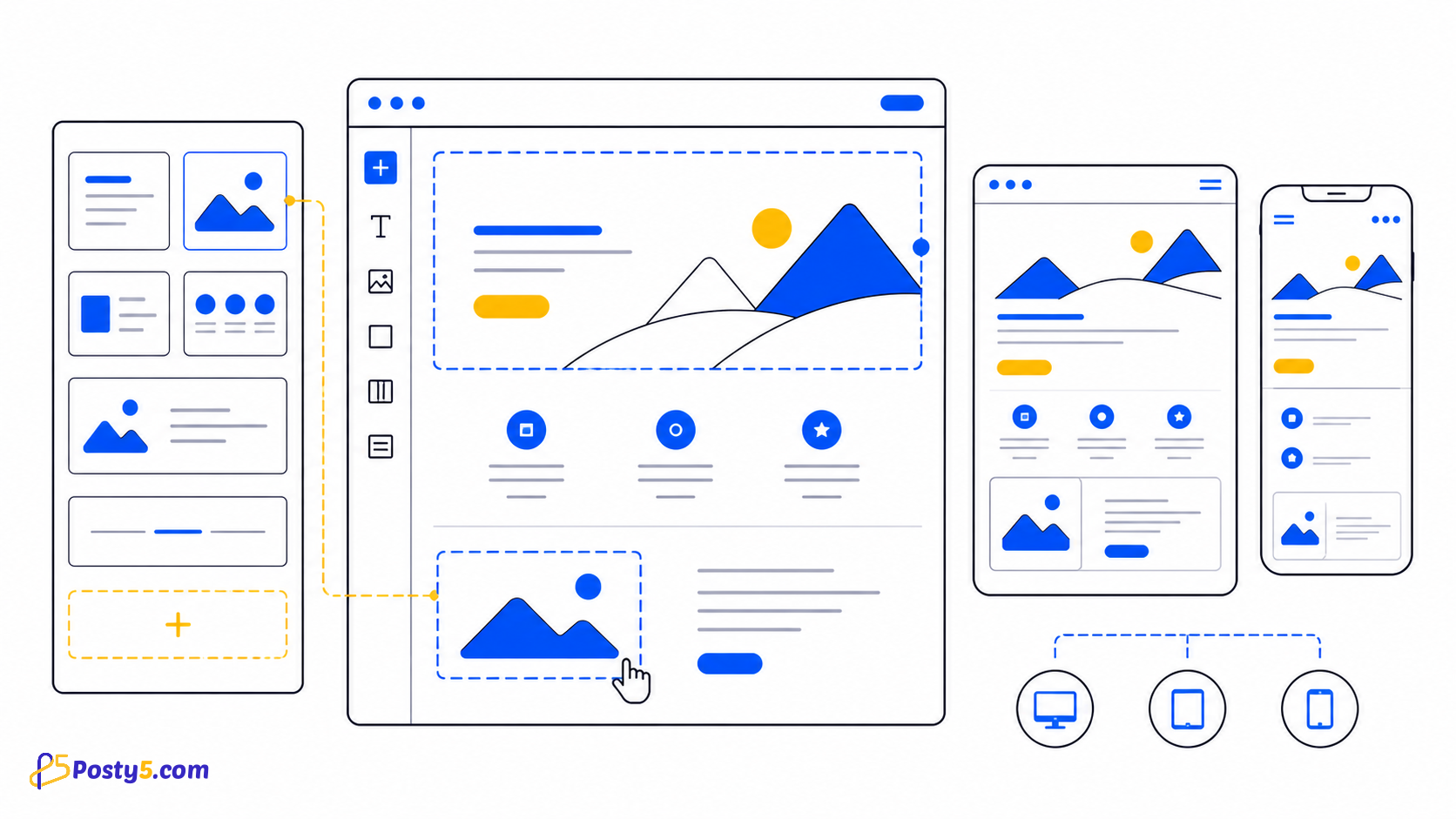
- Add translations where needed and preview desktop and mobile layouts.
- Publish, open the public address, submit one test form where present, and keep Unpublish available for corrections.
Review before sharing
Open every link, check images and dates, read the page on a narrow screen, and verify a real submission in the dashboard when the template includes a form.
Open Page BuilderImportant boundaries
The two link-in-bio variants do not expose identical controls. Check the selected variant, test every destination, and treat external-link availability as the destination owner’s responsibility.
Frequently asked questions
Do I need to write code?
No. The workflow uses a selected template and structured editor fields.
Can I edit the page after publishing?
Yes. Reopen the page, update its fields and publish the corrected version.
Can I choose the slug?
A custom slug must pass format and availability checks; access to custom choices can depend on the account plan.
Do all templates include a form?
No. Form fields and submission review apply only to templates that include a form.
Should I test the mobile view?
Yes. Preview both widths, then test the actual published address.
Which template should I choose?
Choose the template whose fields match the page goal; do not select by appearance alone.
Continue through the Page Builder guides
These guides cover the same Page Builder workflow from different angles: