Posty5 reads the selected image into the page and crops it with code running on your device. No request carries the image to Posty5, and the public tool opens without an account. The other side of that privacy is simple: nothing is stored, so download or copy the result before closing the tab.
What you need
An image file and a modern browser. No installation or account is required.
Crop an image in four steps
1
Choose an image from your device.
2
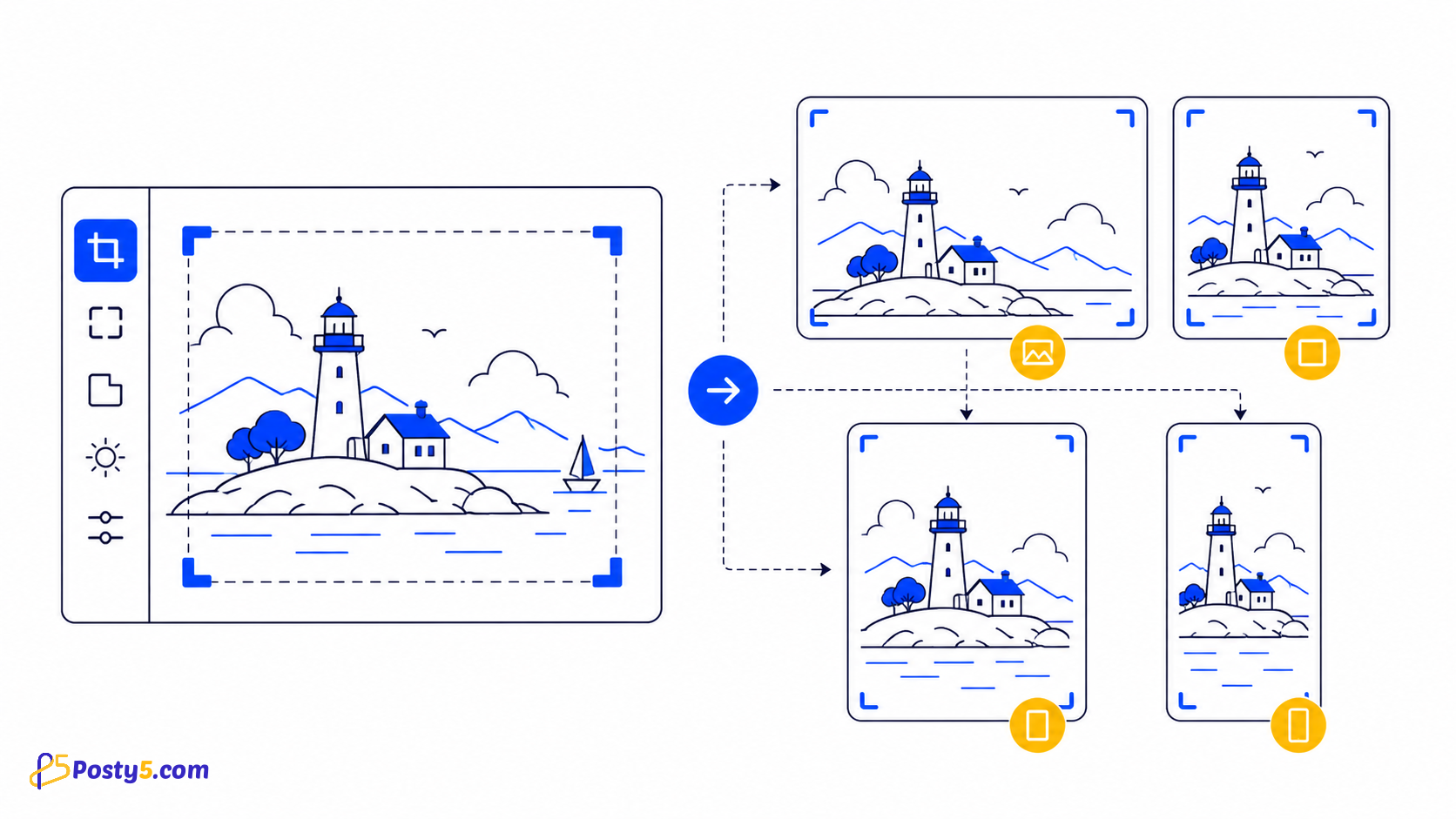
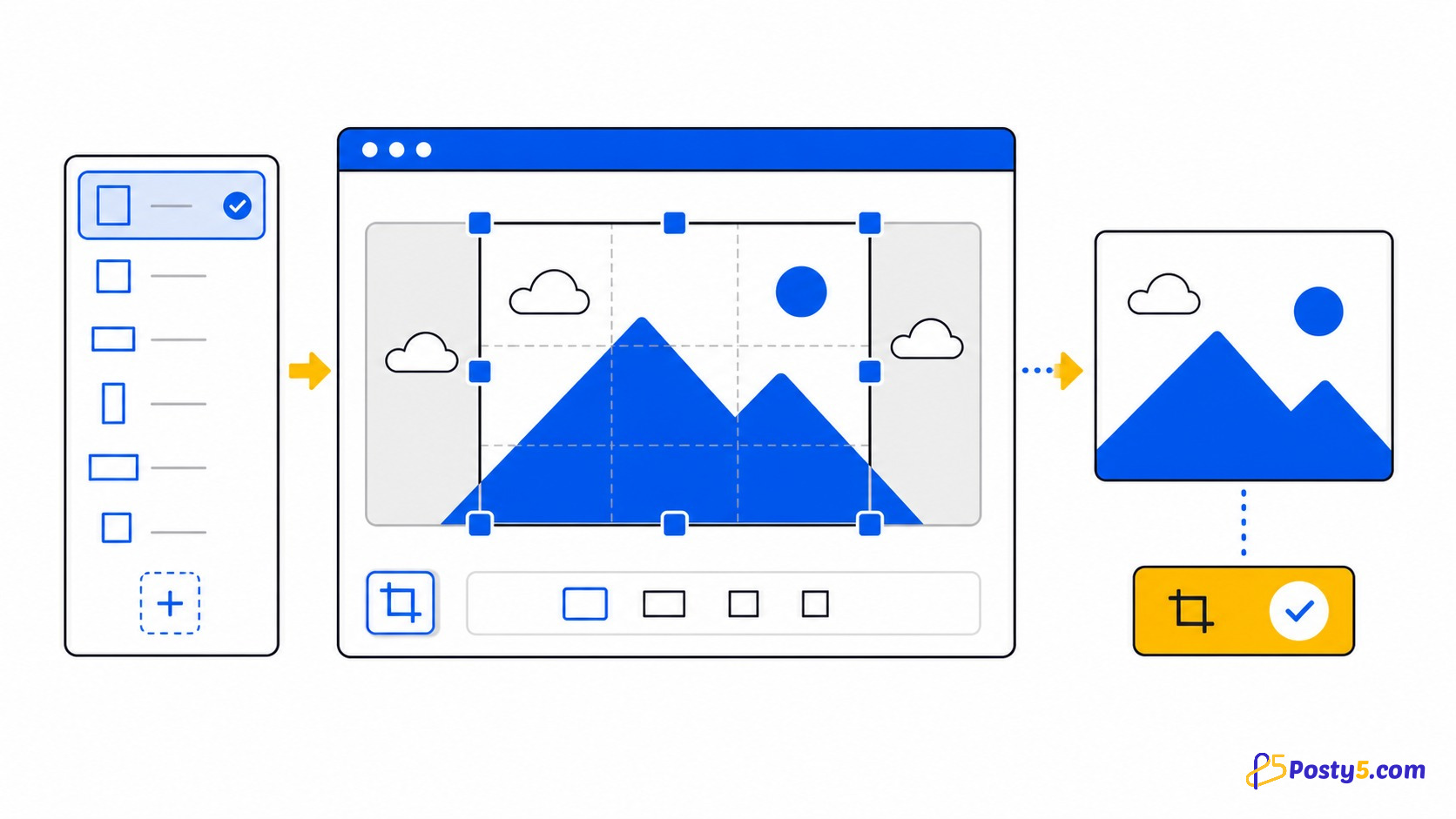
Pick Free Size, 16:9, 4:3, 1:1 or 2:3.
3
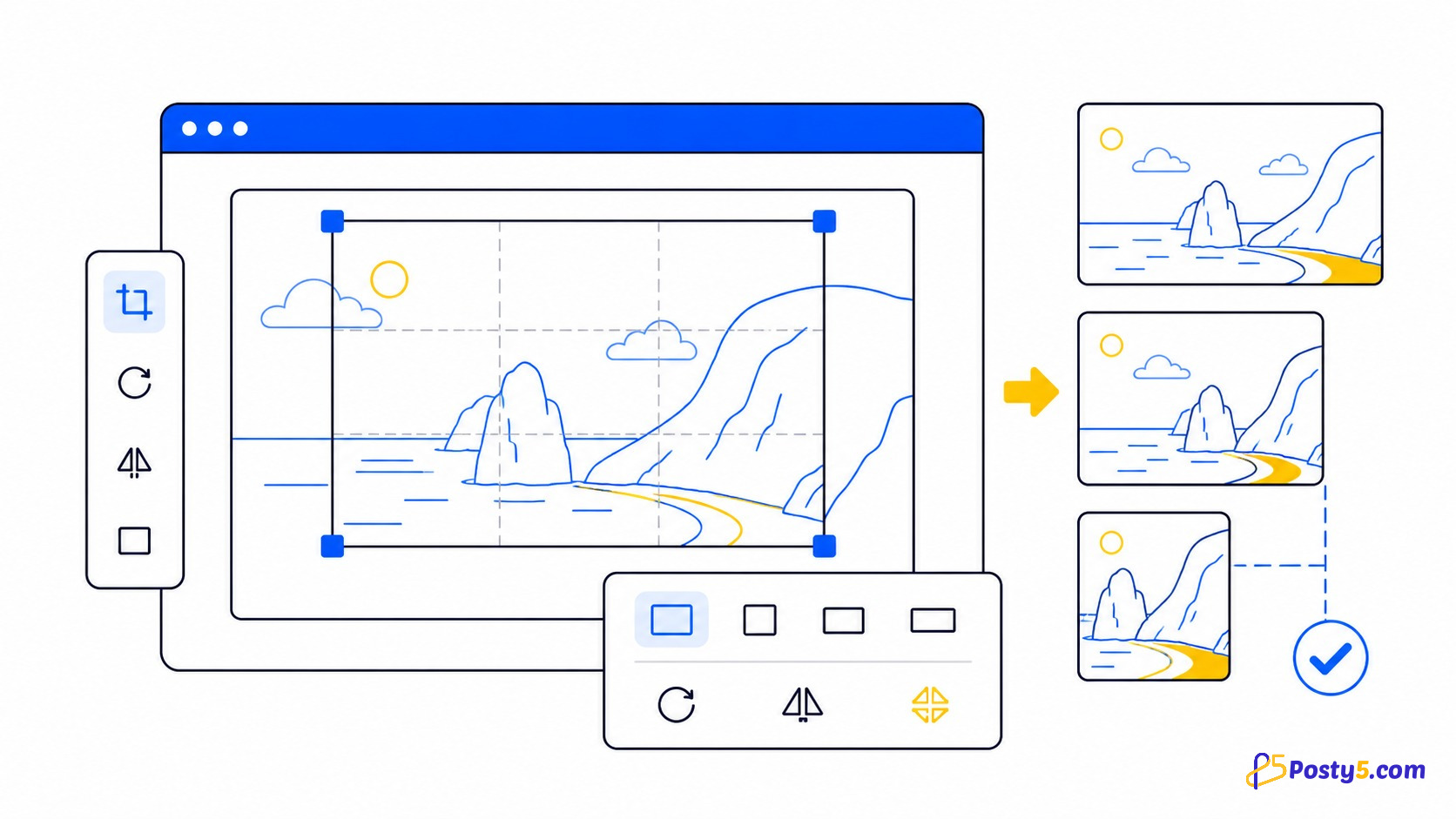
Move the crop box and use zoom, rotation or flip if needed.
4
Press Save, check the preview and then Download or copy the code.
Cropping to a square
Choose 1:1, position the crop box around the subject, and keep important details away from the edges. Save and inspect the square preview before downloading.
Common mistakes
- Closing the tab before downloading, because no history is stored.
- Expecting a JPEG selector; the generated canvas data is PNG.
- Using a ratio before checking where the finished image will appear.
- Embedding a large base64 result directly in a page and making the code unnecessarily heavy.
Save, download or copy the result
Press Save to generate the output. You can then download the image or copy its base64 data URI, a ready-made HTML tag, or a CSS background-image rule. A data URI is useful for a small embedded asset, but large embedded images make HTML or CSS much heavier.
Frequently asked questions
Is my photo uploaded?
No. The file is read and processed in the browser; it is not sent to a Posty5 image-processing endpoint.
Which ratios are available?
Free Size, 16:9, 4:3, 1:1 and 2:3.
Can I rotate or flip the image?
Yes. The visible controls include zoom, 45-degree rotation, horizontal and vertical flip, and reset.
Is the crop saved?
No. Download or copy the output before closing the tab.